


Inspiring
October 17, 2016
Open for Voting

P: Option to stop syncing photos in a Collection when that Collection is stopped from syncing

  • October 17, 2016
  • 68 replies
  • 2767 views

Bring back the possibility to stop a Collection from being synced AND stop photos in that Collection from being synced as well, in one-step.

Since LR CC 2015.7 this happens when you stop syncing a Collection (clicking the little sync icon or deselecting Sync with Lightroom Mobile via mouse contextual menu):
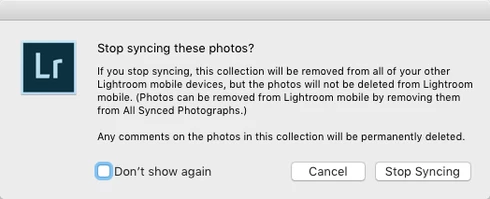


(Now you have to go and find those photos in that Collection from All Synced Photographs and remove them from there. Too many steps, too cumbersome and too easy to make a user error.)

There still is the requested option to remove photos at the same time when you delete a Synced Collection instead of just stopping it from syncing:
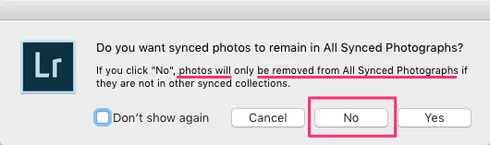


That same option should appear for just stopping the Collection being synced as well.

The first dialog for stopping a Collection from being synced is messy altogether as it asks if the user wants to "Stop syncing these photos?" but the button for doesn't actually stop syncing the photos and instead keeps those photos synced to LR Mobile and Web and just stops syncing the Collection name.

So at least more correct title could be "Stop syncing this Collection?" and that's not enough as there needs to be a way to stop syncing a Collection AND stop syncing photos in that Collection, in one step (unless they are part of another Synced Collection).

68 replies

arjunhaarith
Adobe Employee
Adobe Employee
July 4, 2017
Hi Milan,

By desktop collection do you mean that this was removed from the actual folder in your desktop ?
Or a user created collection in Lightroom ?
If you remove an image from All synced Photographs, then it means that the photo can be unsynced (as all synced photos acts as a master collection for synced photographs). By removing an image from All synced photos, then it only removes the image from a synced collection.

Thanks,
Arjun
visuals.sk
Participating Frequently
July 3, 2017
This hidden "features" are main reason why im considering to stop paying for this software :(. For who is this function good ?

Why removing photo from all synced photographs removes it also from desktop collection ?!
Inspiring
May 30, 2017
Thanks Jonathan! Didn't know you can filter Collections to show only Synced Collections via clicking on magnifying glass. Helps a lot.

As for need to manually select each of the Synced Collection to be able to select all photos that are part of a Synced Collection, I have to say, again, that's insane.

I have 438 Synced Collections. What's Adobe's suggested workflow to remove photos from sync, you may ask. To manually remove photos not wanted to be synced from  All Synced Photographs collection. So, I go on and follow Jonathan's advice and first filter only Synced Collections to be shown, then mouse click 438 times to select each Synced Collection, select all visible photos, select All Synced Photographs collection, Invert Selection and choose Remove from All Synced Photographs.

That's no good.

(Yes, I needed to count the total of my Synced Collections by hand as LR doesn't have the function to select all Synced Collections and let the user know how many Collections are currently selected.)
Inspiring
May 30, 2017
As Victoria said, current way for managing Synced Collections in LIGHTROOM DESKTOP is designed for MOBILE USERS. That's insane. There got to be other way.
Inspiring
May 30, 2017
Jonathan, thanks for the hint "the mostly hidden filter tool" – I always was hoping for such a filter and was not aware, that it already exists. Should study LR again with a magnifying glass ... let's see, what can be found 😉
Victoria Bampton LR Queen
Community Expert
Community Expert
May 28, 2017
> I cannot figure out why anyone would want it to work the way it does now.

For people who are primarily cloud/mobile users, the current setup makes really good sense - why would they want their photos removed from the cloud just because they stopped syncing a collection (especially when the photo may be in many collections).

For people who originate on desktop and are just using the cloud for a specific purpose, the current behavior makes a lot less sense, especially for those who have limited bandwidth.

It's just a difference of perspective and starting point. Which is right is anyone's guess. Adobe had to pick one, based on their userbase stats. With enough votes on this request, their choice may change. I won't argue whether the current choice is right or wrong, but sometimes it helps to understand the reasoning. 
Victoria - The Lightroom Queen
Inspiring
May 28, 2017
I wholeheartedly agree with the original poster here. The current behavior is frustrating and wrong. Photos that can be adding to sync as part of a collection should be removable from sync as part of a collection. As it is, the process for safely removing photos from sync is a 7 step process when it should be a single step process. I cannot figure out why anyone would want it to work the way it does now.

For the record, here is the simplest process I know that works right now:

1) Using the mostly hidden filter tool in the collections panel, select "Synced Collections" (click on the magnifying glass)
2) Individually select each of the synced collections. (Note: You don't want to select any collection sets here since that will end up selecting all the photos in that collection set, not just those from the visible collections)
3) Select all photos that are visible (all synced photos that are in a synced collection)
4) Select the "All Synced Photographs" collection which should maintain the selection.
5) In the Edit menu, select "Invert Selection"
6) Review selection to make extra sure nothing is selected incorrectly
7) Use the context menu to select "Remove from All Synced Photos"
Inspiring
May 15, 2017
This is still a pain. As someone noticed before: "When a photo is not part of any Synced Collection it should not be synced". This folder "all synced photographs" leads me to confusion again an again. May be there are solutions, but in reality I end up with too much photos on my mobile device and it happened to me that I deleted photos accidentally from important collections by removing them from "all synced photographs".
Jim Wilde
Community Expert
Community Expert
April 13, 2017
What OS? I'm not seeing any problem on OSX (10.11), selected photos remain selected when changing to All Synced Photographs (though of course the selected images may not all be initially visible in the Grid if they aren't contiguous in the All Synced Photographs collection). The first image at least should be visible in the Grid, however, and scrolling up/down should reveal the rest.
Inspiring
April 13, 2017
Arjun, there seems to be a bug in select command when moving to All Synced Photographs:

  • while on Library mode and viewing a Collection, select all photographs
  • change the view to All Synced Photographs via mouse clicking All Synced Photographs
All selected photos get deselected.

This only happens when changing the view to All Synced Photographs, not when changing to All Photographs, Quick Collection or another Collection where those photos are part of or the Folder where those photographs remain.

This makes it even harder to get unnecessary synced photos unsynced.