


Participating Frequently
November 8, 2024
Open for Voting

P: Reveal the whole uncropped image when using Remove Tool.

  • November 8, 2024
  • 5 replies
  • 581 views

I was trying to remove a distraction on the corner of the image, and was only selecting what was visible in the crop and the remove tool was giving me weird results.

Took me a while to discover that's because I was not selecting the full object till the actual end of the image, which was ocluded by the crop.


What I think a better behaviour should be is, to show the whole uncropped image when you're applying any of the Healing/Remove/AI fill tools, with some minor overlay of what's cropped.

If you're using those tool on a portion of the distraction you usually get weird results.


Here's some Remove Tool results by selecting what's visible (after the crop)
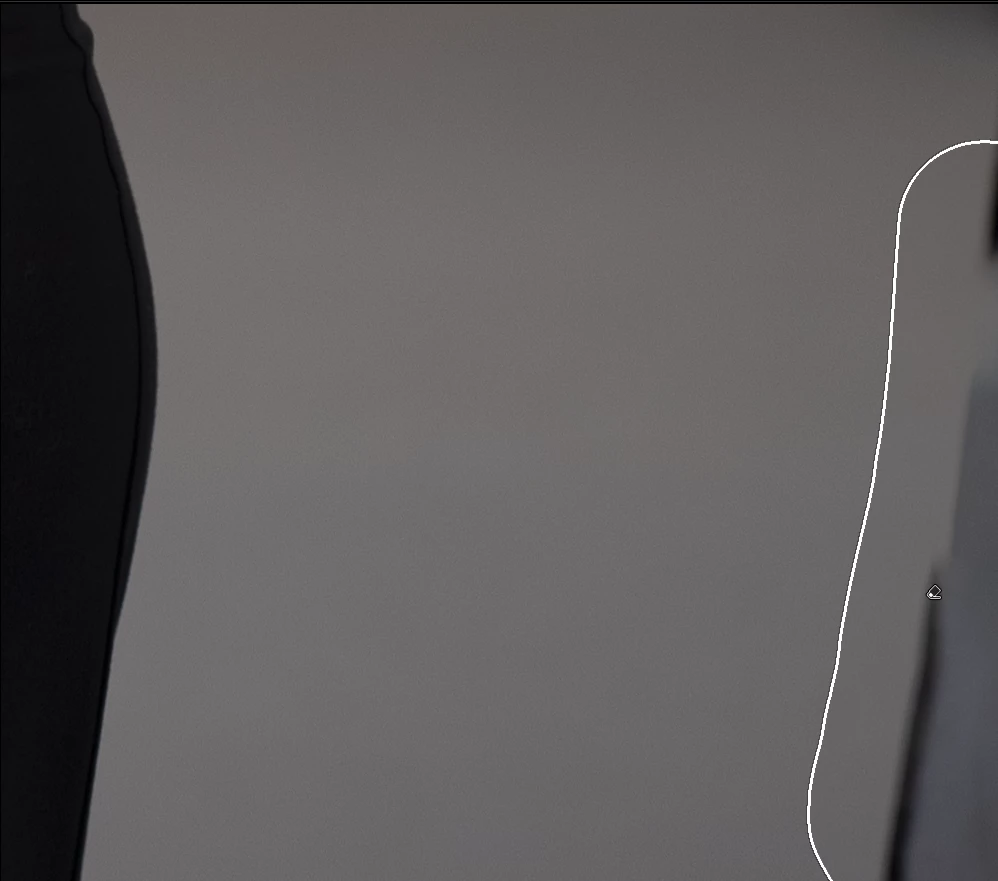
 

I can cincumvent this by drawing a much larger area outside the cropped frame to get good results.

But...

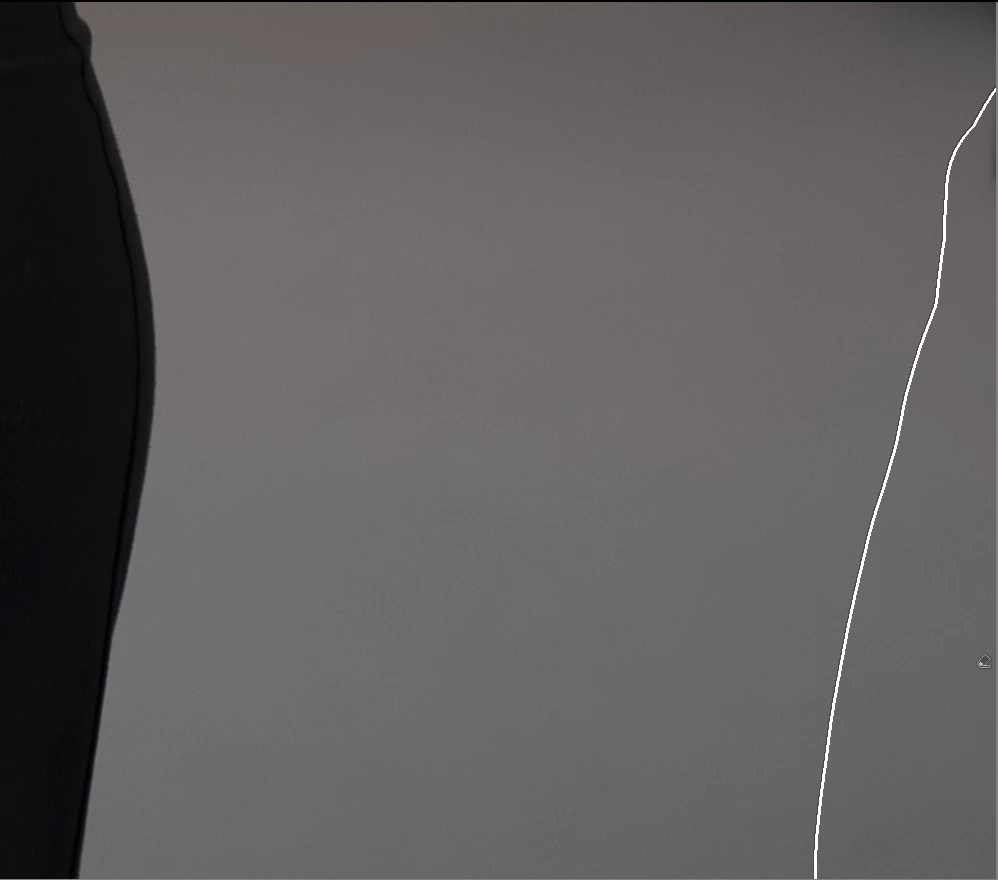
Not a bug but annoying: Notice how the pin is now greyed out. I can't select it as it's center is outside the limits of the crop.
 

5 replies

Rikk Flohr_Photography
Community Manager
Community Manager
December 12, 2024

With the December Releases it is no longer necessary to perform Generative Remove prior to Cropping. The new logic should handle the removal of items adjacent to crop boundaries. 

Rikk Flohr: Adobe Photography Org
johnrellis
Legend
November 9, 2024

Applying Remove to a cropped image is a very common cause of confusion for new users of Remove:

https://community.adobe.com/t5/lightroom-classic-discussions/p-generative-remove-feedback-lr-classic-amp-lr-eco/m-p/14962044/page/4#M385749


I think most people crop as the first step in their workflow, since cropping affects all the tone adjustments (exposure, shadows, whites, blacks).  And you can't tell which objects need removing until you've cropped.  So the current design of remove first just doesn't fit a natural workflow.


Ways that Adobe could easily improve the current confusing UI:


1. Show an italic warning message in Remove panel when there is an existing crop, lens correction, or transform applied (all of which crop the photo).


2. Temporarily disable existing crops, lens corrections, and transforms while the Remove panel is active. (This requires that the Crop tool allow disabling, the only Develop tool that doesn't'.)


Note that Lens Blur is automatically disabled while the Remove panel is open. It's ironic that Adobe implemented that for Lens Blur, a tool much less used than Crop.


Community Expert
November 8, 2024

i meant, as a proposed Idea, that a means of suspending the effect of the crop temporarily might be helpful more widely, not only in terms of the Remove Tool.


Currently each panel has an "eye" button which one can hold down to temporarily see a Develop preview without the application of the adjustments within that panel.


I was thinkiing, if Crop could be given a similar button - but one that acted as an on/off toggle - one could temporarily work on an uncropped image as desired, but without losing crop settings.

Participating Frequently
November 8, 2024

How do you suspend the crop? You mean reseting it?


Best work around I can see is:

Copy Setting > Check None > Check: Crop > *head to the Remove panel > remove what you want > Paste Settings (Crop Setings only).


I've seen a tooltip when the AI fill is processing about using at the edges, but it didn't stay up long enough for me to read it.

Community Expert
November 8, 2024

A more generally useful approach may be to temporarily suspend and then later re-enable a (meanwhile remembered) crop?


There are workarounds e.g. via syncing between virtual copies but - laborious.