


Option to make Anchor/Transform persistent for each layer
Example:
If you wanted to align duplicates of a layer/smart object around a circular orbit,
you currently have to do what is shown in the screenshot.
CTRL+T → change transform location → rotate → confirm
Duplicate Layer
CTRL+T → change transform location → rotate → confirm
Duplicate Layer
CTRL+T → change transform location → rotate → confirm
etc…
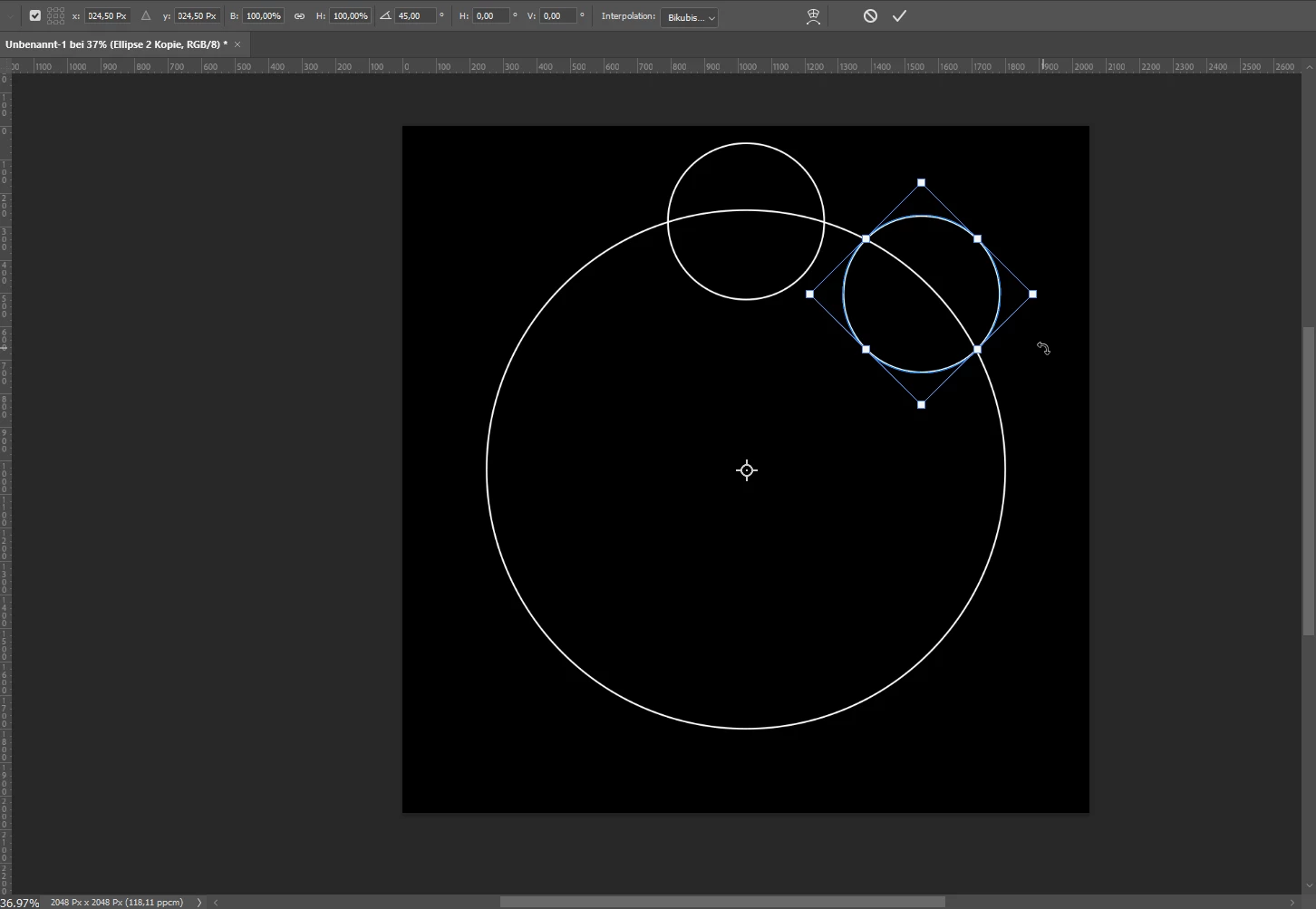
Problem:
After confirmation, the transform origin resets back to the center of its specific layer.
Repeats of the action require a tedious setup every time.
Feature request:
Checkbox for “Persistent Anchor Location”, or just “Persistent Anchor”.
Something like that.
How should it work?
- The user checks the box located in the transform control bar.
- When moving the anchor point,
it’s relative location is saved to the layer, it should not reset to the center of the layer after exiting the transform tool.
Thus when selecting that layer and entering the transform tool again,
the transform anchor should be where you’ve moved it to before. - When duplicating the layer,
it should copy the anchor location from the original.
It should be a local variable, not a global one.
So the checkbox only remains ticked on the layers the user performed the action on and its duplicates.
Entirely new layers default to the standard behavior.
This behavior could be relegated to a setting, so the user can specify the default behavior.
Additional features:
- Reset Anchor button
Resets the anchor for all selected layers to the center of each layer. - Relative/Global Anchor switch
“Relative” (default) retains the anchor position relative to the layer’s location on the canvas.
“Global” sets the anchor relative to the canvas itself, so when moving the layer, the anchor stays put.
Again, the default behavior could be added as an option to the settings.
Benefits:
Greatly increases efficiency for workflows that aren’t grid aligned, enabling intuitive creation of fluid designs and keeping symmetry more easily.
Side note:
I am aware of workarounds, but they add clutter.
There shouldn’t be a necessity for workarounds to achieve rather basic functionality.
3D tools like Maya and Blender have a similar feature, it is quite important and I don’t know why Photoshop doesn’t have it.
 AdChoices