


Isaac Smeele
Known Participant
November 18, 2017
Open for Voting

P: Ability to change the duration of multiple layers at once

  • November 18, 2017
  • 14 replies
  • 25342 views

Hi I am animating an image in photoshop and all layers need to be the same length. I can't for the life of me figure out or find an answer for how to change the duration of multiple layers at the same time. When I have them all selected and drag it only change one layer. If I select them all move the play cursour to the frame i want to cut on and click the cut button it does this insanity for some reason:
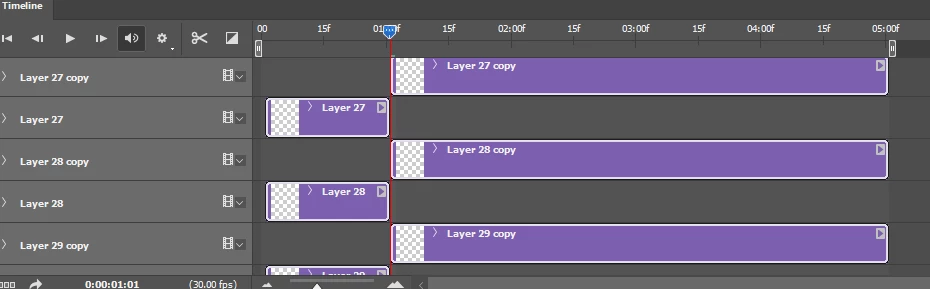
why would anyone ever need to change the length of multiple clips in this way????

14 replies

Participant
December 2, 2021

Is there an easy way instead of doing these one by one?

I showed it with the video in the link below.

https://youtu.be/ChVMi16Gzow

romanj68412350
Participant
May 23, 2019

Did you ever find a solution to this? I cant seem to find an answer and i dont think anyone seems to understand the problem. I have a bunch of layers and i want the duration for all of the layers to be 20 seconds. Is there any way to make all of them 20 seconds long at once? Or do i need to adjust each individual layer?

Participant
March 9, 2020

Dear Adobe, please allow us to drag the end of multiple layers (at once) in Timeline to a specified end point. Doing them one by one is leaving so much margin for error and is also very time consuming in heavier files, especially working in social media which is often a pressing need.

Participating Frequently
August 15, 2020

Dear Adobe really dont care. They offer a great drawing program with the possibility of animation. However, the animation options lack basic functionality, specifying the frame length is one of them. Animation consists of many frames, so it is obvious that you need a function that allows you to edit them simultaneously. And that's not a complicated feature. They haven't done anything about it for years.

alotofalotte
Participant
January 18, 2019

Hi there!

I had the same question but luckily I found a semi-solution for you!

- Either you just put all your layers in one group, then select the grey bar on the video timeline that represents this group OR you select all the separate purple video layers.

- Place your playhead at the point you want to end the videos.

- Click the three bars in the right corner to open the menu of the video timeline.

- Choose "Move & Trim"

- Then finally click on "Move end to playhead"

Voila! The selected layers should now all end at the point your little red line is at (which is way easier than needing to slide them one by one manually, am I right?) I hope this works for you too, if you have any more questions let me know! Up until today Photoshop still won't allow you to trim more than one layer at the same time, sadly enough.

Lotte (Adobe Photoshop CC 2018 user)

Participant
March 9, 2020

This unfortunately does not do what is asked for, it moves the layers to where the playhead, but doesn't let you extend the duration of multiple layers at once to a new end frame. The grey bar drag doesn't seem to do it either. So far only option is one by one, layer by layer. Adobe addressing this would be HUGE for peoples' workflows.

c.pfaffenbichler
Community Expert
Community Expert
November 19, 2017

Maybe you should post some more meaningful screenshots that include the pertinent Panels etc.

Isaac Smeele
Known Participant
November 19, 2017

Not sure what other panels you would want to see. this is the only pertinent  panel and it's where the issue is occurring.

c.pfaffenbichler
Community Expert
Community Expert
November 20, 2017
Not sure what other panels you would want to see.

The Layers Panel for example.

What issue exactly?

In the absence of a »before«-screenshot

it does this insanity for some reason

seems like a less than fully meaningful statement.