
Participant
February 15, 2024
Open for Voting

Copy and Paste Videos from Sequence Timeline for MOGRTs

  • February 15, 2024
  • 4 replies
  • 820 views

I have been obsessed with MOGRTs since I have learned about them. I know their main purpose is for small little customizable graphics. However, I have also found them super useful for being able to quickly edit cool layouts and transitions for those layouts without actually need to animate every time. Please view the video below to see what I have made and am referring to:


In order to create something like this in Premiere Pro, you need to use 3 MOGRTs back to back. 1 for the transition into this layout, 2 for the layout itself, and 3 for exiting the layout. See below:
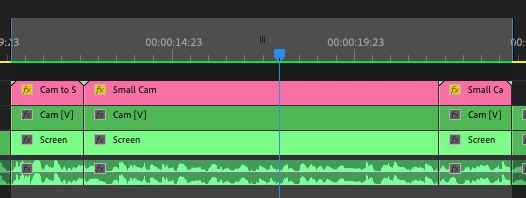


If you look at the timeline above, you will see 3 MOGRTs (in pink) and then a camera and screen track for the video.


The issue is that I can't just copy/paste the clips from the sequence timeline into the MOGRT. I have to export them to my computer, import them into Premiere Pro, and then place them in the MOGRT. It would be amazing if we could copy/paste from the sequence timeline to save time AND save space on my computer.


If I apply this effect multiple times per video, we are looking at 18-36 video clips that I need to create which takes a lot of time for exporting and space on my computer. The 18-36 videos can take more space on my computer than the actual video file size that I am editing lol. 

4 replies

Warren Heaton
Community Expert
Community Expert
February 17, 2024

I'm thinking rather than try to do it in a MOGRT or MOGRTs, select the video clips in the Premiere Pro Timeline, right-click and then choose Replace with After Effects Composition.  Then do the rest of the motion graphics directly in After Effects.

DaciaSaenz
Inspiring
February 16, 2024

Hi @theryanshafer!


LOVE your energy for Mogrts!!! Good news! 

If you're using the Media Replacement controls in an AE Mogrt, you can simply open the clip from the timeline in the Source Monitor and drag and drop the clip into the MR Control from there! 

If you need to futz with the timing, add effects, etc, double-click on the MR Control thumbnail and that will open up a secret timeline that will let you make adjustments to the clip in the Mogrt. 


Hope this helps! 


- Dacia Saenz, AE & PR Engineering Teams
Kes Akalaonu
Inspiring
February 16, 2024

That's likely the best course. Users would also have to configure the MOGRT to have a media replacement function in order to utilize that. Be aware though that any MOGRT with responsive design can have interesting results.

Community Expert
February 16, 2024

I can't tell exactly without seeing available options in the Mogrts, but you can nest clips in the timeline and use the created sequence in the project panel by dragging it to your Mogrt's clip placholder, just a wild guess...