



In "effects controls" inside the keyframe graph, if a second clip is selected, show it's keyframes location in another color inside the graph. That will help us sync animation timing and probably save 3 or 4 clicks on every single adjustment.
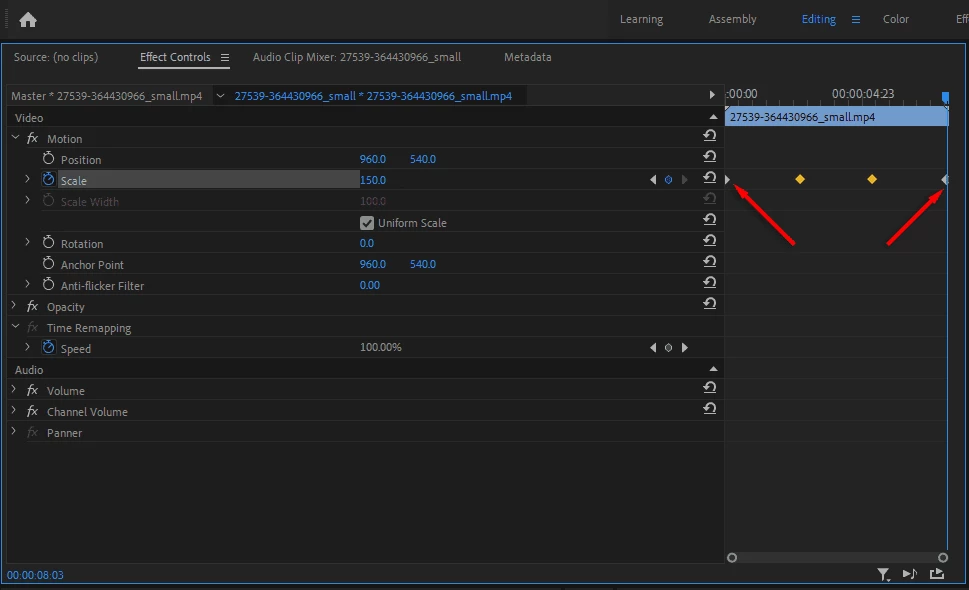
Here you can see the keyframes graph in the effect controls panel, when you select a clip it's properties appear in the effect controls panel.
What I am suggesting is if you press shift and select another clip on the timeline, it shows the values and keyframes of the second clip in another color like the 2 keyframes that i've added in between the main keyframes of the first clip.
How it works: Just select another clip on the timeline, you can give it a toggle button too.
Useful in: Synchronising animation timing in a complicated timeline, comparing values and effects between multiple clips, copying and pasting x or y axis only easily as "copy & paste attributes" option doesn't provide that. I am sure you can think of other uses too.
How it helps: Saves time and many steps to click on a clip then jump on the keyframe position on the timeline then select the another clip and add a keyframe at the same timecode just to sync the animation for each single keyframe, and the same to check or copy the value of a single property.
Big love from Egypt,
Thank me later.
 AdChoices