



Mask Keyframe Interpolation
Hi there,
I'm fairly new to using Adobe Premiere Pro, and my primary function in using the product is redacting audio and video for releases to the public. I've had great success using Premiere, but one problem I am having trouble figuring out is how to change keyframe interpolation of my masks.
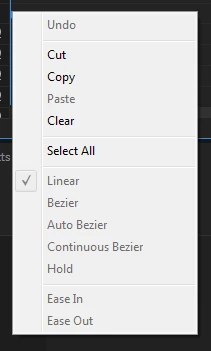
I am using a basic Mosaic tile mask to cover sensitive information, and after I make the keys for it's movement across the canvas, I right click the keyframes and my options for interpolation are greyed out. I've been working around this by rotoscoping quite a bit, but I feel like just changing how these keyframes are interpreted would be of great help.
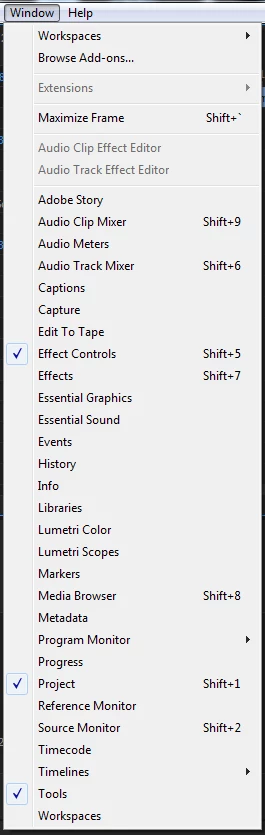
I've read the help files (to the best of my ability), and I've been directed to go to the "Windows > Mask Interpolation" menu. I cannot find that menu anywhere.
Here are two screenshots of the menus I have been looking at:
I am using:
Adobe Premiere Pro CC 11.1.2 (22)
2017.1.2 Release
I am sure this is a simple answer to the veterans out there, and I appreciate the time taken to review my question.
Thank you!
-Kyle
 AdChoices