


FlyingFourFun
Inspiring
July 6, 2025
Open for Voting

Metadata & Timecode Burn-in FX future update to allow XMP tags for City, State, Country

  • July 6, 2025
  • 19 replies
  • 835 views

I have been attempting to use this effect to display Metadata burnt into the video;

Specificaly, I had the EXIF tool wrote Metadata into the source Media for location and recorded/created date.


I think there is a bug in the effect;  many fields, will not display in the program monitor, despite there being clear data one can view, and even edit in the project window;


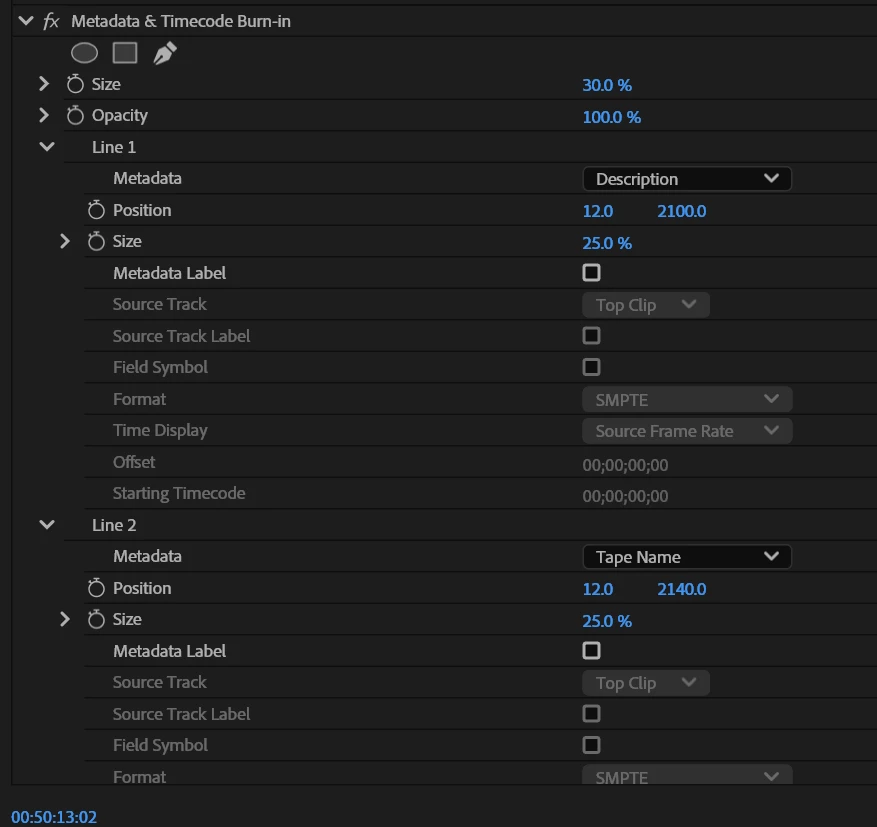
This is the effect setting: (Description will appear Line 1, But Line 2 data will not)
 

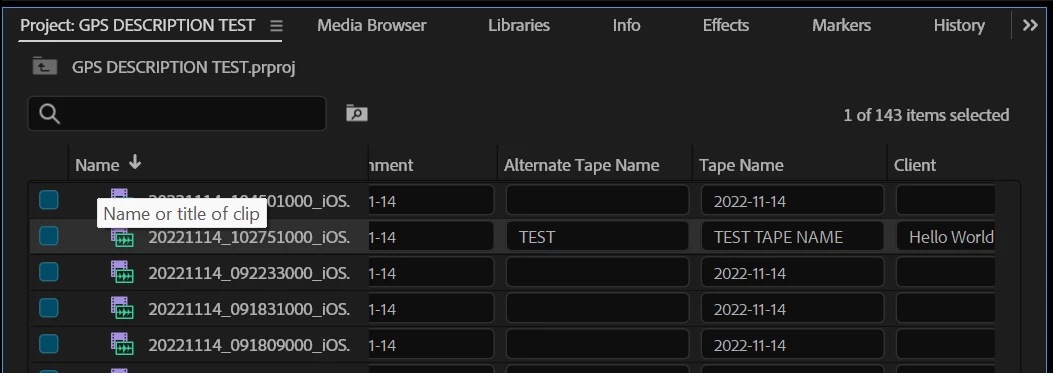
The Project window you can clearly see that there is Data in the Tape Name Field:
 

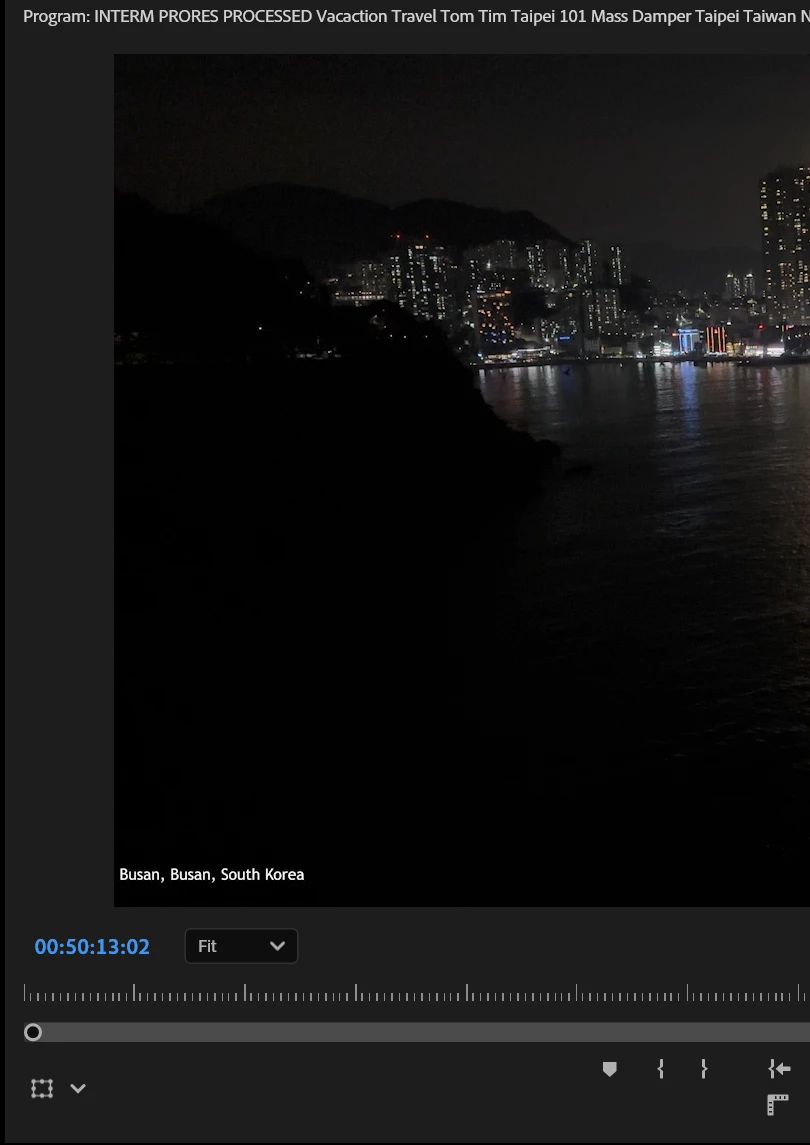
The program monitor will properly display Line 1, Description.  But many other fields despite being visable in the project metadata viewer will not display/burn in on the program monitor.
 

Can someone please advise if I am doign this wrong,  or if this is a bug thats repeatable for others?


Adobe Premier 25.3

Windows 11 Pro For Workstations 24H2

Nvidia 3090 Studio Drivers


Source Material is Iphone footage.  Metadata has been written/updated with EXIFTOOL;

Here is a sample, its not for the exact same clip shown above, but the same data was written the same way to 141 files, I was just lazy to match up the exact same file, but I assure you this happens on all 141 clips.


Also;  fields like "comment" also do not burnin, and are blank when used in Premier pro - that would be my ideal field to use,  but I am looking for any field I could use right now to allow me to show creation date of the clip as a seperate field from The geolocated data that appears in "description" now.
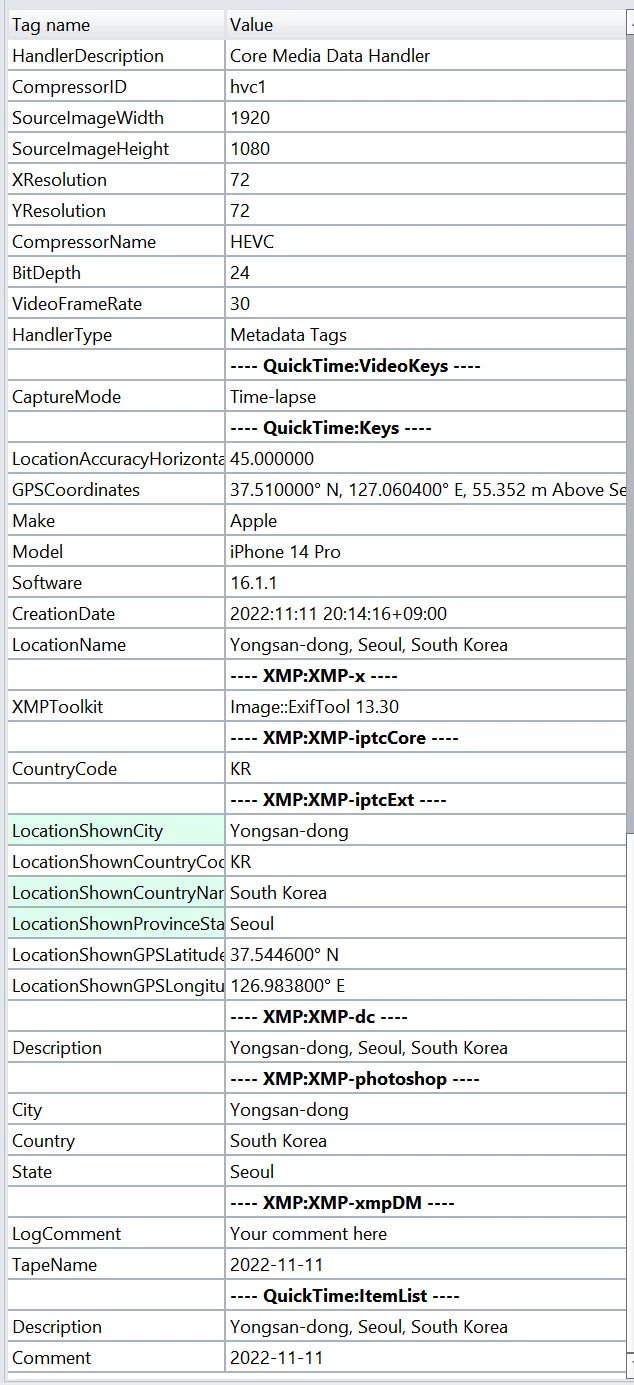


I am at a loss as to why this is not working, I have created multip projects, and restarted with new clips with clean metadata, and also manualy entered the metadata into the project metadata viewer.  No matter how, many fields such as comment, tapename and others do not get burnt into the video.  Decription for example works on any line, all the ones that dont work, also dont work on any line within the metadata viewer effect.


I have been tinkerign with this for hours now and I think I have figured out whats going on.  It seems that if you update the Metadata with the EXIFTOOL After you import the files, its hit/miss if the Metadata is properly processed.  It seems that you have to have all the metadata updated to the clip prior to importing the clips, or it will not work properly, often the metadata is visable in the project metadata viewer, but will not work for the burn in.  Sometimes Premier doesnt refreash the metadata from the file, and its not visable anywhere.  Even if you close the project and open it again


I also tried creating a new project after all the metadata was applied, and for smaller projects (line 15 clips) the import process works flawless and I can get "description" and "log Notes" to both work;  However in imports with more files, my sample was 141 clips,  most of the clips fail to have have the metadata appear.


This might have something to do with the background process I have enabled for transcrips and media idetification.  I will try at some point to turn those off and import the same sampel set of 141 clips to see if the same issue persists.


Basicaly,  there is some unpredicale behavior with the metadata after its imported.  There are times where I can update the Metadata, and literaly see the "generating peaks" appear for the clips that are imported, and the new metadata that was written by Exiftool becomes visabl ein premier project fields,  but it will not allow the burnin effect to read and display them. 


The onyl way to get it to work was to create a clean new project, and then it worked - expect for the potential inteference of the background processes with more than half of the 141 clips I am testing with.


Any advice would be welcome.

19 replies

IanB_360
Community Manager
Community Manager
July 7, 2025

@FlyingFourFun 
Could you share with the team a source file straight from the camera and one of those same source files with the third-party metadata columns applied?

I would like to see how each is read upon import and see if we can get some attention to these findings. You have been so detailed and helpful. Thank you.

Here to Help 
Ian

FlyingFourFun
Inspiring
July 7, 2025

@IanB_360

 Thanks for the tips.  I have tried all your suggestions.  The net of this is Premiere seems to have a programing defect with Metadata refresh cycles.


Regarding the fields you’re referring to in terms of setting visibility etc, I am aware of that process and used it.

The issue is even when the metadata is 100% in the file, Premiere will not show you that data, unless the metadata is already in the file BEFORE import.  If that data changes for any reason after importing, it’s not visible to premiere.


I have had conditions where (screen shot provided in first post) where you can manually enter data into the field and it will also not be read by the Metadata & Timecode Burn-in Effect in some situations.


Bottom line what works, have all the metadata coded before importing, and then it seems to work fine.  if you change anything after importing, delete all those clips, save project, exit, restart, and reimport (or create a new project).


To me, this signals an issue with Metadata reading/refreshing (yes, I have turned off write XMP data to file in preferences and tried with it on also to no effect).  The other possible issue is the effect itself also has an issue reading the Metadata.  100% of the time, timecode and other adobe generated fields reads fine.   Timecode, filename etc. - all the stuff adobe seems to handle on a regular basis, it’s the other fields such as Description, Comment, LogNote, Tape Name and a bunch of others that exhibit this lack of refreshing consistency.  I have a sneaky suspicion that these fields may be left over code to the "tape capture" process and potentially have become disconnected and not maintained potentially since DV/Analog tape capture was removed from the software.


Someone also asked if tried to revert to an older version of PP, I didn’t bother and will not bother at this time.  My work around and understanding of the core issue allows me to function now, but adobe should take a close look at this part of the code - there is something not working as expected.


R Neil Haugen
Legend
July 7, 2025

Great work here, by the way, thanks for taking the time to do all the testing and posting in detail here.


Premiere has always needed a "refresh" option ... for metadata adding, for presets, for added LUTs, everything.


You make a new preset, and sometimes it will not show until you relaunch.


You make a LUT in Lumetri, then want to apply it ... nope, it won't be seen until you relaunch.


That sort of thing is a right royal pain ... and I hope this thread helps staffers Todd and Ian to get something going there.

Everyone's mileage always varies ...
IanB_360
Community Manager
Community Manager
July 7, 2025

Hi @FlyingFourFun 

Welcome to the Premiere Pro Forum community. Metadata can be so helpful and vital to certain types of workflows. Your attention to how useful camera metadata can be is great. Have you tried bringing any of these clips into previous versions of Premiere Pro and using the Metadata & Timecode Burn-in to see the results? Some metadata systems are not fully supported in Premiere Pro.
You can try a few things if you have not already done so.

Try importing through the media browser panel; sometimes, this helps.
Enable the metadata Display Settings in the Project Panel's header column; right-click and check mark the desired fields.
You mentioned clearing the media cache. Have you also tried manually deleting the cache folder itself? Sometimes, unchecking the write XMP ID to files import helps. That is found in the Adobe Premiere Pro Preferences panel under the Media tab.
If it is, in fact, unsupported metadata, this could be considered in future ideas and things to improve. 

Here to help.

Ian

FlyingFourFun
Inspiring
July 7, 2025

@R Neil Haugen 

 Yes, the program closed, restarted.  I also did about 100 other things, to try and force a refresh of metadata using logical methods to force a refresh.


I think there are two things, Premier doesn’t seem to refresh data if it doesn’t detect a file change and seems limited to loading metadata only on import with no way to force a refresh.


I think the manner in which the exit tool updates the metadata when you use the overwrite original flag, does it in such a way that premiere doesn’t detect and file change that would trigger reload of Metadata.   But as I write this, I just realized that adobe must be detecting a change, because even with Adobe loaded with the project active, and when the exiftool updates the metadata, it causes adobe to regenerate the peak files....  So, I guess it knows the file is changed, but it certainly doesn’t refresh metadata at that point.  It seems to only load metadata one time on file import/initial creation.

FlyingFourFun
Inspiring
July 7, 2025

@Todd_Reeder 

 That is a great question, and the first thing I thought of.  I had built the seq in 4k, and 80% of the sample footage I was using was in 4k, there were some clips that were 1080p, and I noticed that the metadata would be aligned to the video/clip size, and not the seq size.  Meaning when I used "timecode" for example, it would show up by default in the bottom center of the clip, not aligned to the video seq size.  (I also solved this size issue by testing both transparent video and then Adjustment layer, which allowed the burn-in effect to always align to the seq setting regardless of the clip media resolution/size).


As a result, I would move through the sizes and position data to test many combinations.  Nothing would work after the master scale, or line size, or position data was changed, despite the timecode data always working.


I later discovered, and I believe my updated post mentioned this, but the metadata seems to ONLY be read once on import, and there is no refresh.  What I learned is that if you update the Metadata with the exiftool and use the overwrite original field (so it avoids renaming the file, and then updating the metadata, and creating a new file with the original name) Premier doesn’t seem to detect there is a change in the file.  Likely (but I didn’t confirm) because the with the overwrite original flag in exiftools, premier senses no file change, and this doesn’t refresh the metadata internal.  


However, I don’t think the issue is isolated to this metadata refresh process.  Because even when I MANUALLY entered data into the field from within premier, it also failed to update what the burning effect would load/process into the footage.


My workaround was to ALWAYS import fresh new footage after any metadata changes, and this worked every time.  There is some concern that with the analysis footage and creating transcripts and potentially larger import sizes that it seems to affect premiers’ ability to read/load the metadata also, but I didn’t properly confirm this.  I saw evidence of it happening when I had the analysis media and created transcription tuned on and was importing 141 clips of various durations.  I didn’t go back to doing testing to isolate, as I decided I was just going to leave off the background processes and turn them on manually when needed for processing.


I hope this addresses your question.  I will say that there needs to be a way to refresh Metadata added to premier, and a way to turn on/off the refresh when you load or save the project for example.  There will be times when importing the clips again into an existing project with edits already made will not be practical or possible.  I tried this with the project closed, and updated Metadata, and Adobe didn’t detect it when it loaded the project.  Basically, loading Metadata needs to be predicable and I think there are some limitations on its implementation of refresh of metadata could benefit from (greatly).


Thanks for your feedback and engagement on this topic,  Metadata and the burn-in effect, despite being the most exciting feature in premier, likly dont normaly get this much attention 🙂 so thank you for looking at it.

R Neil Haugen
Legend
July 7, 2025

Just to be clear ... after you added metadata, did you close the program, not just the project, and relaunch?

Everyone's mileage always varies ...
Todd_Reeder
Community Manager
Community Manager
July 7, 2025

Hi @FlyingFourFun,  I just want to rule this out...  Have you by any chance tried playing with scale (shrinking) or played with the vertical/horizontal position of the metadata lines that are not appearing to see if the metadata might be outside the bounds of the sequence?

FlyingFourFun
Inspiring
July 6, 2025

I have made some progress on this and thought I would share what I discovered.

It turns out that Adobe Premier Pro appears to only read the Metadata one time, on import of the clips.


This means that you must successfully embedded all the Metadata you wanted BEFORE importing the clips into Premiere.  It appears, even if Premier is not running and you edit the Metadata for the clips, and reload a project, the Metadata you updated does not become visible, and you must remove the clips with the new Metadata and import them again.  Once this is done, you can use and display the Metadata embedded into the clip using the Metadata & Time Code Burn-in Effect.


Question 1:

is there a way to force a reload of the Metadata from the clips?  I tried clearing caches etc., and that still didn’t correct it so I would not have to re-import the clips to see the fresh metadata.


Question 2:

Is there anyone good with the ExifTool, that could optimize my command lines I was using. Currently, I could not figure out a way to get the command line to properly use the GPS data to Geotag the location names, I had to resort to using ExifTool GUI, which does this flawless.   I was able to create a command line that would concatenate the Geolocate information and write to the "Description" field which the burn-in effect can read, and also a second option to use the clip creation date into a second field that can be used to optional show the "recorded" date.


Overall, I tested this process now with over 1000 different clips (Background Media Analysis was turned off) and by using a simple adjustment layer or transparent video, I can now display the location of where each clip was filmed on my vacation videos - which I think will be handy in 50 years when the grandkids watch them, and maybe want to know they were filmed.   The workload is very low to do this, and the software can take a bit of time to chug through all the data and write it, but it was very worthwhile for me to solve this.  However, I would not be averse to an improvement in the process, and the ability to use different fonts, colors etc. for this.


If anyone has any specific questions or wants to try this and needs some advice, I would be glad to share what I learned if anything over and above what’s documented here is required.  At this point, its 3:45am, and I think I am calling it a night.