

hurodal
Known Participant
January 26, 2023
Open for Voting

Premiere doesn't export 10bit frames (they really are 8bit files)

  • January 26, 2023
  • 12 replies
  • 2109 views

Hi,

I need to do some image analysis over extracted frames and I need to extract 10bits stills from 10bit footage.

I've shot the footage with a GH5 and recorded into the SD card (1080p, 4:2:2) and also on an Atomos Ninja V with ProRes.

I've loaded the .MOVs into Premiere, activated "maximum bith depth" and "maximum processing quality" into the sequence settings (I'm using the spanish version of premiere, so no sure of the exact names of this options in english) and I cannot get more than 8 bit neither if I load .MOVs from the GH5 nor ProRes from Ninja V.

To check this I've extracted a frame in TIFF and opened in Photoshop with no luck, it's just 8 bits (why not offering an option to choose between 8 or 16bit?). Then I extracted a DPX and its 16 bit but after saving in 16bit TIFF and analyzing it with a special software (called Histogrammar) it shows it's filled with just 256 different levels.
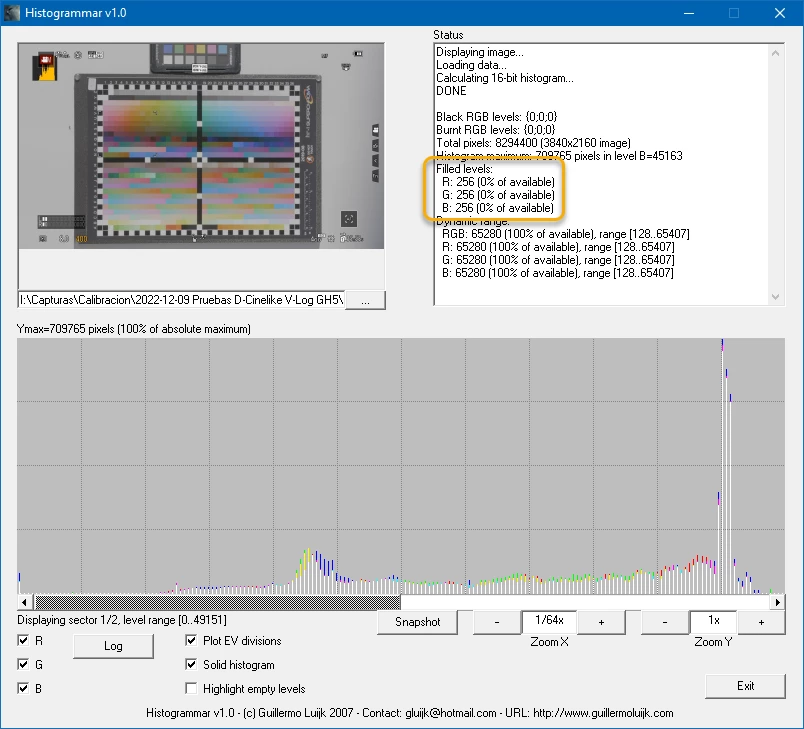
 

So unless there's another option hidden anywhere, this is clearly a bug.

12 replies

Kevin J. Monahan Jr.
Community Manager
Community Manager
April 17, 2024

Hello @Shebbe,

I am on personal leave, and the team is at NAB this week. I hope to respond to you when I return to work. I appreciate you looking at the issue and your comments.


Thanks,
Kevin

Kevin Monahan - Sr. Community and Engagement Strategist – Adobe Pro Video and Audio
Shebbe
Community Expert
Community Expert
April 11, 2024

Hey @Kevin-Monahan,

Stumbling upon this thread after your comment. From what I've read I don't think we should classify this as a feature request. It is clear that the current mechanism is faulty. A file with said depth x is created but actually encodes in depth y. 


At the minimum this should be adressed. (though I haven't verified if this is still an issue in latest build)

At the proper level of fixing, this does indeed evolve into a feature request of giving the user an option to encode+write in 8int, 10int, 12int, 16int, 16halffloat, 32float to whichever container they can apply respectively and expose compression settings for the filetypes that use them like jpg compression level or the various EXR compression algorithms.


But in my humble opinion this shouldn't even be a feature request, but rather a natural evolution of adressing an old flawed system due for an upgrade that the devs could fairly easy pick up.

Kevin J. Monahan Jr.
Community Manager
Community Manager
April 4, 2024

I believe that this is a feature request. Moving.


Thanks,
Kevin

Kevin Monahan - Sr. Community and Engagement Strategist – Adobe Pro Video and Audio
Warren Heaton
Community Expert
Community Expert
February 9, 2023

Sure, Export Frame hasn't changed since... since I think Premiere Pro 1.0.  It would be nice if that dialog box was connected to the Export presets;  however, once we've set up the custom export options, those can be saved as a preset for later use.  Even if it's not saved as a preset, once it's been set in the Export options we can then use Quick Export.  If we have to export 30 to 40 stills from several clips, we mark In and Out and then click Quick Export then mark another In and Out, and click Quick Export again - getting a still at the specified Export settings each time.  While it takes some time, I would not call it a nightmare.

If I could change anything, Quick Export would automatically include the time code stamp so we don't have to copy and paste it to the File Name & Location text field, probably a naming token like "_TimeCode" or "_FrameNumber" that can be added to a naming preset (something in keeping with how After Effects handles naming options for images).  Or it would be great to see an Export Marked Frames option to quickly export frames to a chosen preset. 


R Neil Haugen
Legend
February 9, 2023

Totally agreed. Though it's also easy enough to see why it is what it is. That was added as simply a quick way to get a reference image ... not expected to be used for other than a 'check' on either the frame for a cut perhaps, or a general application of effects.


But then, we users get involved ... and always, always ... say well, if it can do X, why can't we use that to do Y & Z also?   😉


So it's a great thing to put in this forum as a formal Idea now ...


Neil

Everyone's mileage always varies ...
hurodal
hurodalAuthor
Known Participant
February 9, 2023

Thanks for the explanation Warren.

Anyway, I bet you'll agree with me that having to set both mark in and out and then enter the export window and then set all the parameters to export a single frame is too much work for something that could be way much easier.

And that's what everyone is looking for today, right? (making more with software with easier procedures).

Also, if DPX is a format targetet almost exclusively to export 10-bit frames, why not doing it with just a clic of a button? (the one in the program tab)

Having to do the other procedure it makes no sense, and it can be a nightmare if you have to export, like me, 30 or 40 frames...


Regards,

Hugo
Warren Heaton
Community Expert
Community Expert
February 6, 2023

The Export Frame option (the camera icon at the bottom of the Project tab or Source tab) is slanted very heavily toward quickly exporting a reference frame.


JPEG, PNG, TIFF, and Targa should export at 8 bits per channel; DPX at 16 bits per channel; and EXP at 32 bits per channel.

For a full range of export options based on the chosen file format, we need to mark an In and an Out and then jump to the Export mode where there are options for the chosen graphics file format like a Compression pop-up menu for OpenEXR and a Depth pop-up menu for TIFF.  

For a 10-bit DPX still image file: mark an In and an Out in the Source tab, then jump to the Export mode where the Pixel Bit Depth can be set to 10 bit or 12 bit for DPX.


hurodal
hurodalAuthor
Known Participant
February 6, 2023

Neil, what I mean is to grab a frame with the button with a camera icon below the program and save it to DPX or TIFF.

I haven't exported a single frame with the Export function.

Having to export a sequence I feel very tedious for just one frame.

Hugo
hurodal
hurodalAuthor
Known Participant
February 6, 2023

Hmm, I thought I'm already in the Bugs board...

I had read the guidelines and already published this in the 'error' board (in the spanish version of the forum).

But If I did wrong, please help me to move this thread to the right place...

Regards,


Hugo
R Neil Haugen
Legend
February 3, 2023

No clue what you mean by "extracting" ... did you create an image capture within Premierre of that frame, or did you actually export to get the frame used?


Grabbing a frame from a sequence in Premiere is a very different operation than exporting from a sequence. And the frame grab process may not be set to work in high-bit data.


If you export, with both the sequence and the export having Max Bit Depth set, and the export option also ticked for "16-bpc", you should get full bit depth.


Neil

Everyone's mileage always varies ...