


Participant
October 21, 2024
Open for Voting

SDI and other outputs reformatting options (specifically for portrait 9:16 formats)
  • October 21, 2024
  • 3 replies
  • 293 views

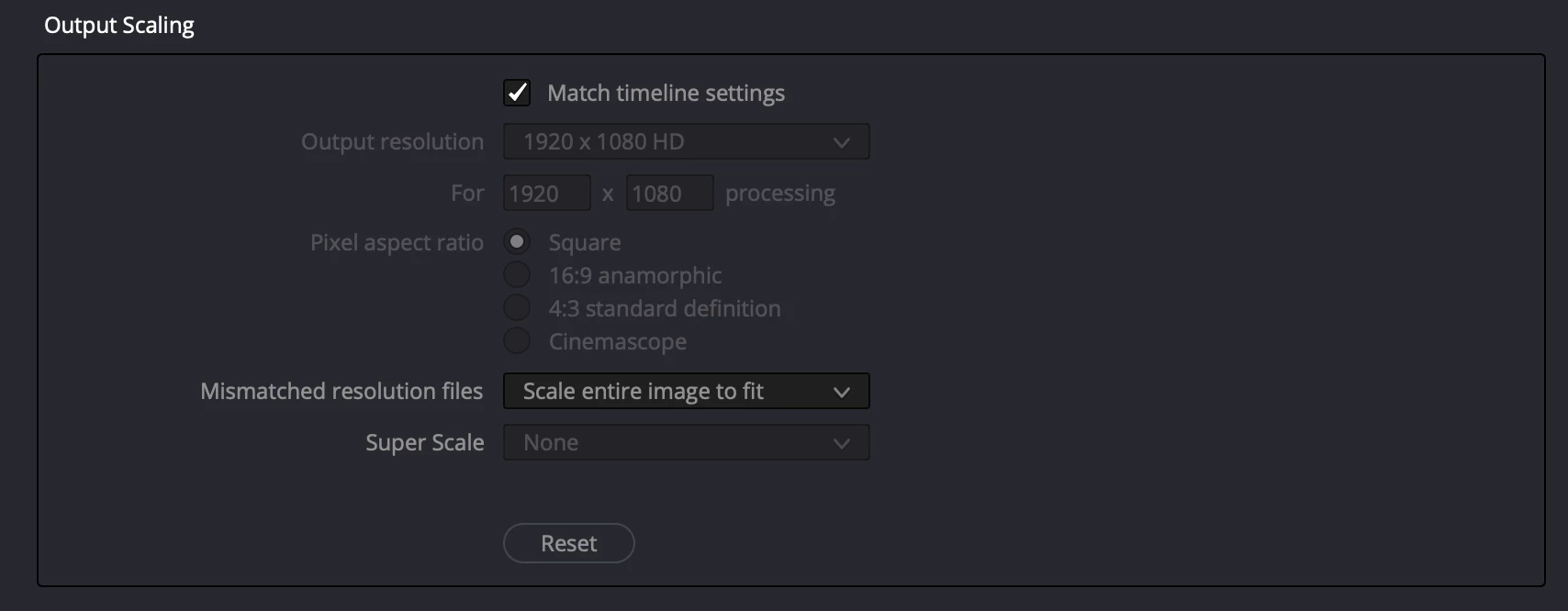
Screenshot from Resolve Preferences - unless I have missed a setting PPro stretches to fill the output raster rather than scale. I would love to see this option in future releases.

Thank you.

3 replies

R Neil Haugen
Legend
October 21, 2024

Ahhh ... yes, the critical bit of information is the use of the BM kit. Which is the hangup here.


While Adobe and BM both state they have a good working relationship, as a user ... it doesn't seem particularly close, shall we say? There's some issues with the BM desktop video app on sizing issues with all BM output kit, as far as I can tell.


That will handle 'normal' frame sizes and rates, for "traditional" video expectations. But outside of the long-established norms for framesizes and rates, things get dicey fast. And often, simply don't work.


Adobe has stated they give their entire API to all vendors, including BlackMagic, and it's BM's responsibility to make their gear fit with the internal 'hooks' in the Adobe apps.


BM says Adobe's implementation of their system is broken ... Adobe says "we" don't implement anyone's system, they build their controls to fit within our API's ... and that's been going on and on and on.


I run both Pr and Resolve daily, and I've enough BM kit to have spare licenses in a drawer. It gets really old.

Everyone's mileage always varies ...
Participant
October 21, 2024
Thanks for the response. I don’t think I have explained myself clearly.

If I have a 9:16 sequence (1080x1920px for example), it is displayed correctly in the Program Monitorbut on my SDI output Blackmagic UltraStudio 4K Mini) it is stretched to fill the 16x9 ratio of my client monitor (LG G3 65”).

In Preferences / Playback / Blackmagic Playback, the options when clicking on the gear icon for “Unsupported frame size” are "No Output”, “Scale Down” and “Scale Up”.

For a 1080x1920 on my timeline, only “Scale Up” outputs to the SDI which is confusing to me. The 9:16 format is stretched to 16:9 as a result.

Davinci Resolve has a setting to account for this (previous screen grab) that I don’t believe exists in Premiere’s prefs unless I have missed something.

Premiere Pro 25 has renamed the timeline scaling options now to the original “Scale to Frame Size” and changes “Set to Frame Size” to “Fit to frame” and “Fill frame”.

Thanks again.
[me]<>

James Hawkes | james@johncheese.com.au
The Office of John Cheese
M: 0407 770 897 | T: 08 9486 7722 | F: 08 9486 7733
76 Outram Street | West Perth WA 6005
R Neil Haugen
Legend
October 21, 2024

In the Preferences in Premiere you have scaling options, Scale to Framesize, Set to Framesize, and None.


Set to Framesize is the more commonly useful setting. This sets the scaling in the ECP to match the image boundary to the framesize of the sequence, as if you manually did this in the ECP. It does not rasterize the image to the framesize, so any further changes you make are still scaled from the original image pixels.


Scale to Framesize rasterizes the image to the framesize of the sequence, which is not what you normally would want. As this means that Premiere is now working with that smaller image ... and if you change scaling, it does so from that smaller image, not the original pixels.


None means it does nothing, and your image will be pixel by pixel on the sequence. So if you have a 3840x2160 clip on a 1920x1080 sequence, you will be seeing the center portion of the clip of course.


In the timeline, if you right-click a clip, you can also select either Set to or Scale to.

Everyone's mileage always varies ...