


Inspiring
October 5, 2025
Open for Voting

Workflow for correcting AI transcripts using text window

  • October 5, 2025
  • 1 reply
  • 341 views

Workflow for correcting AI transcripts using text window

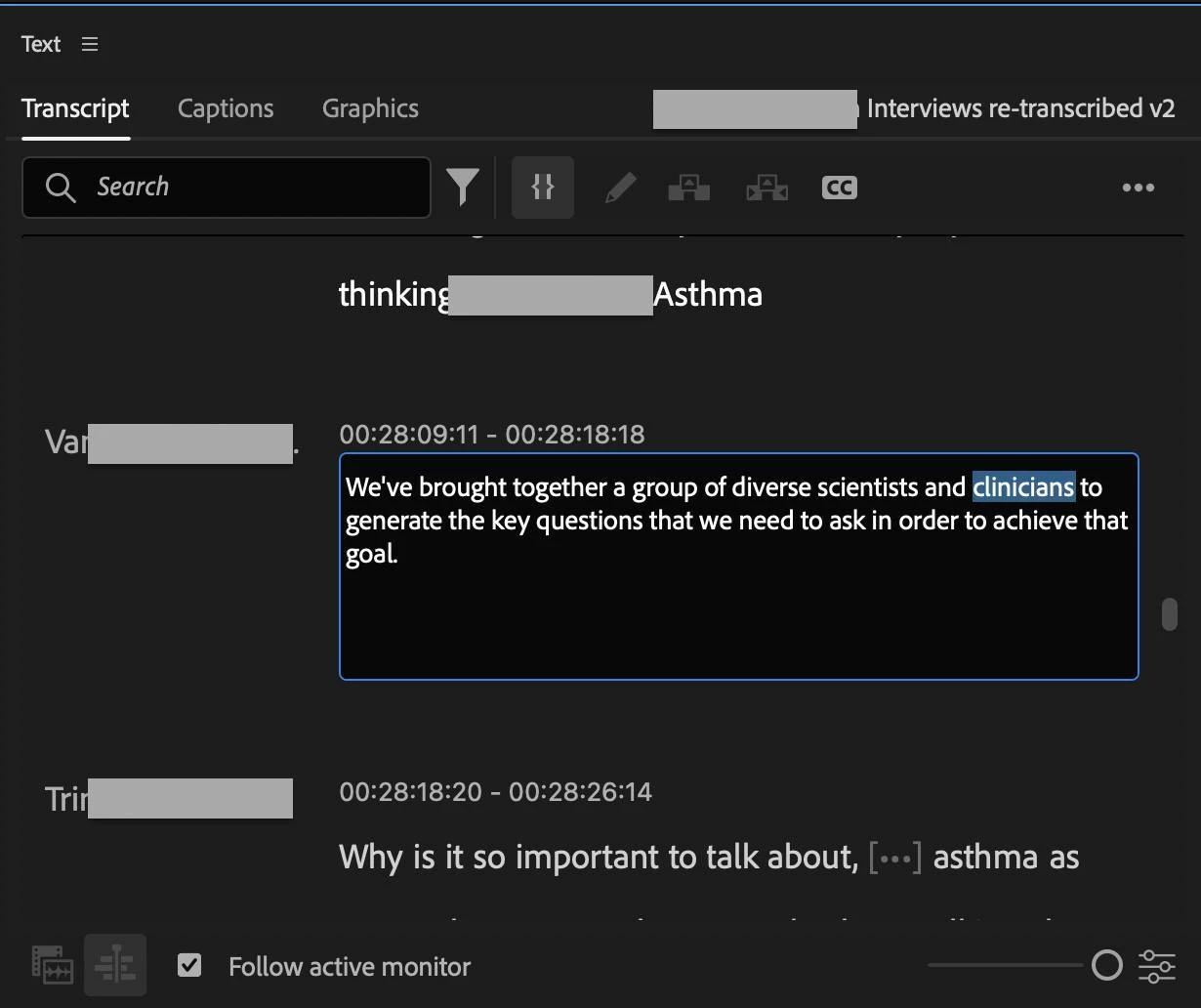
Can anyone suggest an efficient workflow for correcting the AI transcripts in Premiere Pro. I've found that correcting the transcript by having to click into the text window is cumbersome when there's lots of correcting to be done. Ideally I'd like to be able to play the source clip while having all of the text editable so that I can edit it on the fly. I'm a moderately adequate typist, and it took me all day yesterday to correct one hour of interviews (filmed in a noisy conference room)

I don't think I have the best work flow for correcting text, as I find myself having to stop playback, enter the text window, correct text, then step out again to hear the text again if there's lots of typing to do, and then go back in again to clean it up.  This is fine for the occasional text correction, but very cumbersome when there's lots of correcting to do 

In the past, on Final Cut Pro, I was able to type text into a text window (for on screen captions) while also having the clip play independently, so I wasn't constantly stepping into & out of the text editing mode; rather I had both play back & text editing functionality occurring concurrently. 


I'd love to hear of any workflows that do this better (or alternatively, an external transcription tool that I could use when I need to actually transcribe my clips myself, and import the transcription back into premiere pro)


1 reply

Community Expert
October 6, 2025

You can streamline the process by working with the transcript outside of Premiere Pro. Here's a workflow that might help:

  1. Go to the Transcript tab in the Text panel.
  2. Click the three dots (•••) in the upper-right corner and select Export > Export to text file…
  3. Edit the exported .txt file manually using your preferred text editor.

    Alternatively, I like to upload the file to ChatGPT with a short explanation of what the content is about, and ask it to correct grammar and punctuation. Just make sure not to add or remove words, as that can cause alignment issues when reimporting.

  4. Once your edits are done, return to the Transcript tab, click the three dots again, and select Import > Import corrected transcript (txt)


This method allows you to work more comfortably outside of Premiere Pro and then bring the cleaned-up transcript back in for captioning or reference.

Inspiring
October 6, 2025

thanks Paul, correcting the transcription externally and re-importing is definitely a possibility when required.  

I'm not creating captions, I'm preparing transcriptions to use while editing (so that I can navigate through interviews as I edit), so ChatGPT is not much use for this, unless it can do a better job of transcribing the raw material; there's no point using ChatGPT to re-transcribe an existing transcription as there's no way for it to know what was actually said, other than relying on a poor transcription.

What I'm after is an easier workflow to correct the AI transcription in Premiere Pro, as even a slight mis-transcription can render a transcription useless for editing; I find the current method of correcting the AI transcriptions in the text tool cumbersome

Kevin-Monahan
Community Manager
Community Manager
October 7, 2025

Hi Andrew,

Do you want to make a feature request then? Let me know.


Thanks,

Kevin


Kevin Monahan - Sr. Community & Engagement Strategist – Pro Video and Audio