


Participant
January 4, 2019
Answered

Hardware encoding unavailable Premiere Pro CC 2019

  • January 4, 2019
  • 5 replies
  • 23109 views

When I try to render footage from my PC I am unable to use hardware encoding.  The encoding menu looks like this in the export media menu:
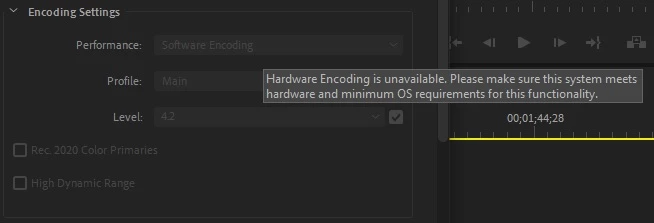
This has been a persistent issue on this computer.  I tried reinstalling adobe, installing older versions of adobe, and installing older graphics drivers, and last but not least completely wiping the computer and reinstalling windows.  So far nothing has re-enabled hardware encoding. 

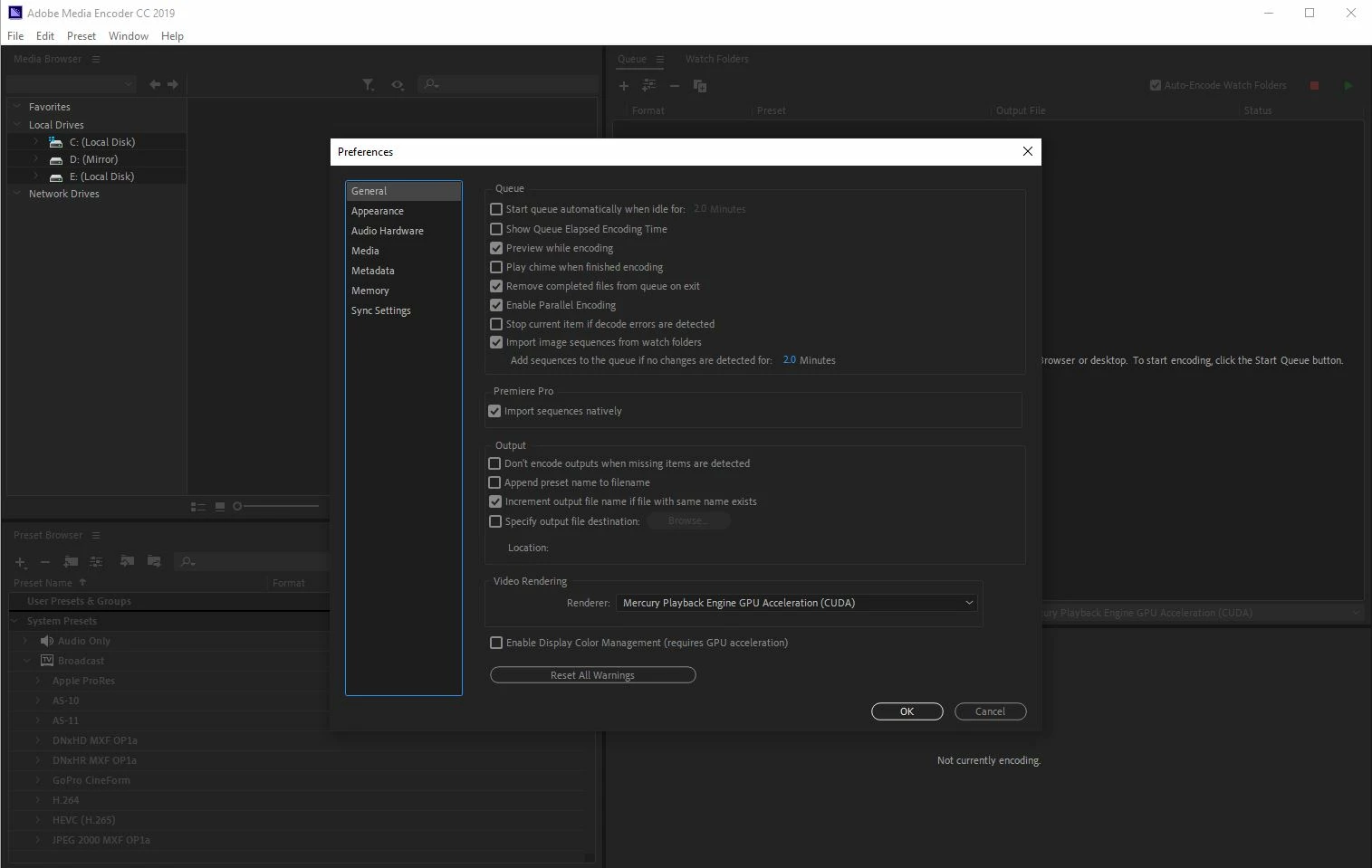
This issue does not appear present in Adobe Media Encoder CC 2019:
My configuration:

Windows 10 Pro build 1809

Nvidia graphics driver 417.35

ASUS X99-E-10G

Intel i7-6950x

EVGA GTX 1080Ti

64GB RAM

I'm really not sure what's going on here.  I'm running a perfect clean install with just the system's necessary drivers, google chrome, and adobe installed.  When I render with software encoding, whatever that means, it is slow and unstable, and I get rendered files that are full of artifacts.  Using software encoding Premiere will frequently crash and sometimes it takes the whole system with it. 

This topic has been closed for replies.
Correct answer rj49

After a bunch of troubleshooting, tons of different video driver versions, and entirely reinstalling windows, I have concluded that my new i7-6950x is defective by swapping my i7-6850k back in and trying to render again.  No more crashing and the footage produced is flawless.  I'll be contacting Intel for a warranty replacement.

Of course, like RjL190365 said, I still don't have hardware encoding enabled.  But the software encoding actually works now! 

5 replies

Participating Frequently
October 12, 2020

Welcome to my world.  Here is what our team came up with.  We use dual monitors which are both running out of out video card (NVidia geforce 1060 or 2060).  We took one of the monitors and plugged it into the motherboards video out port.  Bingo!  The hardware rendering was enabled.  NOTE:  The hardware render spend up out render time significantly.  Unfortunately at the expence of resolution.  A few scenes actually became pixelated and many were just down right grainy.  The upside to this adventure was that now the computers GPU and the videocard are also working during a 'software' render.

Participating Frequently
December 11, 2020

This is to add to my post.   I discovered that by turning the "Key frame distance" off, the resolution issue clears up and it looks as good as the software/cuda rendering.

Participant
February 2, 2020

Adobe Premiere Pro CC 2019

rj49AuthorCorrect answer
Participant
January 6, 2019

After a bunch of troubleshooting, tons of different video driver versions, and entirely reinstalling windows, I have concluded that my new i7-6950x is defective by swapping my i7-6850k back in and trying to render again.  No more crashing and the footage produced is flawless.  I'll be contacting Intel for a warranty replacement.

Of course, like RjL190365 said, I still don't have hardware encoding enabled.  But the software encoding actually works now! 

rj49Author
Participant
January 5, 2019

Just tried to render again and got the blue screen of death, WHEA_UNCORRECTABLE_ERROR

John T Smith
Community Expert
Community Expert
January 5, 2019
Legend
January 5, 2019

With your system you cannot have hardware encoding at all whatsoever because none of the CPUs that are compatible with the X99 chipset have integrated graphics at all whatsoever, and therefore none of the LGA 2011-3 CPUs support QuickSync at all whatsoever. At present Adobe's implementation of the H.26# hardware encoder supports only 6th or newer generation i3/i5/i7 CPUs that have their integrated Intel HD, UHD or Iris Graphics enabled. So, if your CPU has no integrated graphics, it doesn't have QuickSync.

rj49Author
Participant
January 5, 2019

Oh wow that is frustrating. If software encoding is normal, why might it be unstable on my system and producing footage with artifacts?  My laptop has Intel graphics and is running the same version of Windows.  I installed the latest premiere pro CC on it and rendered a video from exactly the same source footage using exactly the same project file, and that was able to render flawless footage.