Participant
April 19, 2017
Answered

Indesign to Acrobat Pro DC rich media workflow (dynamic link layers? replace layers with edited layers? automatically replace placeholder objects?)

  • April 19, 2017
  • 2 replies
  • 1254 views

Hi,

Is there some possibility to create a dynamically linked layered document between inDesign and Acrobat DC?

(like between Photoshop, Illustrator, Premier and After Effects?)

I am currently in the process of making my masters thesis, which will be in the format of a dynamic pdf, made entirely in indesign except that it will also integrate interactive 3D models which I add on an a top layer in Adobe Acrobat DC (as this was the only solution I could find).

So I'm looking for some pointers on how to construct the workflow.

Basically what I need is a workflow where I can work somehow back and forth, so that I can:

- make my document in indesign and import it into Acrobat (or other software up for the task if there is one),

- add the 3d models in their correct positions as the project keeps developing,

- and still be able to edit the the other layers in indesign, without having to go back and manually place the 3D models again afterwords.

I know that Acrobat has the option of importing all layers from a PDF, but when I tried that acrobat crashed, even though it was just a couple of pages, and I don't want to have to deal with problems like that right before the deadline.

Any suggestions on how to go about this?

can I replace the old layers with edited layers, while keeping the rest of the layers?

is there a system to automatically replace placeholder objects from indesign with an predetermined set of 3d models? etc.

Any suggestions would be much appreciated.

I would accept having to pass through 3rd part software, or slow sync as long as it doesn't involve to much active labour (like replacing the files or trying to mix and match separate pages every time I need to do an export, or correct a typo)

Thank you
This topic has been closed for replies.
Correct answer Eternal Warrior

Thanks a lot EW!
some screenshots explaining the process would be great if you have the time, otherwise I can also try my luck at the Acrobat Forum.
Best wishes,
Hannes


Hi Hannes,

I should have clarified that replacing pages is possible but not intuitive or available in the literal sense my post suggested when first typing. I apologise for not explaining this sooner but as stated I had some work I had to finish relating to my day job.

Unfortunately the nature of PDF's make this process a bit harder than it could be... which is why typically people prefer to edit in the programme that made the PDF and rewrite over the original.

As such the way we would "replace" layers can be done in a variety of ways depending on what we are replacing. Here are a few examples:

"REPLACING" LAYERS:

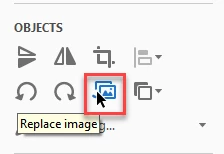
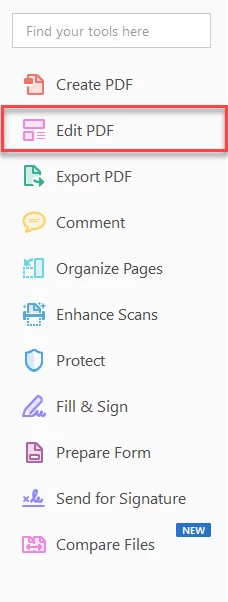
1.) We can use the Edit PDF toolbar > and then use a variety of controls such as > Replace Image > to swap images and such in and out of the layer.

and then:

2.) Also using the Edit PDF Toolbar... we could just as simply delete and then add in the new file. Though technically this is more Editing the Layer than "Replacing" it.... But it achieves the same thing.... See what I mean about intuitive? You could submit a feedback/feature request to make this as easy as it is in InDesign....

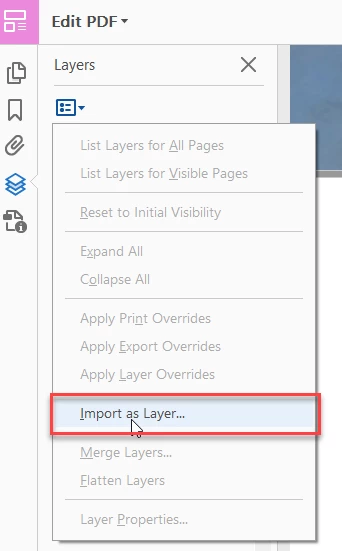
3.)  Of course the first two suggestions are more focused on editing ITEMS contained within the layer rather than the layer itself. SO we can also import objects, files etc. as layers... and OR merge them... The example below has some of these options greyed out as it is a generic PDF I have open not one I made specifically:

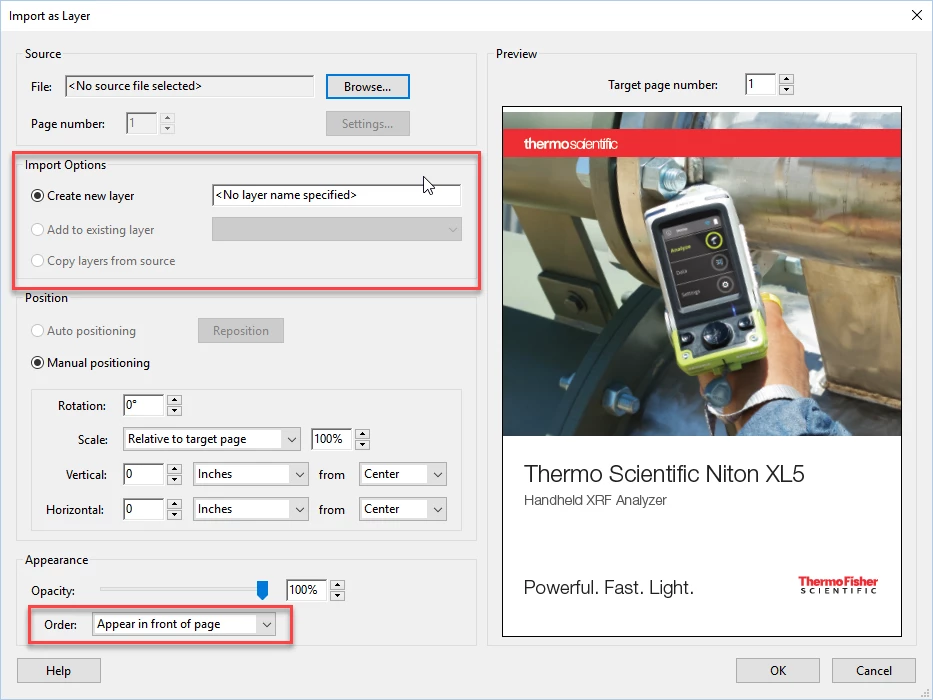
Where we can then apply various settings:

And either create a new layer and delete the old or add to an existing layer.

REPLACING PAGES:

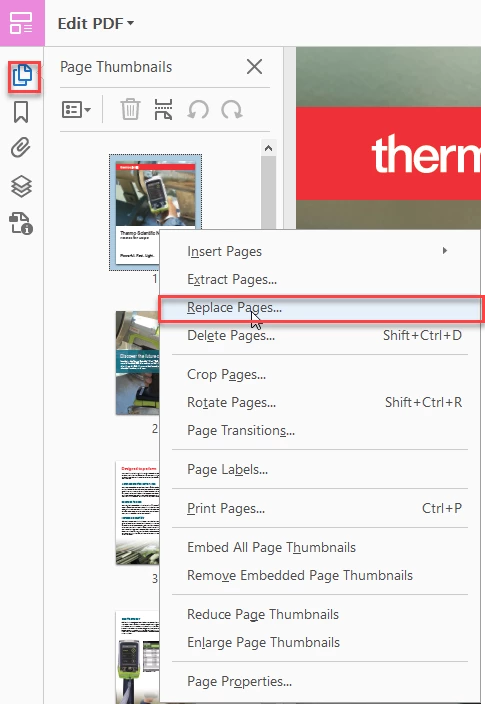
This is somewhat easier as we simply open the pages tab > find the page thumbnail we want to replace > right click > Replace Page...

HOWEVER: As pointed out earlier this has a tendency to break the PDF tags and structure. But luckily there are ways to correct this.

HOW TO FIX BROKEN PDF TAGS:

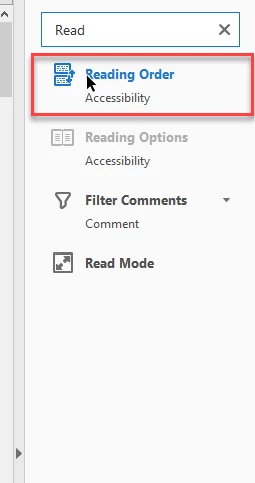
The options provided in Reading Order can really help with this:

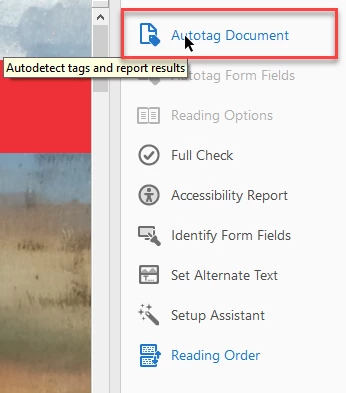
You can even use the Autotag document feature and order panels to quickly fix things:

For more information this article is extremely useful:

Edit document structure with the Content and Tags panels (Adobe Acrobat Pro)

I sincerely hope this helps and I will move this to the Acrobat forum for other peoples input.

Best,

EW

2 replies

Participant
April 24, 2017

Thank you very much Eternal Worrior, for the clear and in depth explanation.

I really appreciate it.

Best wishes,

Hannes

Eternal Warrior
Inspiring
April 24, 2017

You're most welcome. I'm glad it was useful!

Best,

EW

BobLevine
Community Expert
Community Expert
April 19, 2017

Acrobat has a replace pages feature which you might want to experiment with. This would allow you to replace the base artwork without disturbing anything above it. It works very well with form fields but I’ve never tried it with anything like this.

For more on this, you should visit the Acrobat forum. There’s no way to accomplish this with just InDesign.

TᴀW
Legend
April 19, 2017

BobLevine  wrote

Acrobat has a replace pages feature which you might want to experiment with. This would allow you to replace the base artwork without disturbing anything above it. It works very well with form fields but I’ve never tried it with anything like this.

I wasn't aware of this, but it was brought to my attention by an accessibility expert that replacing the pages in this way (whether for forms, or presumably anything else) destroys the tag structure of the PDF.

So if accessibility (for screen readers, etc. etc.) is a concern, as it should be, the "replacing pages" technique should be avoided...

Ariel

Visit www.id-extras.com for powerful InDesign scripts that save hours of work — automation, batch tools, and workflow boosters for serious designers.
BobLevine
Community Expert
Community Expert
April 19, 2017

I was not aware of that either. Thanks.