Participant
June 3, 2019
Answered

How do I turn off the auto-smoothing in Capture?

  • June 3, 2019
  • 2 replies
  • 756 views

I see this question has been asked a couple times over the last several years.  Is there a resolution to this yet?  It's super frustrating to spend a bunch of time cleaning up an image until it's perfect, only to have the software make an executive decision and smooth out handwriting that I don't want any changes to.  Please tell me there is a way to get around this.  Thank you!

This topic has been closed for replies.
Correct answer Michael J. Hoffman

In Capture, for Shapes, you have a two-step process:

  • Adjust the image (exposure, contrast, black/white flip, threshold)
  • Edit the image (Refine details with eraser and brush, Crop, and Smooth)

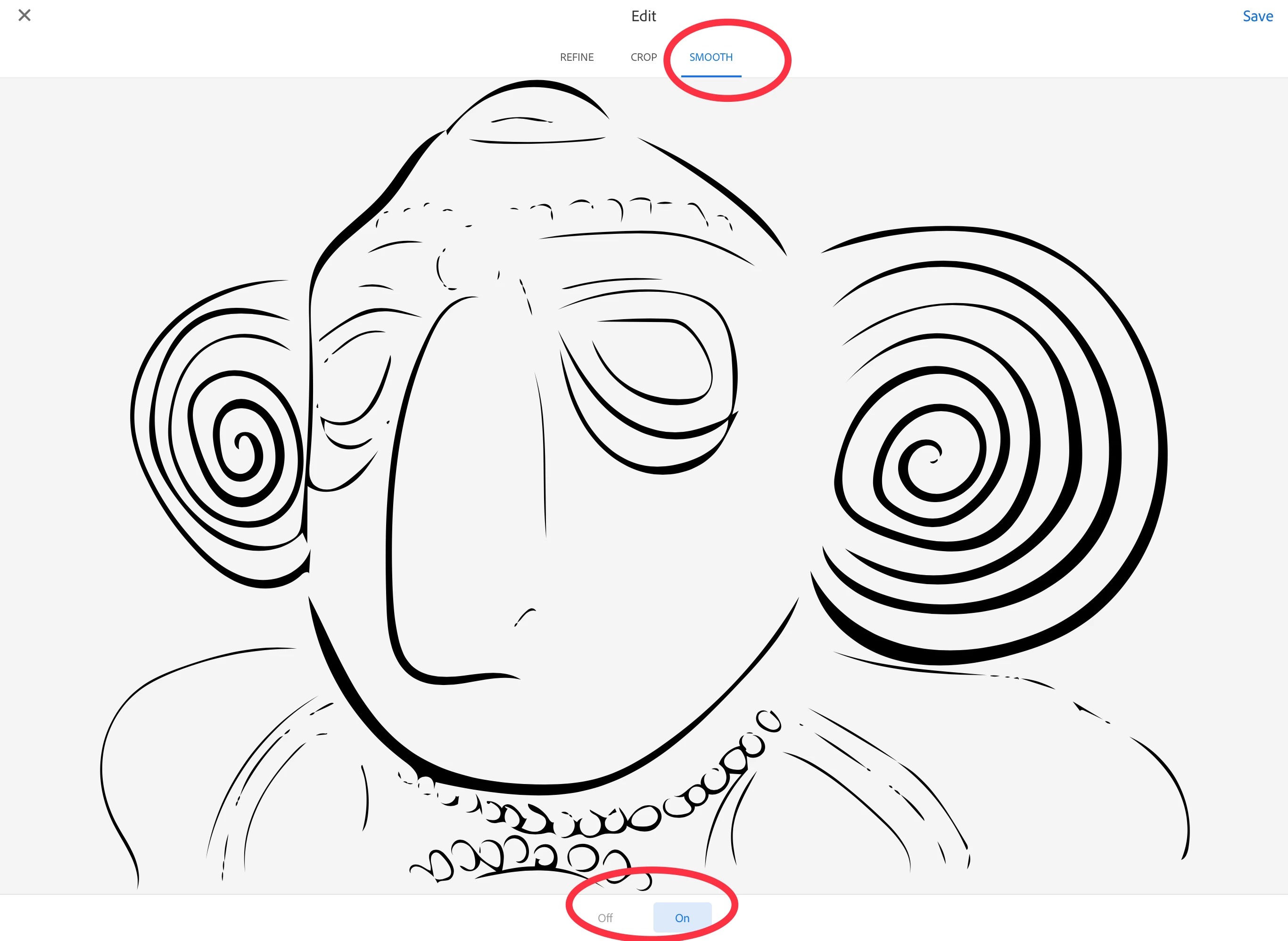
To turn smoothing on or off, just tap “Smooth” and choose the option. Note that this assumes “Shape” mode and not “Brush” mode:

2 replies

tannwestAuthor
Participant
June 4, 2019

Thank you.  I should have indicated on my original post that it's set to off, but for some reason, it does it anyway.  I was hoping there might be a setting or something I'd missed.  But, I think it's just the way it works. 

I delete the background i don't want and when I save, it auto-smooths. If i actually turn the smooth 'on' it smooths even more. 

I'm going read up on the image trace options in Ai as I think they might give me more of the result i'm looking for. 

I make wall art and have started working with handwritten recipe cards.  I love the imperfect look of little old lady handwriting and don't want to lose those details.

Thanks for answering!

Michael J. Hoffman
Community Expert
Michael J. HoffmanCommunity ExpertCorrect answer
Community Expert
June 3, 2019

In Capture, for Shapes, you have a two-step process:

  • Adjust the image (exposure, contrast, black/white flip, threshold)
  • Edit the image (Refine details with eraser and brush, Crop, and Smooth)

To turn smoothing on or off, just tap “Smooth” and choose the option. Note that this assumes “Shape” mode and not “Brush” mode: