Hi irb2,
The latest version (18.01.22 as of February 2, 2018) of Acrobat Reader requires iOS 9.0 or later.
According to the Wikipedia page (List of iOS devices - Wikipedia), the highest iOS version that you can install on your iPhone 4 is iOS 7.1.2.
However, the App Store provides the latest compatible version of Adobe Reader for your iPad or iPhone running iOS 7 (or even older version of iOS).
- Update iOS (operating system) to the latest version.
- Go to the App Store app on your iPad/iPhone.
- Find Acrobat Reader.
- Try downloading the latest version of Acrobat Reader.
Do you see the following dialog with two buttons (Download and Cancel)?
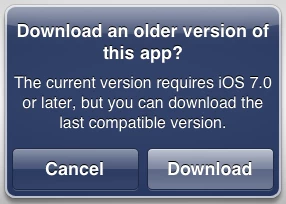
(The dialog that you see should show "iOS 9.0" instead of "iOS 7.0".)
Please tap the Download button to install the last compatible version.
If you see the dialog with the OK button only (i.e. no Download button), it means that you have never installed Adobe Reader using the particular Apple ID before.
To associate Adobe Adobe Reader with your Apple ID, you will need a Windows or Mac computer and iTunes (desktop app).
- On your iPad/iPhone, check the Apple ID that you use for the App Store (Settings > iTunes & App Store).
- On your Windows or Mac computer, install iTunes 12.6.3 (not 12.7 or newer) from the following Apple page.
Deploy apps in a business environment with iTunes - Apple Support - On your Windows or Mac computer, open iTunes.
- Sign in iTunes using the same Apple ID that you use on your iPad/iPhone.
- Find Adobe Reader and download it to your computer. (Do not try to install it on your iPad/iPhone because the latest version is not compatible with your iPad/iPhone anyway.)
Now you can switch back to your iPad/iPhone and try downloading the latest version of Adobe Reader. You will be presented with the dialog with the Download button.
Please let us knows if it works for you.
Thank you.



 AdChoices