Hi hollieo47295801,
We apologize for the inconvenience this has caused you. Please try the following steps for adding a text box and highlight within a document:
- Tap on the commenting tools button to get to the commenting mode (the blue circle with the pencil icon at the bottom right of the document). Choose "Comment"
- You will see a list of commenting options you can choose. Here are your options, from left to right:
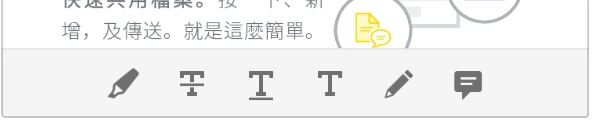
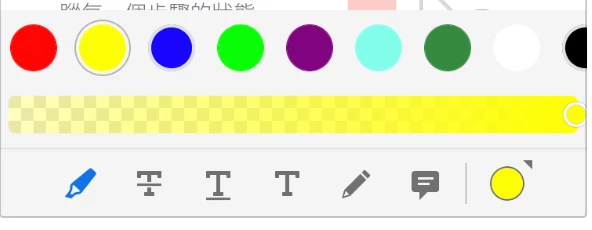
- Highlight -- to highlight a text, please long press on the beginning of the text you want to highlight until a magnifying glass appears, then drag the sentence to highlight the rest of your text. If you tap on the highlighter tool, the ink color chooser will appear on the rightmost corner of the page. You can tap on it to change the ink color of your highlighter
- Strikethrough -- works the same as highlight tool.
- Underline -- works the same as highlight tool.
- Free text/text box creation -- to create text box, please choose this icon, then tap on the location you want to place your text box on. You can then write down your text, then hit the "Post" button after you are done. Your text box will be created. If you tap on your created text box, you will also see options to change the font size, ink color, and your existing text.
- Drawing tool -- pressing this icon will let you draw or write freely on your document.
- Sticky note -- adds a sticky note on your document.
Please let me know if you still have questions regarding the commenting tools above, and I will be happy to give you more information.
Thank you and have a nice day!
Riadiani



 AdChoices