



Device Settings for Adobe Reader mobile.
Setup your device to make it easier and faster to work with your documents.
Adobe Reader mobile app leverages your device’s features, and its default settings make it easier and faster to work with your documents. You can customize these notifications and settings manually and can be enabled/disabled easily.
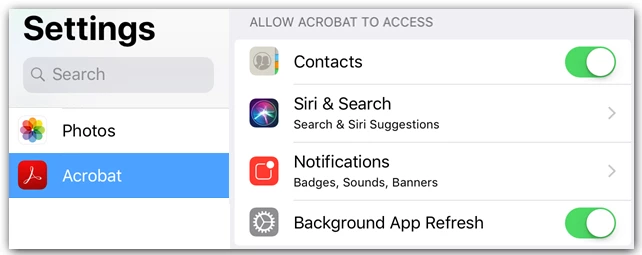
- Notifications.
During app installation, you are asked whether you want to allow notifications or not. When enabled, notifications will tell you when a file has changed, a reviewer has commented on a file, and so on.
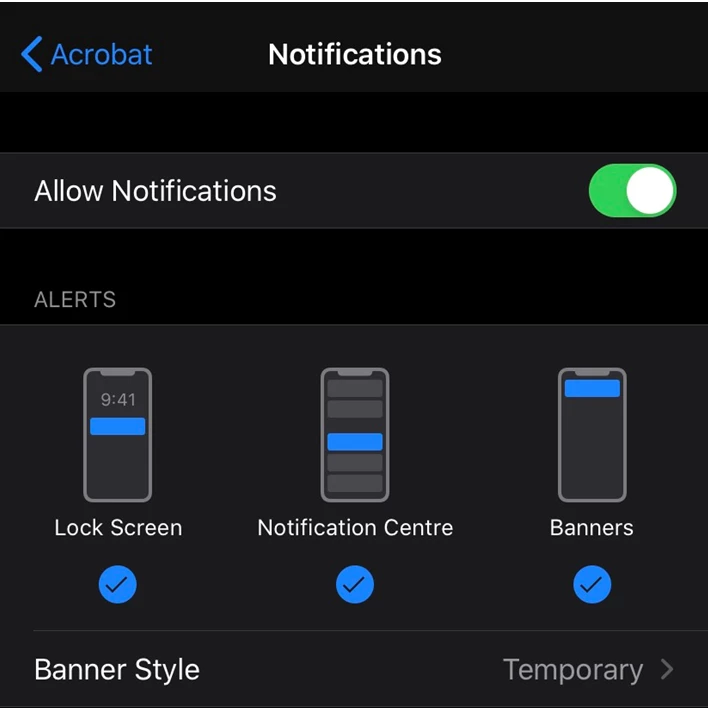
You can control notifications in the following ways:
- Disable notifications
- Associate notifications with sounds and the badge app icon
- Control whether they appear on the lock screen, in history, and so on
- Display them in banners and show previews
Your device controls notifications:
- Go to your device’s settings screen.
- Tap Acrobat.
- Tap Notifications.
- Enable or disable Allow Notifications.
- Configure other options as needed.
- Tap Back.
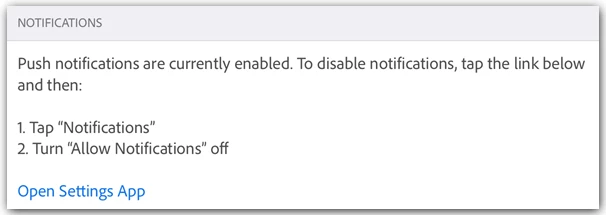
Alternatively, navigate to device settings within Acrobat by tapping 
> Preferences > Open Settings App.
- Dark Mode.
For users of iOS 13+, the October 2019 Acrobat release supports dark mode. Dark mode’s high contrast display may improve readability in low light environments as well as extend battery life. For some users, dark mode is an important accessibility feature that maintains the color meaning and preserves image representation better than the night mode feature.
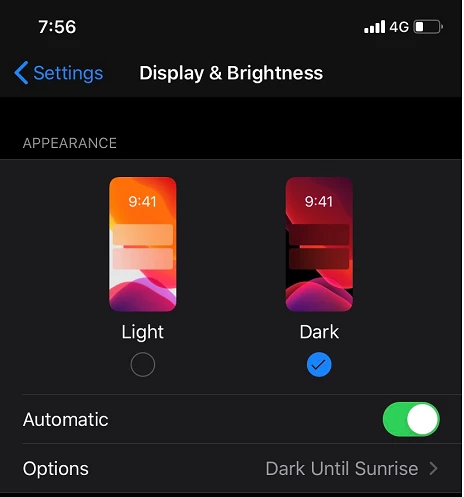
- Go to your device’s settings screen.
- Tap Display and Brightness.
- Choose light or dark mode.
Learn more about tweaking your device to make it easier and faster to work with PDF documents > iOS and Android
Tell us if these helped you using Protect PDF Files service better. Join the conversation here. We are listening!
To discover a host of other great features – Go straight to: Working with PDFs | Edit PDFs on mobile devices | Sharing & reviewing
 AdChoices