Participant
December 19, 2020
Answered

File title , how to change it

  • December 19, 2020
  • 1 reply
  • 875 views

How do you change the file title in Adobe Acrobat? On Android phone 

This topic has been closed for replies.
Correct answer ls_rbls

+++EDITED REPLY


You won't be able to directly change a filename from the Acrobat Reader mobile app.


That option or feature is not available in the mobile app if that is what you were expecting.


However, you can rename any files in an Android device using the built-in  "My Files" file manager or a similar third-party file manager app for AdroidOS.


In the "My Files" file manager of your Android device, navigate to the folder where you have the files that you want to rename.


You need to tap and long press on a file icon for about a second or so, and the "My Files" screen window will change as shown below in the slide:


  • Notice the far right top margin on that screen window. You need to tap on the three dots icon menu (also known as more options):
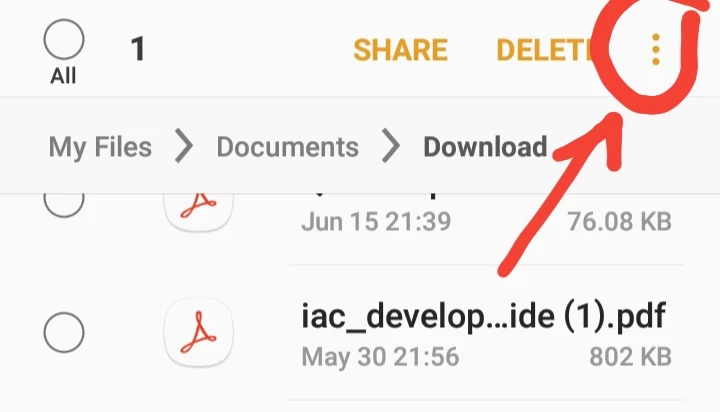
 

Tapping once on the three dots icon will open up a context menu offering the user with a few additional options.
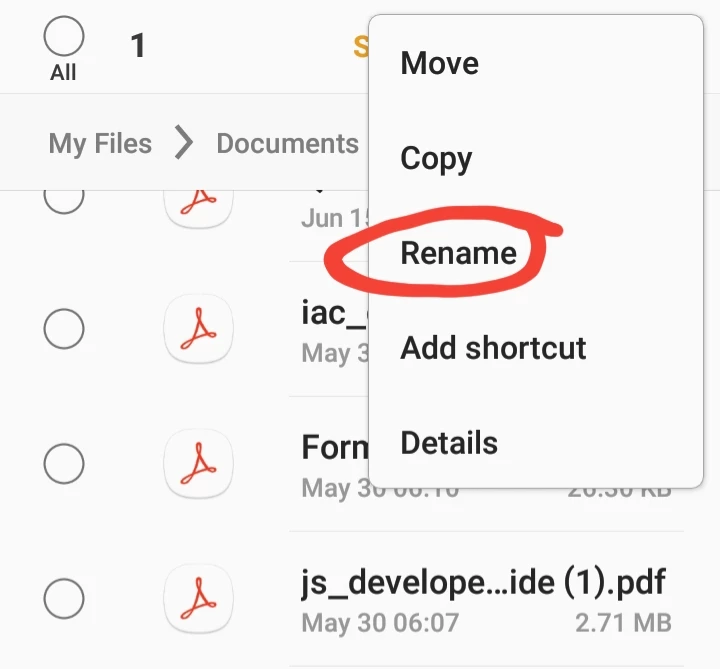
 

Tap once on "Rename".


See next slide:
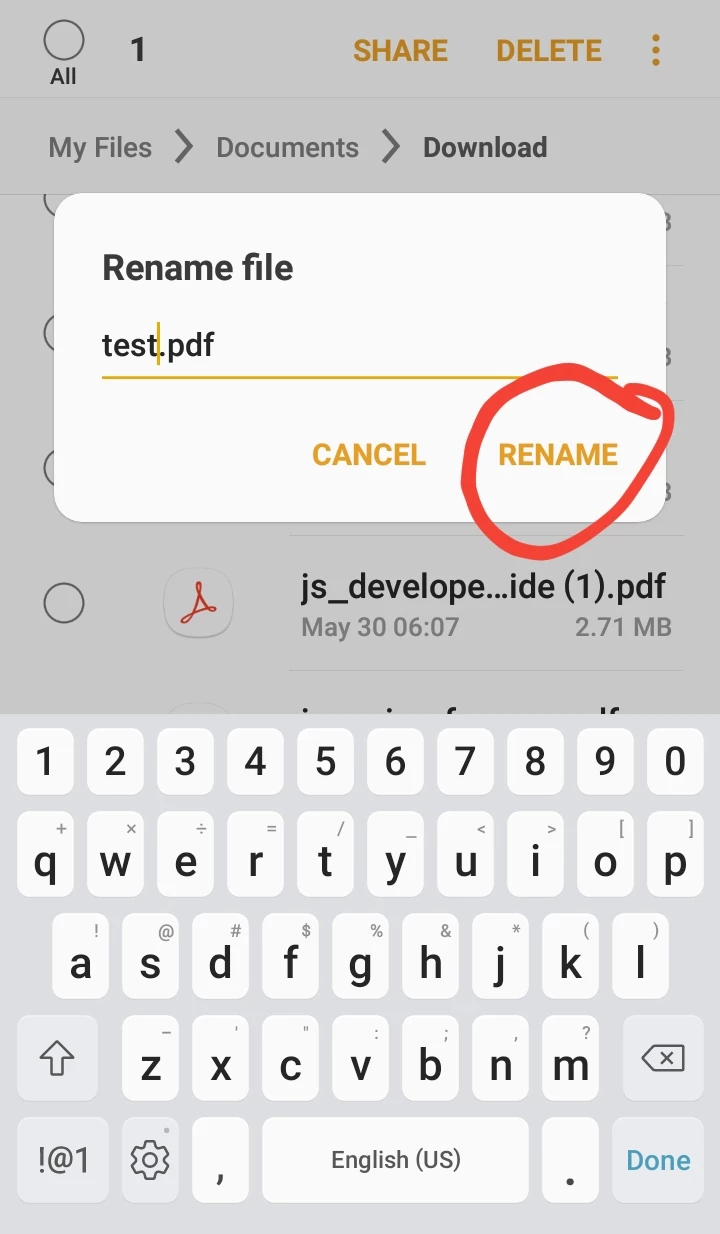
 

The on-screen keyboard will open and provides you with a blank to type in the desired file name.


Type in the filename and close.


That's it.



1 reply

ls_rbls
Community Expert
ls_rblsCommunity ExpertCorrect answer
Community Expert
December 23, 2020

+++EDITED REPLY


You won't be able to directly change a filename from the Acrobat Reader mobile app.


That option or feature is not available in the mobile app if that is what you were expecting.


However, you can rename any files in an Android device using the built-in  "My Files" file manager or a similar third-party file manager app for AdroidOS.


In the "My Files" file manager of your Android device, navigate to the folder where you have the files that you want to rename.


You need to tap and long press on a file icon for about a second or so, and the "My Files" screen window will change as shown below in the slide:


  • Notice the far right top margin on that screen window. You need to tap on the three dots icon menu (also known as more options):


Tapping once on the three dots icon will open up a context menu offering the user with a few additional options.


Tap once on "Rename".


See next slide:


The on-screen keyboard will open and provides you with a blank to type in the desired file name.


Type in the filename and close.


That's it.