hi Tom,
I have an alternative option. Before you do that, please make sure following 2 things are fine with you,
1. Make a copy of the PDF, just in case something goes wrong.
2. Once the photo (image) is placed into the PDF and saved. The photo (image) CANNOT be deleted after all. If it is fine with you, then you may consider the workaround as described below.
The workaround is as following,
1. Use your device to take a photo
2. Open a PDF which you already made a copy
3. Tap the "Annotations" tool button at the bottom toolbar
4. Tap "Signature" tool button (rightmost one) at the bottom toolbar and "Create Signature" popover should appear as below,
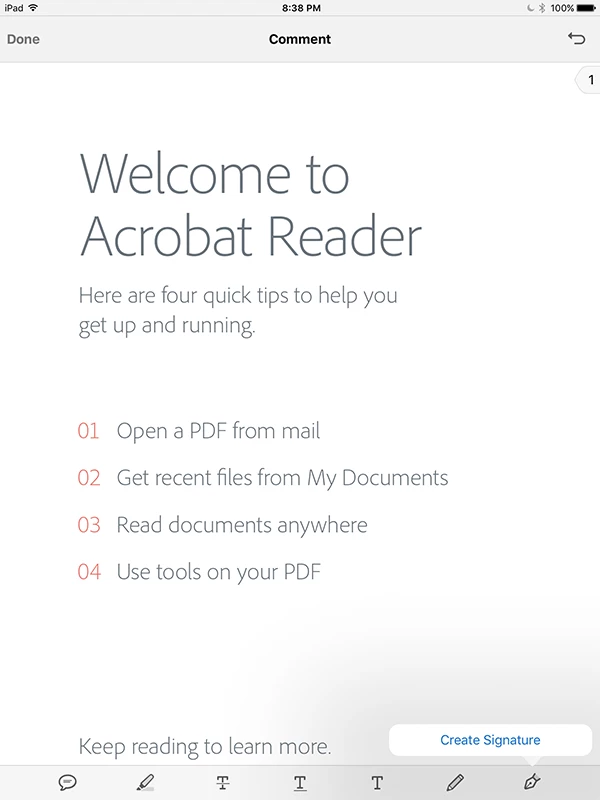
5. Tap "Create Signature" in the popover
6. Then "Create Signature" panel should appear as below,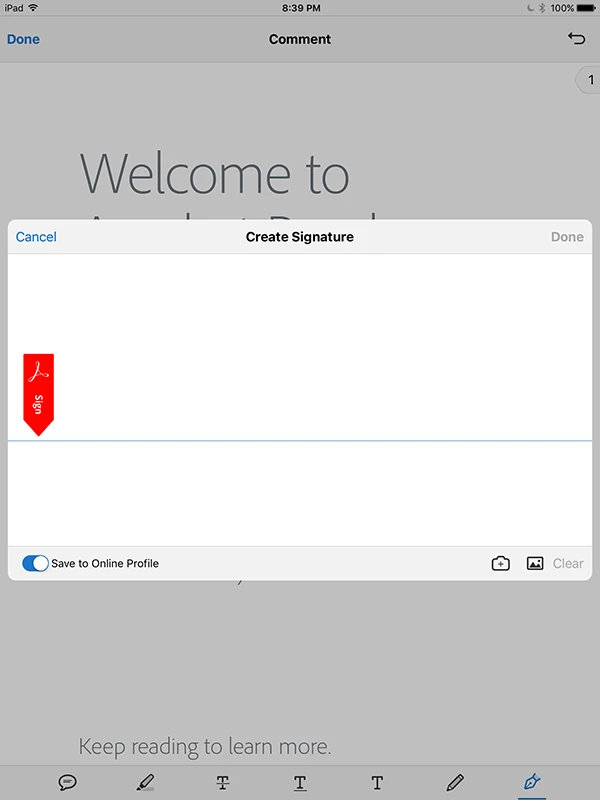
7. In "Create Signature" panel, toggle OFF "Save to Online Profile" radio button, then choose "Photo" icon next to the "Clear" button. It should prompt for asking permission to access your photos as below,
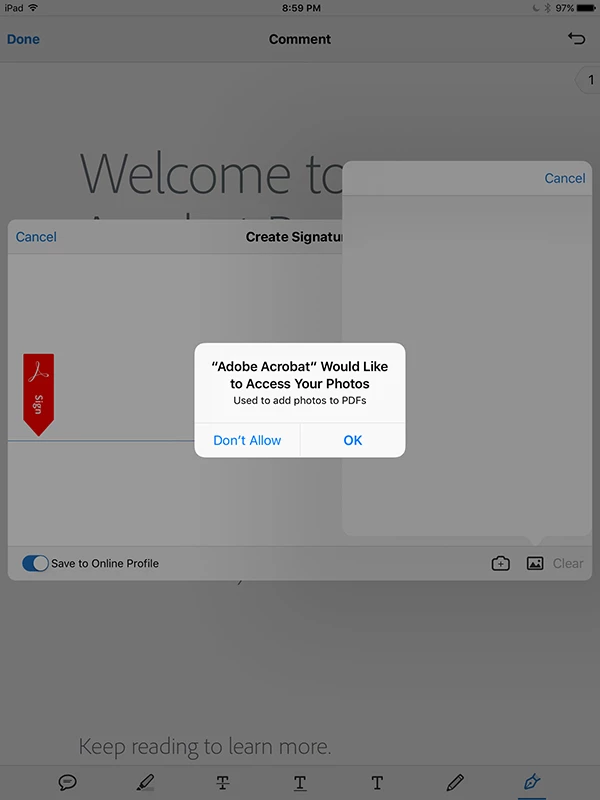
8. Tap "OK" to continue and "Photo" popover should appear as below,
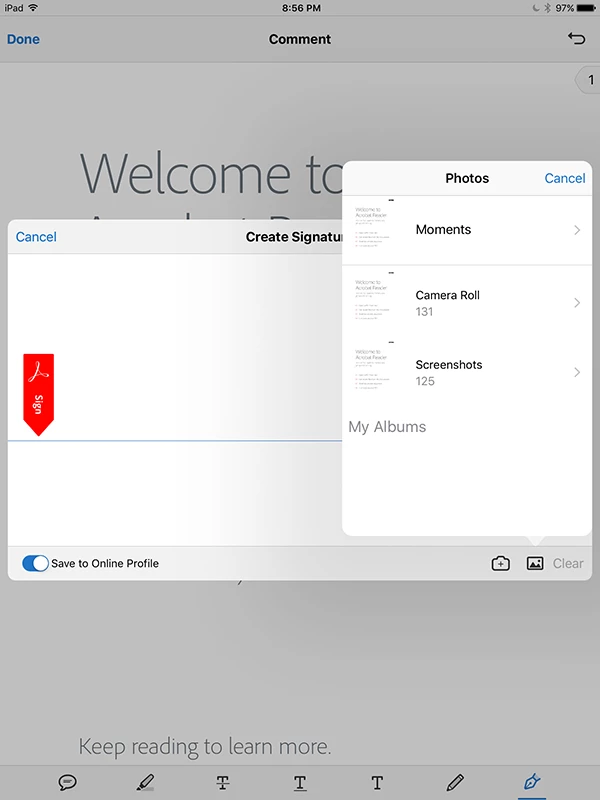
9. Now, go to "Camera Roll" to select the photo you took in Step #1 and the selected photo should appear like below,
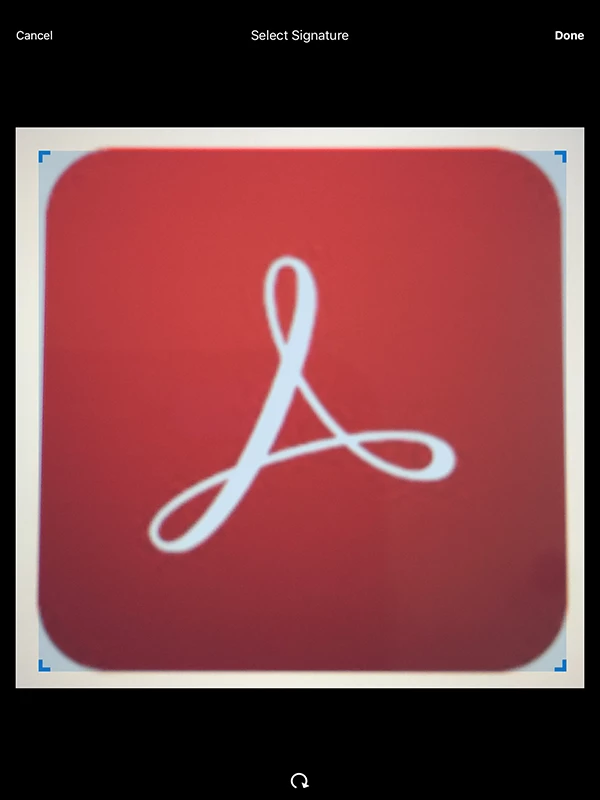
10. Now, you should be able to crop the Photo (image) by grabbing the crop handler at corners
11. After done with the cropping, tap "Done" button at the upper right hand corner, then the cropped photo (image) should appear in "Create Signature" panel like below,
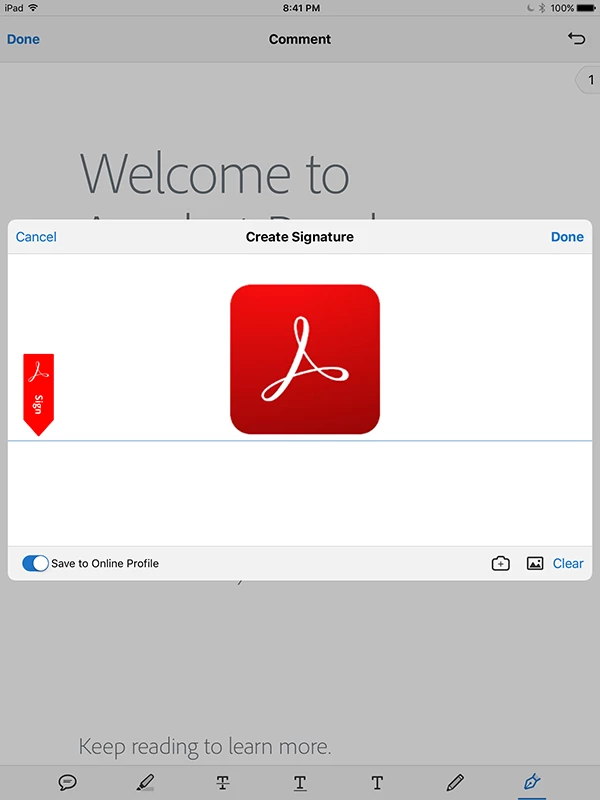
12. Tap "Done" button in the "Create Signature" panel
13. The photo (image) should appear in PDF, then tap on the newly added photo (image) to select it. It should appear like below,

14. Now, you should be able to resize the photo (image) by grabbing the handler to adjust the size
15. Then drag the photo (image) to the desired location
16. After placing the photo (image), tap outside the bounding box of the photo (image) to confirm the location
17. If you decide to delete the photo (image) at this point, tap on the photo (image), the "Delete" contextual menu should appear as above Step #13 and tap "Delete" to continue to delete the photo (image)
18. Otherwise, make sure everything looks good to you
19. If yes, then tap "Done" button
20. Then tap "Back" ("<") button to save it
Hope this help.



 AdChoices