
Question
How to manage files in Adobe Acrobat Reader for iOS
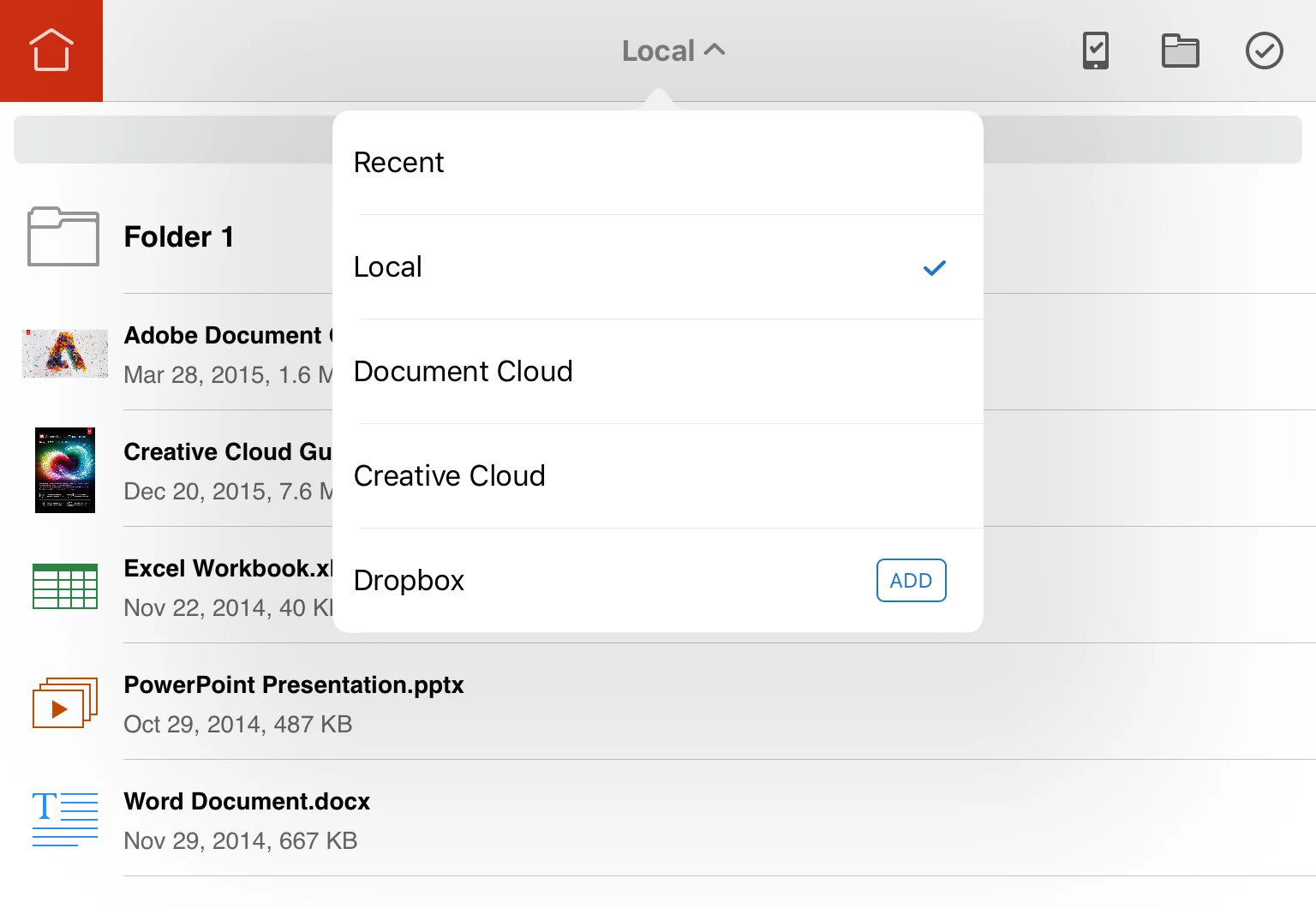
To perform any file operations (such as Delete, Rename, Duplicate, or Move), you need to switch to Local, Document Cloud, or Creative Cloud first.
- Local - the files & folders stored locally on your iPad/iPhone
- Document Cloud - the files & folders stored in the Adobe Document Cloud (formerly known as Acrobat.com)
- Creative Cloud - the files & folders stored in the Adobe Creative Cloud
Please follow the steps in the "Select a file location" section for iPad/iPhone.

For iPad
Select a file location
- Go to My Documents (Home).

- Tap the blue text button at the center of the top bar.
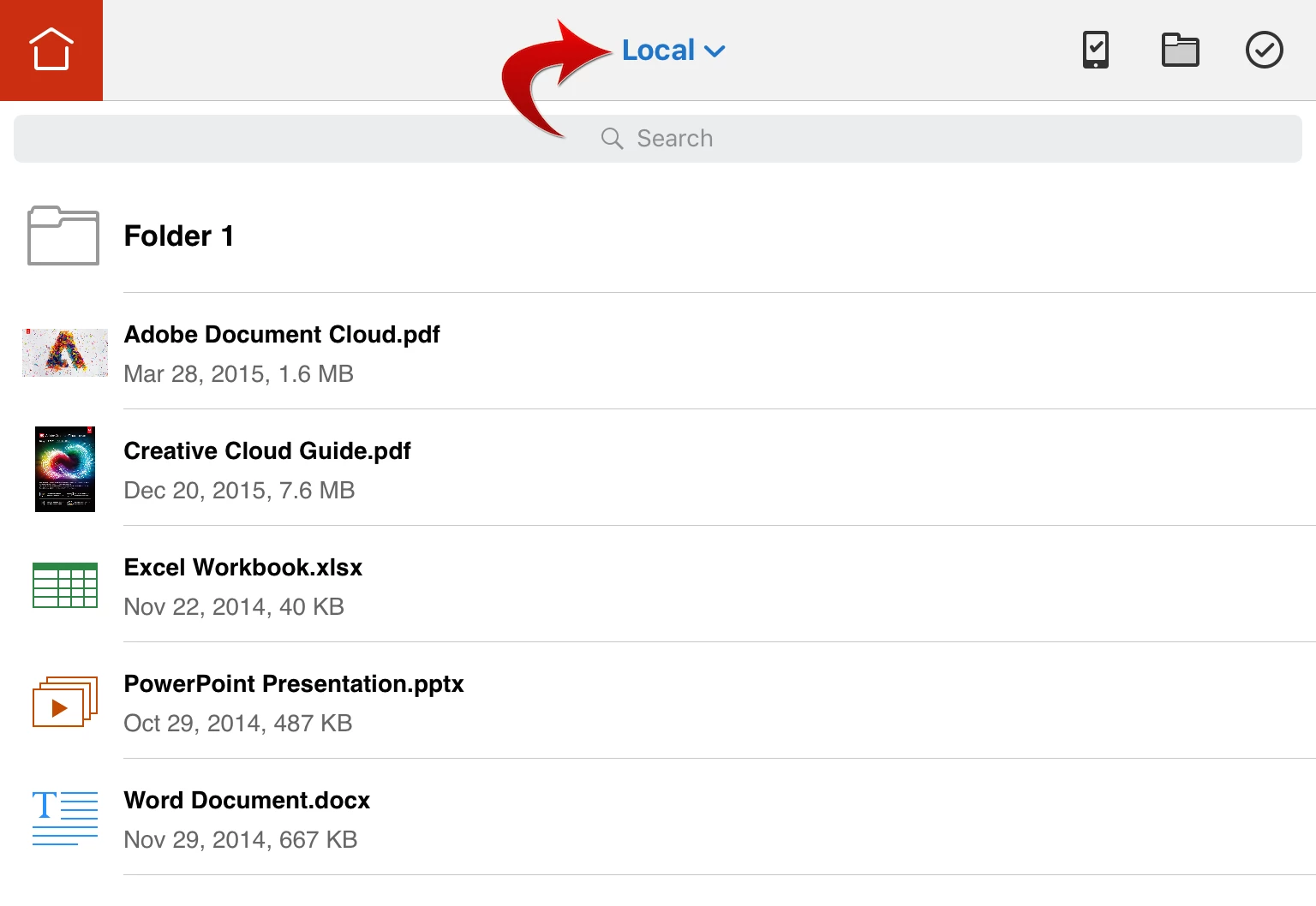
- Select Local, Document Cloud, or Creative Cloud.
Delete, rename, duplicate, or move a file or folder
- Tap the checkmark button on the right side of the top bar.

- Select a file or folder. For some operations, you can select multiple files.
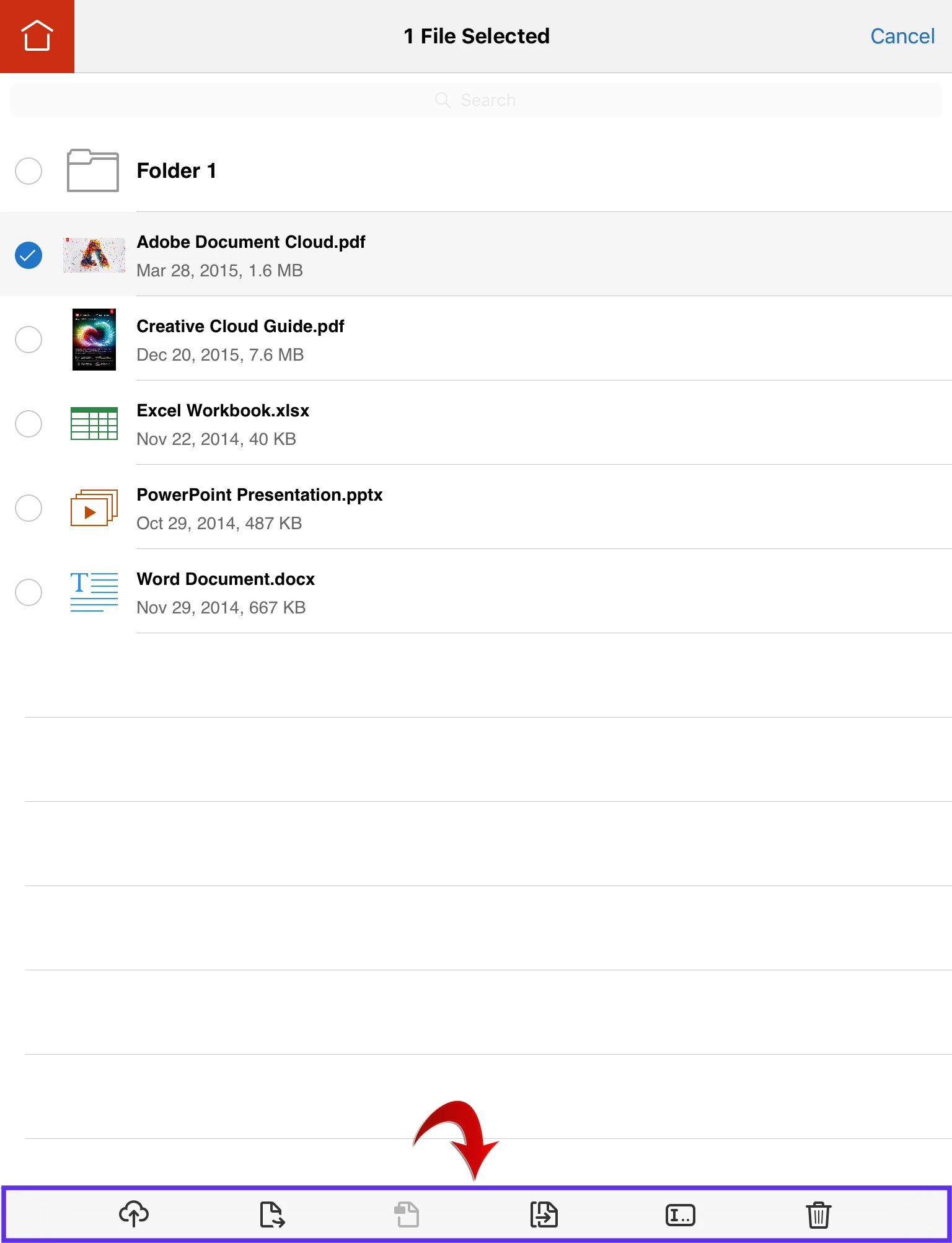
- To delete a file or folder, tap the Delete button in the bottom bar.

To rename a file or folder, tap the Rename button in the bottom bar.
To duplicate or move a file, tap the Duplicate/Move button in the bottom bar.
Create a new folder
- Tap the folder button on the right side of the top bar.

- Enter a folder name.
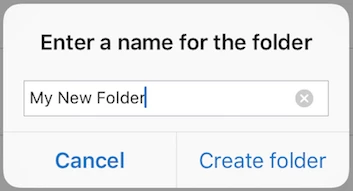
- Tap Create folder.
For iPhone
Select a file location
- Go to My Documents (Home).

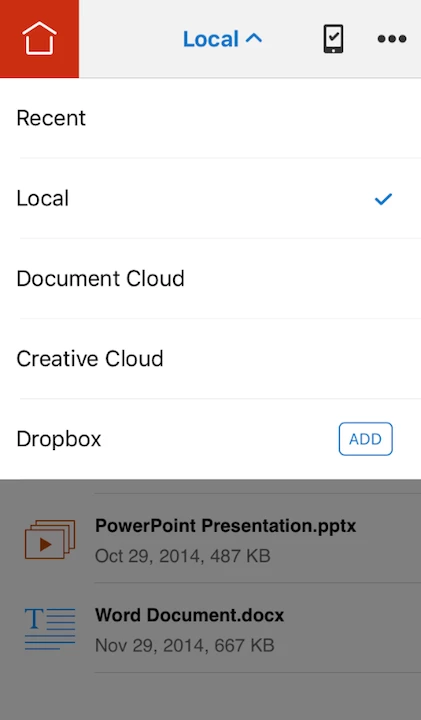
- Tap the blue text button at the center of the top bar.

- Select Local, Document Cloud, or Creative Cloud.
Delete, rename, duplicate, or move a file or folder
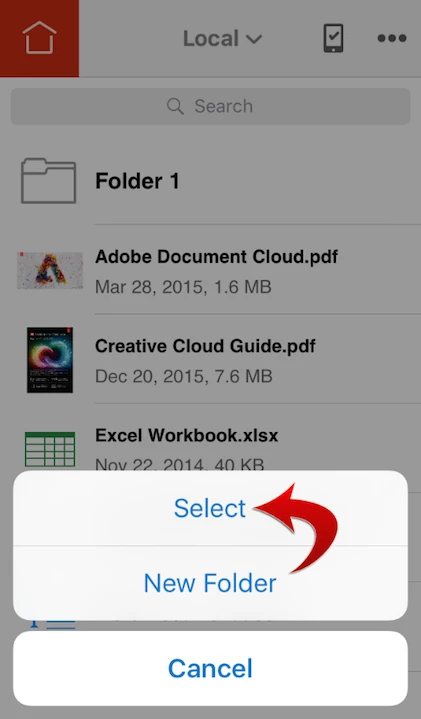
- Tap the "..." button on the right side of the top bar.

- Tap Select.
- Select a file or folder. For some operations, you can select multiple files.
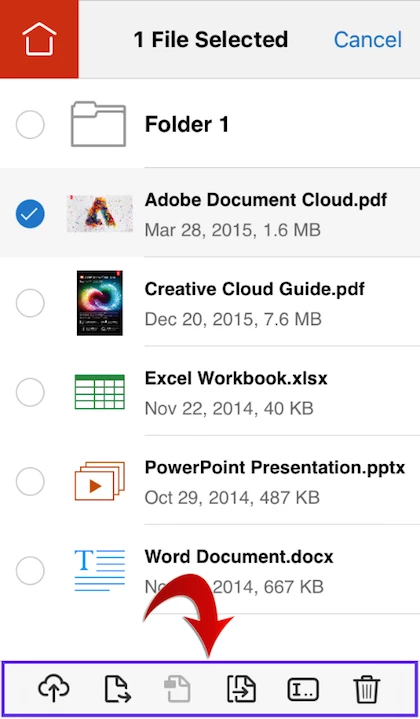
- To delete a file or folder, tap the Delete button in the bottom bar.
To rename a file or folder, tap the Rename button in the bottom bar.
To duplicate or move a file, tap the Duplicate/Move button in the bottom bar.
Create a new folder
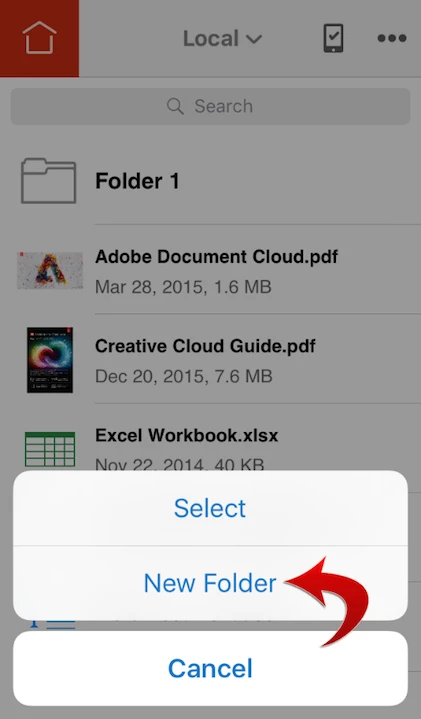
- Tap the "..." button on the right side of the top bar.

- Select New Folder.
- Enter a folder name.
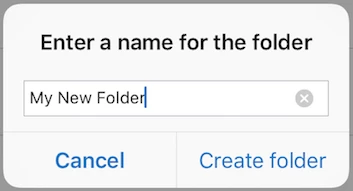
- Tap Create folder.


 AdChoices