


Question
How to uninstall and reinstall Adobe Reader for Android
How to uninstall Adobe Reader
- Tap the Google Play Store icon.
- Go to the Apps section.
- Tap the Search icon.
- Enter "Adobe Reader".
- Tap Adobe Reader (the first app in the search result).
- Tap UNINSTALL. This will uninstall the existing Adobe Reader app.
- Tap OK.
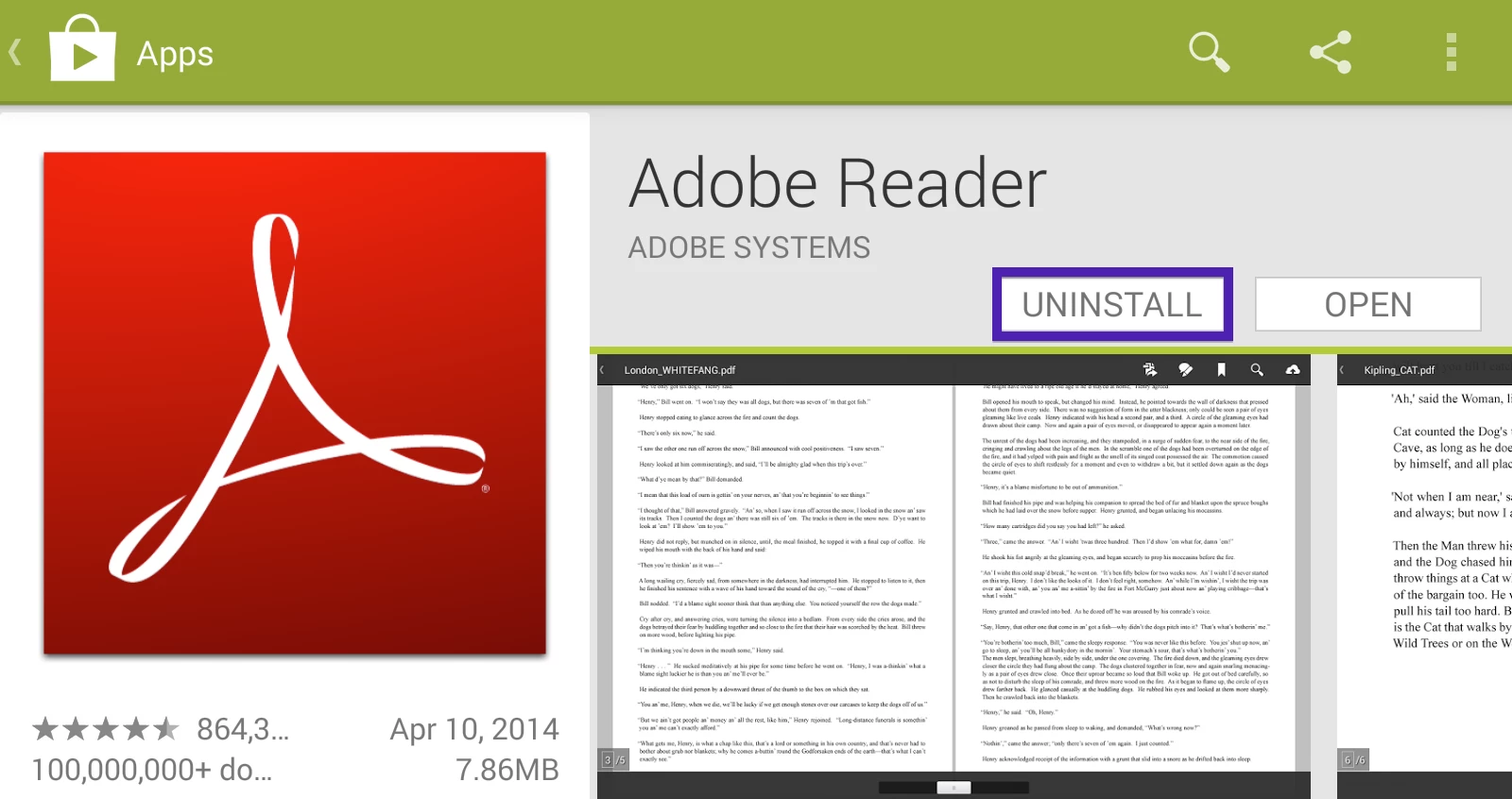
(Click the image above to enlarge.)
How to reinstall Adobe Reader
(You can skip Steps 1-5, if you are already looking at the Adobe Reader page in the Google Play Store.)
- Tap the Google Play Store icon.
- Go to the Apps section.
- Tap the Search icon.
- Enter "Adobe Reader".
- Tap Adobe Reader (the first app in the search result).
- Tap INSTALL. This will install the latest version of Adobe Reader.
- Tap Accept.

(Click the image above to enlarge.)
 AdChoices