MG972244
Participant
February 21, 2018
Answered

I wish to upload the docs to Adobe Acrobat (AA).

  • February 21, 2018
  • 1 reply
  • 703 views

I receive docs into BOX. I wish to upload the docs to Adobe Acrobat (AA). The BOX App allows me to "OPEN" the docs but not "COPY" the docs to AA. Can this be achieved, or am i missing a trick

This topic has been closed for replies.
Correct answer MobileDeveloperCK

Hi MG972244​,

On iOS 11, the Box app supports "Open in Adobe Acrobat" instead of "Copy to Adobe Acrobat", as you pointed out.  (In contrast, other cloud storage apps, such as Google Drive and Microsoft OneDrive, still support "Copy to Adobe Acrobat".)

To make a copy of a PDF document in Acrobat Reader

  1. Make sure to update the Box app and Acrobat Reader to the latest versions that are available from the App Store.
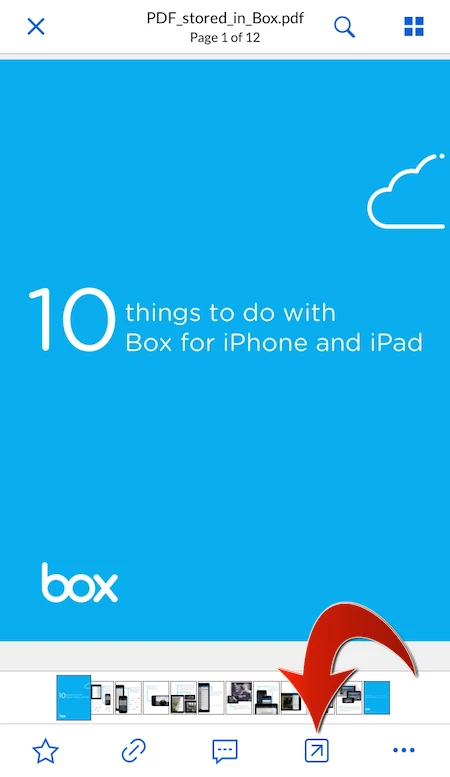
  2. Open a PDF document in the Box app.
  3. Tap the Share icon in the bottom bar.
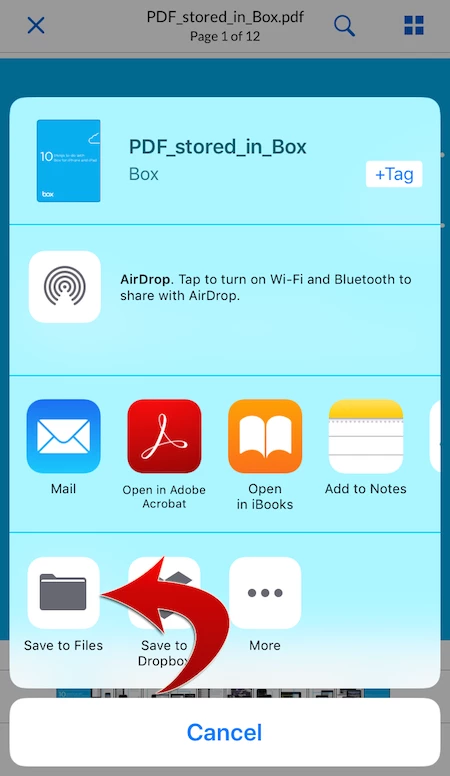
  4. Tap "Save to Files" in the Share sheet.
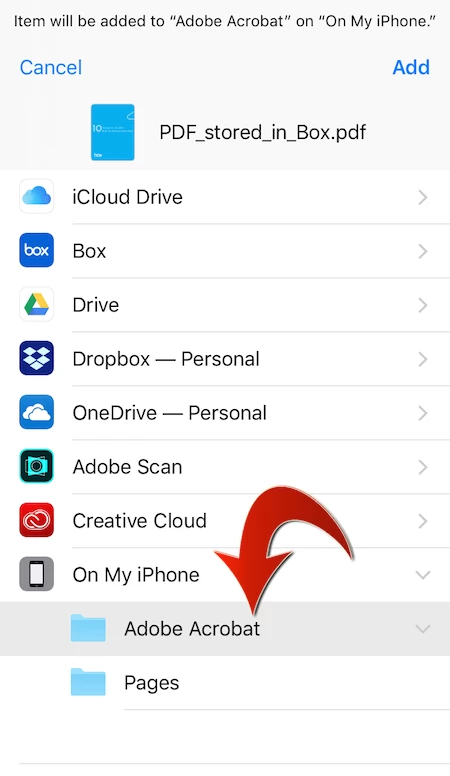
  5. Tap "On My iPhone" or "On My iPad" to expand.
  6. Select Adobe Acrobat.
  7. Tap Add button in the upper-right corner.
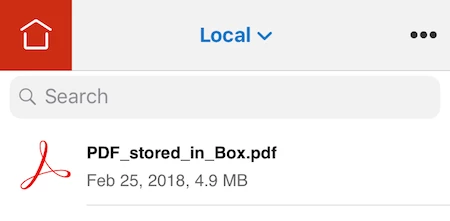
  8. Launch Acrobat Reader.
  9. Switch to "Local".

The PDF document in the Box app is now copied to "Local" in Adobe Acrobat.

Because this is a copy of the PDF document in the Box app, any changes made to the PDF document in Acrobat Reader will not be saved back to the original PDF document in the Box app, which is the expected behavior.

Hope this helps.

1 reply

MobileDeveloperCKCommunity ManagerCorrect answer
Community Manager
February 25, 2018

Hi MG972244​,

On iOS 11, the Box app supports "Open in Adobe Acrobat" instead of "Copy to Adobe Acrobat", as you pointed out.  (In contrast, other cloud storage apps, such as Google Drive and Microsoft OneDrive, still support "Copy to Adobe Acrobat".)

To make a copy of a PDF document in Acrobat Reader

  1. Make sure to update the Box app and Acrobat Reader to the latest versions that are available from the App Store.
  2. Open a PDF document in the Box app.
  3. Tap the Share icon in the bottom bar.
  4. Tap "Save to Files" in the Share sheet.
  5. Tap "On My iPhone" or "On My iPad" to expand.
  6. Select Adobe Acrobat.
  7. Tap Add button in the upper-right corner.
  8. Launch Acrobat Reader.
  9. Switch to "Local".

The PDF document in the Box app is now copied to "Local" in Adobe Acrobat.

Because this is a copy of the PDF document in the Box app, any changes made to the PDF document in Acrobat Reader will not be saved back to the original PDF document in the Box app, which is the expected behavior.

Hope this helps.