


Inspiring
January 13, 2018
Answered

Losing changes when unstabile wifi connection

  • January 13, 2018
  • 2 replies
  • 3319 views

Apparently, there is an issue with the app once there is unstable wifi connection, both with locally and remotely (iCloud) stored files.

First I get message that this document has been suddenly seen as "Read-only"

If I choose by-pass the error and create a local copy of the file...
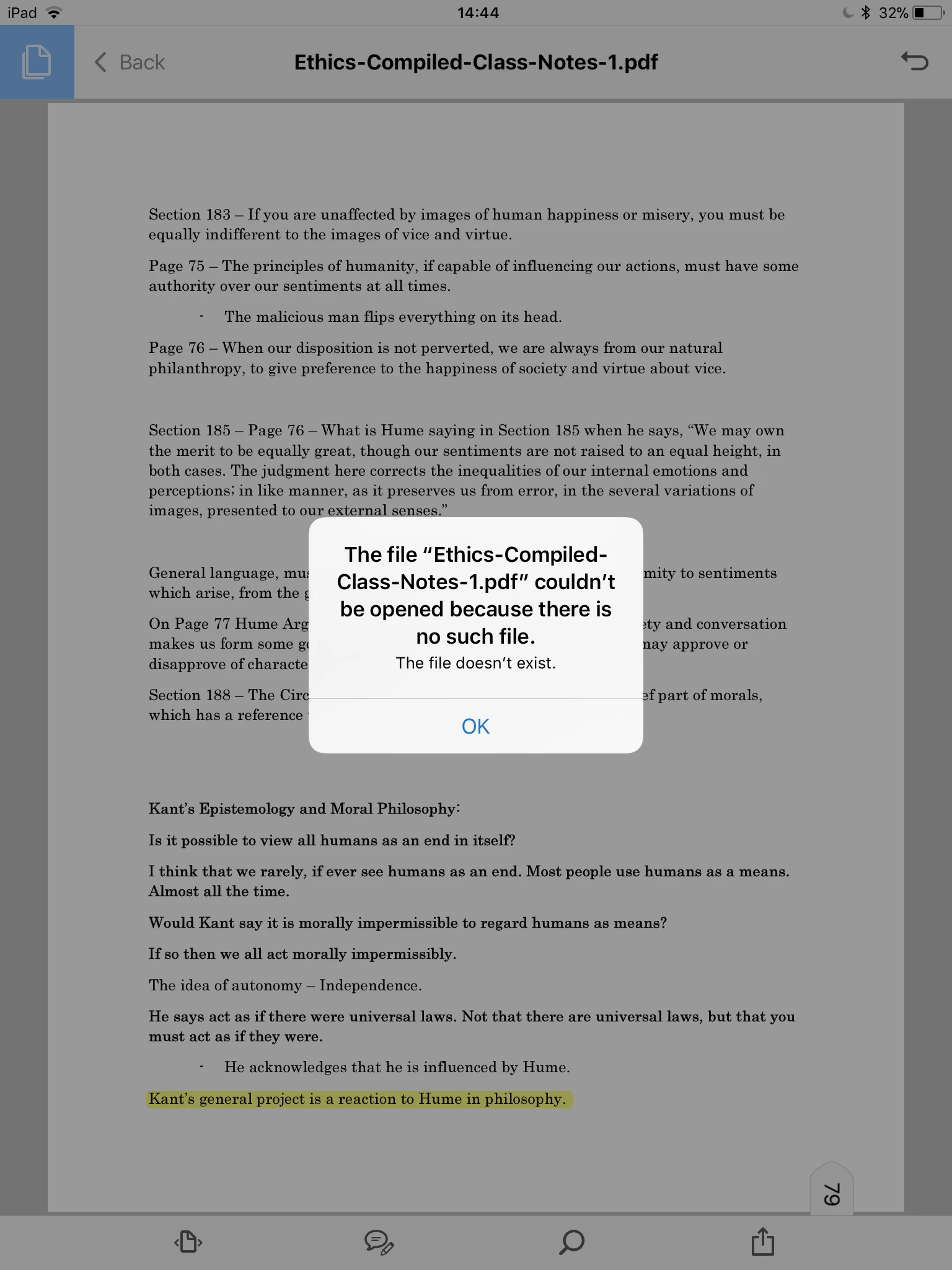
So ultimately this has led me to lose pages of markups over and over again. Super frustrating situation.

I'm on an iPad running latest iOS and app updates.

I've filed a report form, but I would love to see if anyone else is getting this.

This topic has been closed for replies.
Correct answer MobileDeveloperCK

Hi KasparsKursiss, Calibadger5544, Techie2278,

We just released Acrobat Reader 18.01.22 to the App Store.

As of January 23, this is the latest official release (that is identical to the pre-release version that some of you have already installed).

Please let us know if it works for you.

We apologize for the inconvenience caused.

2 replies

Community Manager
January 14, 2018

Hi everyone,

Acrobat displays the "Read-Only Document" alert and fails to save pending changes

  • when you switch to other apps
  • when your iPad/iPhone goes to sleep

A short-term workaround for the problem is to tap the < (Back) button to close your PDF document to save changes before switching to other apps or letting your iPad/iPhone go to sleep.

However, it is not a feasible solution in the long term.

Currently, we are working on a proper fix for the problem.

I will post a new message again once a new update containing the fix is made available in the App Store.

Thank you all for your help and patience!

Community Manager
January 21, 2018

Hi KasparsKursiss, Calibadger5544, Techie2278,

We believe that we fixed the problems that you've experienced with Acrobat Reader 18.01.15.

I sent forum private messages to all of you to see if you are interested in evaluating the pre-release version of Acrobat Reader that contains the fix.

Thank you for your help!

MobileDeveloperCKCommunity ManagerCorrect answer
Community Manager
January 23, 2018

Hi KasparsKursiss, Calibadger5544, Techie2278,

We just released Acrobat Reader 18.01.22 to the App Store.

As of January 23, this is the latest official release (that is identical to the pre-release version that some of you have already installed).

Please let us know if it works for you.

We apologize for the inconvenience caused.

Calibadger5544
Participant
January 13, 2018

I don't think it's the wifi connection - this started happening after the latest update 18.01.15. Extremely frustrating. Hopefully they will fix this ASAP

Community Manager
January 13, 2018

Hi KasparsKursiss​, calibadger5544​,

We apologize for the lost changes.  I can confirm that the problem is not related to Wi-Fi connection.

We are actively investigating the cause of the problem.  However, we would like to collect more information about the problem so that we understand all variations of the problem.  Would you please help us by answering questions?

Q1: What is the iOS version?  (Go to Settings > General > About > Version.)

Q2: What is the Acrobat Reader version?  (Go to Settings > Adobe Acrobat > Version.)

Q3: Does the problem happen to "Local" PDF documents and/or the documents stored in cloud storage (e.g. iCloud Drive, Dropbox, Google Drive)?

Q4: What is the typical file size of the PDF documents that exhibit the problem?

Q5: How do you open your PDF document?  Do you open it from the "Local" or "Recent" file browser in Acrobat or some other app (e.g. the iOS 11 Files app)?

Q6: Does the problem happen to all of your PDF documents all the time (100% of the time)?

Q7: How do you close the PDF document with pending changes?  Do you tap the < (Back) button or do something else?

Q8: Do you always see the "Document saved" toast message when you close the PDF document?

Q9: If it's all possible, would you please describe what you do step-by-step?

Example:

  1. Launch Acrobat.
  2. Go to My Documents > "Local".
  3. Open a PDF document under "Local".
  4. Add Highlight annotations.
  5. Tap the < (Back) button to go back to My Documents.
  6. Open the same PDF document from "Recent".

Thank you for your help.

Calibadger5544
Participant
January 13, 2018

See my answers below