Answered
Sending only 1 of 5 pages
I need to email only 1 page of a pdf file from Adobe Acrobat instead of all 5 pages in a file. Is that possible?

I need to email only 1 page of a pdf file from Adobe Acrobat instead of all 5 pages in a file. Is that possible?
hi mandic44090148,
If you have "Adobe Acrobat Pro DC" subscription, you could try the followings,
1. on iPad, sign in to Document Cloud with an account which have "Adobe Acrobat Pro DC" subscription
2. Make a copy of the PDF in "Local" as below,
2-1. Use Swipe-to-left gesture on the PDF that you want to make a copy
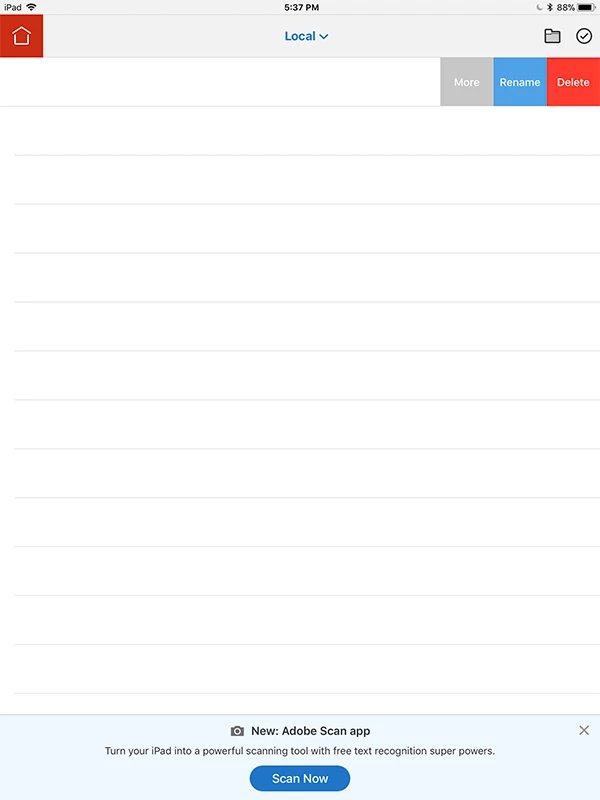
2-2. On the slide-out menu, tap "More" button, then tap "Duplicate" in the popover menu as below,
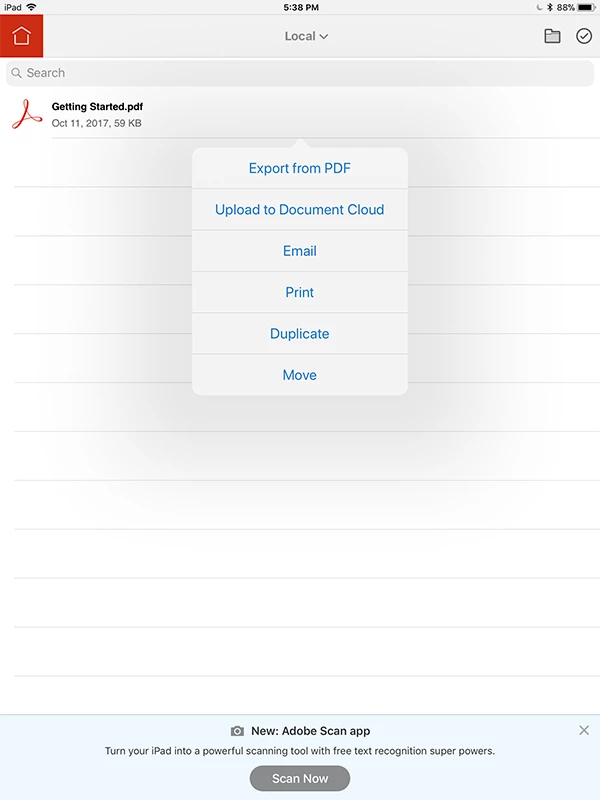
Now, the copy of the PDF should appear in "Local"
3. Make sure to open the copy of the PDF (NOT the original) that you made in Step #2
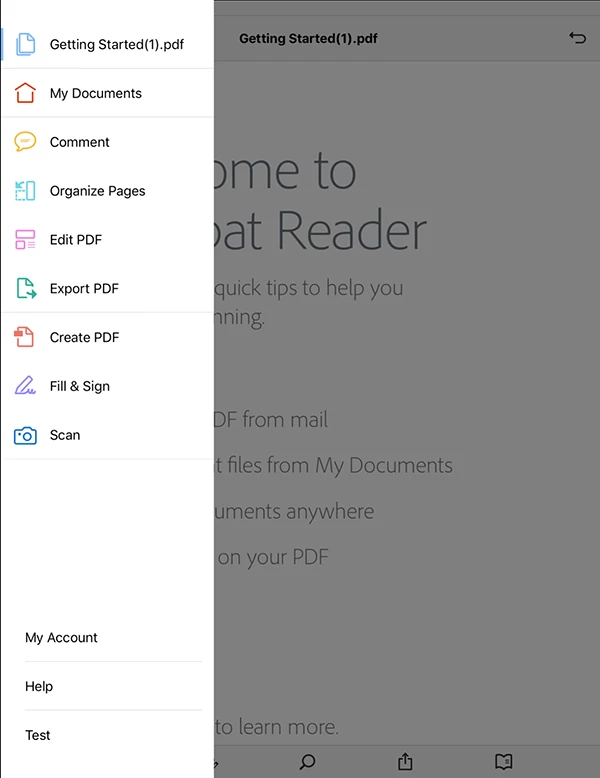
4. Open the "Tool Switcher" and select "Organize Pages"(this feature is only available on iPad only) as below,
5. Select the pages that you do not want as below,
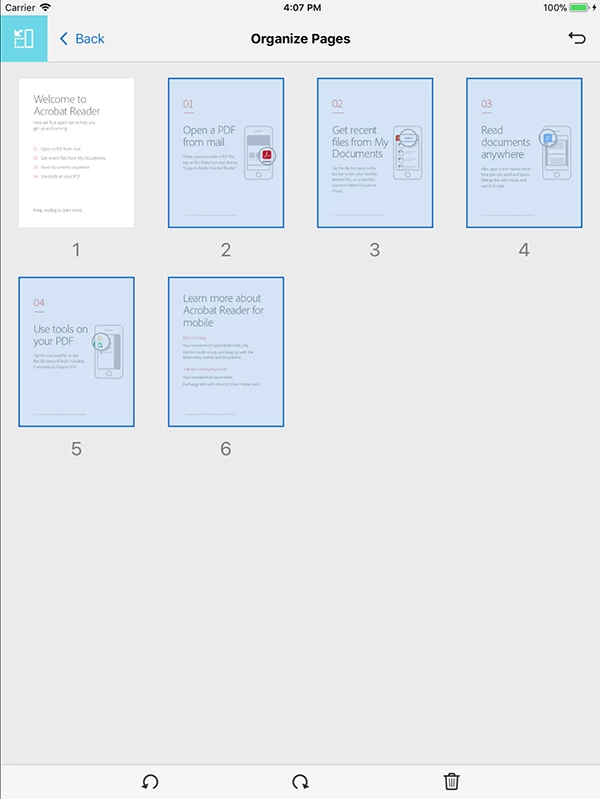
6. Tap "Trash" icon at the bottom toolbar to delete the selected pages
7. Tap "Back" ("<") twice to save the PDF
8. Open the same PDF again (it should only contain 1 page that you want)
9. Tap "Share" icon at the bottom toolbar
10. Tap "Share File" in the popover menu
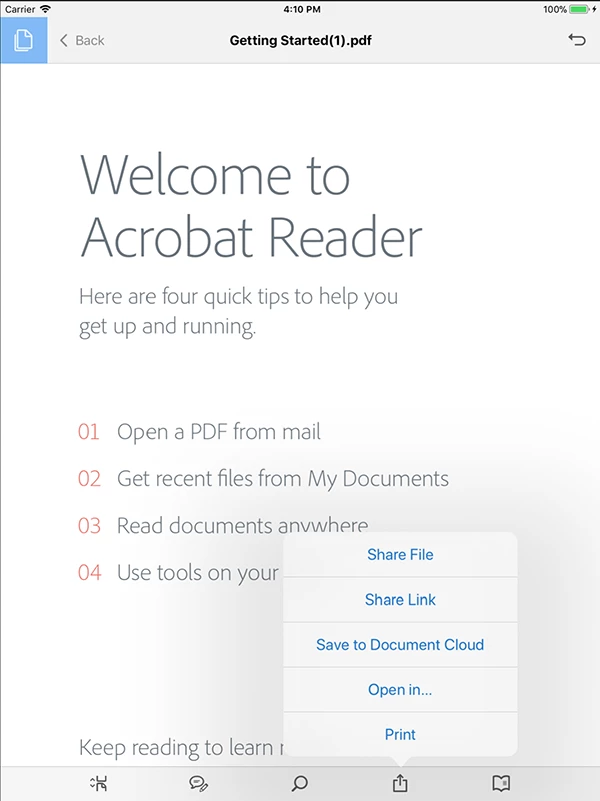
11. Continue to share the PDF using "Mail" app
Hope this help,
Already have an account? Login
No account yet? Create an account
Enter your E-mail address. We'll send you an e-mail with instructions to reset your password.


 AdChoices