
Custom Dialog fails to render Imported Icon properly or consistently
Acrobat DC, version 2024.005.20320
Alright, I'm losing my mind here and I'm pretty sure I'm running into a bug with how Custom Dialogs render Images. However, I am also questioning my overall direction with this project. I would really appreciate any ideas or help!
Overall problem: I have a PDF form that needs up to 13 digital signatures and then a dated stamp with/after the last signature.
Attempted solution: Since the stamp is different for every location, but rarely changes, I've rebuilt the PDF to allow embedding the stamp as a button icon before distribution, then hiding the icon until the Certifying Official digitally signs the form. I've built a Custom Dialog to walk users through importing the icon and loading in the required information. This is supposed to include a preview of the imported stamp.
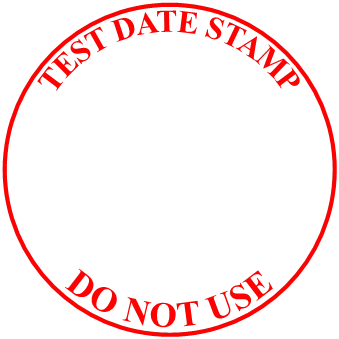
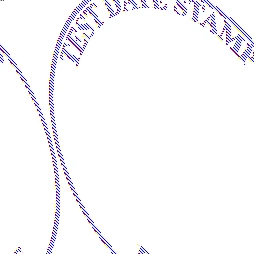
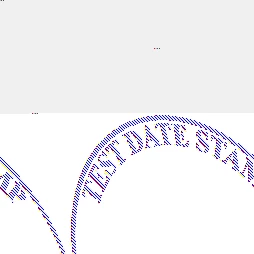
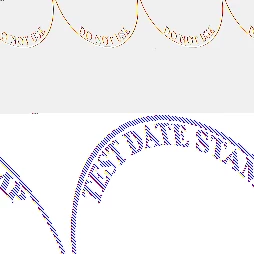
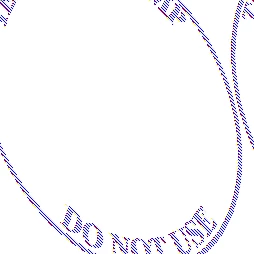
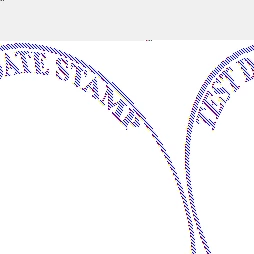
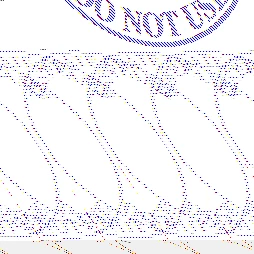
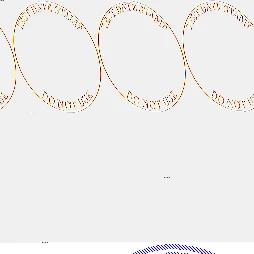
Current problem: The 'preview' image of the imported stamp does not render correctly and is a different size from the original. The imported stamp's size seems to be based on whether the original file has a transparent background or not. Transparent background is imported as 254x254; while a white background is imported as 81x81. On rare occassions, the 81x81 will render properly, but it's not consistent. In all cases, the button on the PDF renders the image correctly.
Additionally, I've found that the "util.iconStreamFromIcon(...).read()" will only ever return the first 8,192 hexidecimals of the image, regardless of size. Which is irritating, as I'm also trying to determine the stamp's color after the import process.
Things I've tried:
- Changing the Image height/width (incremented from 64 to 400)
- Changing the "this.offset"
- Changing the ConvertToPDF compression settings
- Rebooting
Original Transparent Stamp: 339x339
Rendering errors:
Code:
function customizeOMMdata()
{
  //region Data loading
  var refDoc = this, intH, intW;
  var intImportResult;
  var DialogResult, IDnum;
  var arrBad = [], intTryAgain, arrOMM, arrOMC, strOMCname, strOMCmsg, intConfirmOMM, chkLockToField;

  var strDialogInstructions =
  "Filling in the fields below will customize this form to your Office. \n" +
  "\n" +
  "Embedding your All-Purpose Date Stamp will enable fully digital processing. \n" +
  "When the Certifying Official signs, the APDS will appear to certify the form. \n" +
  "\n" +
  "By checking the box on the right side and completing the information below it, \n" +
  "the ADPS can be restricted to display ONLY when the Manager signs."

  //Get current APDS, digest the information into an easier to use object.
  var intMinStampSize = 32, intMaxStampSize = 500;
  //var icoAPDS = getField("OMC.Stamp").buttonGetIcon(0);
  var strmAPDS = util.iconStreamFromIcon(getField("OMC.Stamp").buttonGetIcon(0));
  var objAPDS = {
    //Name: icoAPDS.name,
    Bytes: strmAPDS.read(),
    Height: intH ? intH : Math.min(Math.max(strmAPDS.height, intMinStampSize), intMaxStampSize), //Math.max selects larger of height vs Min size; Math.min selects smaller of height vs Max size.
    Width: intW ? intW : Math.min(Math.max(strmAPDS.width, intMinStampSize), intMaxStampSize)
  }
  var dialogAPDS = {
    type: "image",
    item_id: "APDS",
    width: objAPDS.Width,
    height: objAPDS.Height
  };

  //Get OMM info into an object for easy reference, fewer? ops
  var objOMManager = {
    NameFirst: getField("OMC.Auth.Name.First").valueAsString,
    NameLast:  getField("OMC.Auth.Name.Last").valueAsString,
    IDnum: getField("OMC.Auth.IDnum").valueAsString, //valueAsString to remove the number spinner.
    Email: getField("OMC.Auth.Email").valueAsString
  };

  //Same as OMM object, but for the OMC.
  var objOMCenter = {
    Unit:  getField("OMC.Info.Unit").valueAsString,
    OfficeSymbol: getField("OMC.Info.OfficeSymbol").valueAsString,
    State:  getField("OMC.Info.State").valueAsString,
    Email: getField("OMC.Info.Email").valueAsString
  };

  if(objOMManager.IDnum || objOMManager.Email){blnOMMrequired = true}
  else{blnOMMrequired = false};

  //In order to push data into the Dialog, an Object with Keys exactly 4 characters long must be provided.
  var DialogData = {
    "APDS": { width: objAPDS.Width,
              height: objAPDS.Height,
              offset: 0,
              read: bytes => objAPDS.Bytes.substring(this.offset, this.offset += bytes)}, //this function makes no sense, but Acrobat hangs if you don't use it. Substring or Slice both work.
    "Fnme": objOMManager.NameFirst,
    "Lnme": objOMManager.NameLast,
    "nmID": objOMManager.IDnum,
    "Mail": objOMManager.Email,
    "Unit": objOMCenter.Unit,
    "OSym": objOMCenter.OfficeSymbol,
    "Stat": objOMCenter.State,
    "OBox": objOMCenter.Email,
    "OMrq": blnOMMrequired
  };

  //region Dialog Description
  //Literal JS Object with each property describing the look and flow of the dialog. Order matters.
  var objDialogDescription =
  {name: "Set authorized Manager", first_tab: "Unit", elements:[
    {type: "view", elements:[
      {type: "static_text", alignment: "align_center", mutliline: true, char_height: 12, name: strDialogInstructions},
      {type: "view", align_children: "align_row", elements:[
        {type: "cluster", align_children: "align_center", name: "Embedded All-Purpose Date Stamp", char_width: 21, char_height: 22, elements:[
          dialogAPDS,
          {type: "button", item_id: "embd", name: "Change APDS"}
        ]},
        {type: "cluster", name: "Manager's info:", char_width: 20, char_height: 22, elements:[
          {type: "check_box", item_id: "OMrq", next_tab: "Fnme", name: "Restrict APDS to Manager's signature?"},
          {type: "view", align_children: "align_row", elements:[
            {type: "static_text", name: "First name:"},
            {type: "gap", width: 15},
            {type: "edit_text", item_id: "Fnme", next_tab: "Lnme", char_width: 20}
          ]},
          {type: "view", align_children: "align_row", elements:[
            {type: "static_text", name: "Last name:"},
            {type: "gap", width: 16},
            {type: "edit_text", item_id: "Lnme", next_tab: "nmID", char_width: 20}
          ]},
          {type: "view", align_children: "align_row", elements:[
            {type: "static_text", name: "ID number:"},
            //{type: "gap", width: 0},
            {type: "edit_text", item_id: "nmID", next_tab: "Mail", char_width: 7}
          ]},
          {type: "view", align_children: "align_row", elements:[
            {type: "static_text", name: "Email address:"},
            {type: "gap", width: -2},
            {type: "edit_text", item_id: "Mail", next_tab: "Unit", char_width: 20}
          ]}
        ]},
      ]},
      {type: "cluster", align_children: "align_center", name: "Center info:", elements:[
        {type: "view", align_children: "align_row", elements:[
          //{type: "gap", width: -4},
          {type: "static_text", name: "Unit Abbreviation:"},
          //{type: "gap", char_width: 1},
          {type: "edit_text", item_id: "Unit", next_tab: "OSym", char_width: 6},
          //{type: "gap", width: 34},
          {type: "static_text", name: "Office Symbol:"},
          //{type: "gap", width: 6},
          {type: "edit_text", item_id: "OSym", next_tab: "Stat", char_width: 6},
        ]},
        {type: "view", align_children: "align_row", elements:[
          {type: "gap", width: 6},
          {type: "static_text", name: "State:"},
          {type: "gap", width: 24},
          {type: "edit_text", item_id: "Stat", next_tab: "OBox", char_width: 35},
        ]},
        {type: "view", align_children: "align_row", elements:[
          {type: "gap", width: 6},
          {type: "static_text", name: "Center Email:"},
          //{type: "gap", width: -3},
          {type: "edit_text", item_id: "OBox", next_tab: "Fnme", char_width: 35},
        ]},
      ]}
    ]},
    {type: "ok_cancel_other", ok_name: "Save", other_name: "Remove"}
  ]};

  //region Dialog Execution
  //OMMdata variable holds the result and data from the dialog.
  var OMMdata =
  {
    //Set the default result string
    result: "cancel",

    //This adds a method to the OMMdata Object that executes the dialog.
    RunDialog: function(){return app.execDialog(this);},

    //This method runs first and takes an object and passes it into the Dialog
    initialize: function(dialog)
    {
      dialog.load(DialogData);
      dialog.enable({
        "Fnme": blnOMMrequired,
        "Lnme": blnOMMrequired,
        "nmID": blnOMMrequired,
        "Mail": blnOMMrequired
      });
    },

    //This method takes data from the dialog and adds it back to the Object as properties, when result == `ok`.
    commit: function(dialog)
    {
      var oResults = dialog.store();
      this.FirstName = oResults["Fnme"];
      this.LastName = oResults["Lnme"];
      this.IDnum = oResults["nmID"];
      this.Email = oResults["Mail"];
      this.Unit = oResults["Unit"];
      this.OfficeSymbol = oResults["OSym"];
      this.State = oResults["Stat"];
      this.OMCemail = oResults["OBox"];
    },

    //Change APDS embed function
    "embd": function(dialog)
    {
      intImportResult = refDoc.importIcon({cName: 'APDS'}) //'This' refers to the Dialog at this point. A reference is captured beforehand to work around it.
      switch(intImportResult)
      {
        case 0: //Success: Set the new stamp and scale it to fit
          //Reload image into dialog

          dialog.end("rtry")

          getField("OMC.Stamp").buttonSetIcon(refDoc.getIcon('APDS'));
          getField("OMC.Stamp").buttonScaleWhen = scaleWhen.always;
          getField("OMC.Stamp").buttonPosition = position.overlay;
          getField("OMC.Stamp").buttonSetCaption({cCaption: "DATE"});
          getField("OMC.Stamp").textColor = color.black;
          break;
        case 1: //User canceled
          //if(app.alert({cTitle: "APDS Embed Cancelled", cMsg: "ADPS embedding has been canceled.\n\nWould you like to REMOVE the current ADPS?", nIcon: 2, nType: 2}) === 4){actionHideAPDS();}
          break;
        case -1: //File cannot be opened
          app.alert("The file selected cannot be opened. Try again with a different file.");
          //actionHideAPDS();
          break;
        case -2: //Selected page is invalid. Default is page 0, which should always be present.
        default:
          //actionHideAPDS()
      }
    },

    //Validates "nmID" field on lost focus. Removes all non-digit characters, then cuts string to 10 characters.
    "nmID": function(dialog)
    {
      dialog.load({"nmID": dialog.store()["nmID"].replace(/\D/g,'').substring(0,10)});
    },

    "OMrq": function(dialog)
    {
      blnOMMrequired = dialog.store()["OMrq"];
      dialog.enable({
        "Fnme": blnOMMrequired,
        "Lnme": blnOMMrequired,
        "nmID": blnOMMrequired,
        "Mail": blnOMMrequired
      });
    },

    //Other button, "remove", function
    other: function(dialog)
    {
      dialog.end("kill") //Closes dialog and returns "kill" >> Limit is 4 characters
    },

    //This area defines what the dialog looks like, where it gets its data, and what all the buttons call to.
    description: objDialogDescription
  };

  //Outside of the object, the Dialog is called and executed.
  DialogResult = OMMdata.RunDialog()

  //region Result Handler
  //A switch conditional is used to handle the output.
  switch(DialogResult)
  {
    case "ok":
      //Handler removed as it's not relevant to the issue.
    break;

    case "kill": //Remove all customizations
      this.resetForm(["OMC.Auth", "OMC.Info", "OMC.To"])
      getField("OMC.To").readonly = false;
      appearanceCustomHighlight(DocCustomHighlight);
      actionHideAPDS();
    break;

    case "rtry":
      customizeOMMdata();
      break;

    case "cancel":
    default:
      return false;
  }
}


 AdChoices