The response given above is absolutely wrong unless you want all of the color to be converted to true grayscale.
What you are encountering is a problem known a “rich black” due to the application that produced the content treating black as equal components of red, blue, and green (R=G=B) instead of either grayscale (G) or CMYK=(0,0,0,1).
Assuming that what you want to print in true black is indeed exactly R=G=B, the solution is directly accessible from the print dialog. In the print dialog, press the Advanced options and select the Color Management. In that dialog, check the boxes for Treat grays as K-only grays and Preserve Black. (See screen shot below!) Press OK and then Print. That should solve the problem of rich black text, rich black vectors, and any raster images for which all pixels are R=G=B.
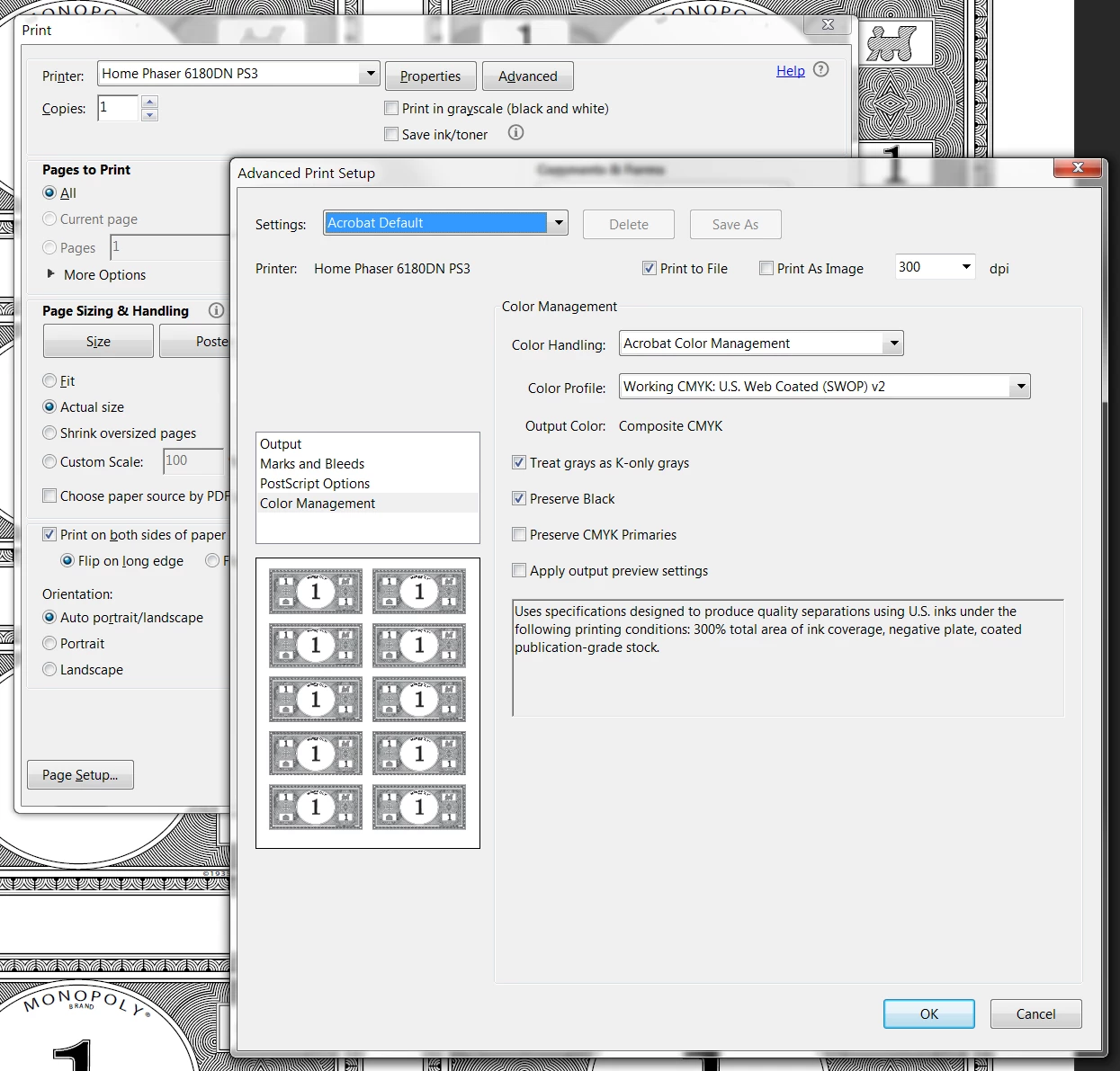
Note that if all you want is for all the output to be black and white, that can be easily accomplished from the original print dialog by selecting the Print in grayscale (black and white) option.
Please advise if this helps.
- Dov



 AdChoices