Participant
Jun 19, 2017 7:39 PM UTC
Answered

Adobe Stock .ai Image with transparent background in photoshop

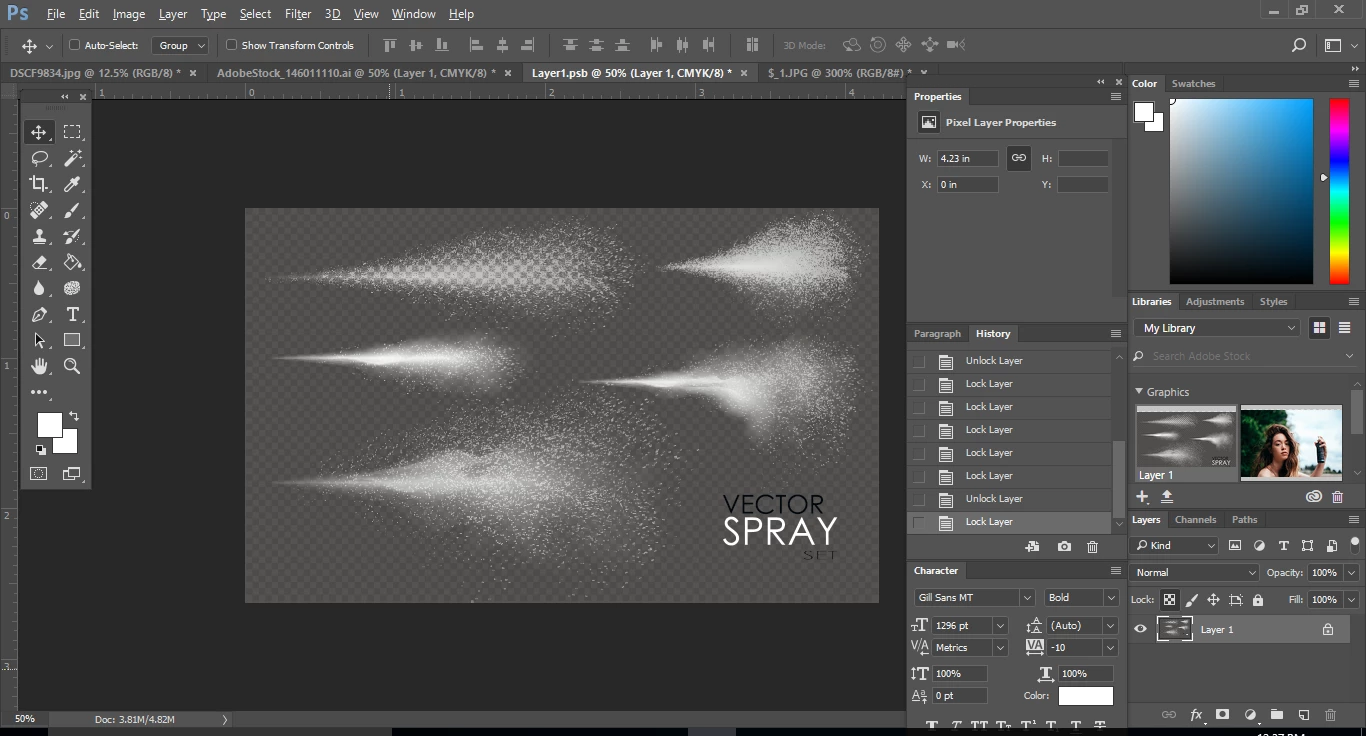
I recently bought this adobe stock images because I need to import a spray effect into one of my images. I thought this would be a transparent background but when I open it in Photoshop there is still the dark grey squared background. I can't isolate the spray effect from it.

Any way of doing this without having to have Illustrator?
Brad Lawryk
Brad LawrykCorrect answer
Legend
Jun 19, 2017 8:46 PM UTC

You need to open it in Illustrator and turn off the background layer.

47 replies

Participant
Jul 9, 2020 4:53 PM UTC

I am having the same issue. Lisenced: #177726668

And it has no layers when opened in illustrator,  I specificlly chose this because it said transparent background. Please help!


Translate
robing65081599
Participant
Oct 24, 2020 12:47 PM UTC

I am having the same issue, I ordered #114122981 and #114123912. I no longer have illustrator but trying to use these files in affinity designer, in the layers panel there is no option for turning off the gray chequerboard background, what should I do?

Translate
WendellaBee
Inspiring
Oct 26, 2020 9:30 PM UTC

I answered your other post.

Translate
Participant
May 30, 2020 9:36 PM UTC

I am having a similar issue with 215542955. When I hide the background layer, I get a black background that is still showing when I place the file in InDesign. 

Translate
Participant
Jan 20, 2020 4:36 PM UTC

same issue with  #:  125097639

Translate
Abambo
Community Expert
Community Expert
Jan 21, 2020 12:09 PM UTC

You will absolutely need to use Illustrator for this asset. If you have, please describe your problem and we may help. If you do not have Illustrator, it will probably be impossible to use this asset at its best.

Translate
ABAMBO | Hard- and Software Engineer | Photographer
Participant
Feb 3, 2020 12:12 PM UTC

I do have AI.

Translate
Participating Frequently
Dec 28, 2018 12:01 AM UTC

I’m having really trouble removing the chequered effect of transparent stock images. I’m trying to add some glitter over a photo of mine in a photoshop. Please help!

Translate
Brad Lawryk
Legend
Dec 28, 2018 12:29 AM UTC

saa32676758  wrote

I’m having really trouble removing the chequered effect of transparent stock images. I’m trying to add some glitter over a photo of mine in a photoshop. Please help!

Open the image in Illustrator and hide the background layer as described above.

Translate
Participant
Jan 18, 2019 6:13 PM UTC

I'm having the same problem with all of the above.  177877607

The transparent background function used to work automatically-this is taking way too much time.

I tried turning off the layers as mentioned previously.

When I turn off all of the backgrounds, it looks like this:

I only want the white parts from this:

Translate
LizzP
Participating Frequently
Feb 23, 2018 11:11 PM UTC

I am having trouble too. I need icons on a transparent background to place on a coloured background. I bought a card of related icons, but when I cut the icon I wanted away from the others (using PS cc) and placed it on my design (I am using InDesign), it is still on it's white background. I need it transparent so it doesn't show the white behind. I tried searching on 'transparent icons' in Stock, but what came up were not designs I wanted. Can anyone suggest how to get icons that have a transparent background? This is crazy, there must be a way. Thanks in advance

Translate
twaritar3263062
Participating Frequently
Feb 26, 2018 8:37 AM UTC

Hi Liz,

Sorry for the trouble you have been facing. Would you mind sharing the file ID which you are referring to?

Regards

Twarita

Translate
Participant
Dec 3, 2018 2:55 PM UTC

Hey, I'm having a similar problem with vector image I purchased from Fotolia. The  picture is "Snow Blizzard Effect on Transparent Background Vector Illustration. Abstract bright white shimmer glowing scatter falli…  on older version of AI (CS6)I saw layers:

On the newer version it looks like this:

How can I make the image really transparent?

Translate
Brad Lawryk
Legend
Jun 19, 2017 10:36 PM UTC

In addition to your question, you could look for a similar .jpg image that has a solid black background and then when you place it into photoshop use the 'Blend If' sliders on the mist layer and adjust it slightly from the black slider and all the black will disappear leaving you with the mist. You even have more control using the sliders to achieve more or less mist.

Translate
twaritar3263062
Participating Frequently
Jun 19, 2017 8:56 PM UTC

Hi Nicole,

I understand your concern but as Brad mentioned you need to open the image in Illustrator.

Therefore, I have added an image credit to your account so you can license a different image instead.

Apologize for the trouble.

Please feel free to update this thread in case of any additional query.

Regards,

Twarita

Translate
Participant
Dec 19, 2017 12:47 AM UTC

Hello Nicole, I have the same problem, how can I contact the artist who created the image? There is no background layer in illustrator and I can't figure out how to place this image in Photoshop, I have an image of snow effect but I just want the white shini objects, nit the gray background or the checkboard background. Please help! My image number is 127572317

Translate
twaritar3263062
Participating Frequently
Dec 21, 2017 12:22 AM UTC

Hi Rosa,

Sorry for a delay in response. Please follow the steps below:

Step 1: Delete Checker box from layers panel.

  • Expand Layer and further expand the last sublayer(Clip Group)

  • Hide and delete checker box layer

Step 2:

  • Close layer one and create a new layer(Layer2) and Drag Layer 2 below layer

Step 3:

  • Move layer(Path) to new layer(Layer 2) and hide layer one, so that we can make changes only on Path without affecting the complete artwork.

Step 4:

  • Hide Layer1 and change the colour of path from layer 2 and show layer 1


  • Final output:

Hope this information helps!

Feel free to update this thread in case of any additional questions.

Regards

Twarita

Translate
Brad Lawryk
Brad LawrykCorrect answer
Legend
Jun 19, 2017 8:46 PM UTC

You need to open it in Illustrator and turn off the background layer.

Translate