



AdamOffline
Participant
May 20, 2026
Question

How to stop Adobe Stock syncing to library?

  • May 20, 2026
  • 2 replies
  • 25 views

How do I stop Adobe Stock images from syncing to my library? I just want to download them to my desktop. The answer to this question no longer works, as I do not see those toggle options when clicking “Manage”.
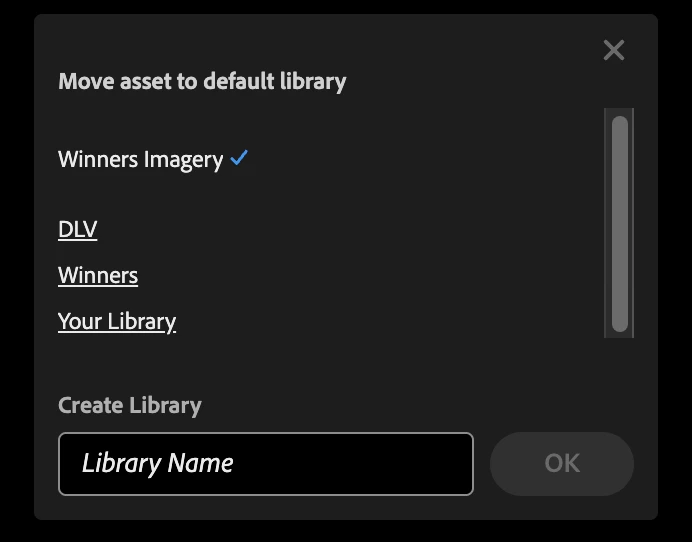
 

No toggle available to turn off syncing


    2 replies

    Abambo
    Community Expert
    Community Expert
    May 26, 2026

    What browser are you using? Check if it works with no extensions loaded. Especially, add blockers may interfere with the information that will be shown.

    ABAMBO | Hard- and Software Engineer | Photographer
    Nancy OShea
    Community Expert
    Community Expert
    May 25, 2026

    Stock allows you to auto-save assets to a library of your choice, and auto-download them to your machine. Both of these functionalities are enabled by default.

    https://helpx.adobe.com/stock/help/using-adobe-stock-website.html


    Nancy O'Shea— Product User & Community Expert
    AdamOffline
    Participant
    May 26, 2026

    Thank you for your reply. In step 5 of your attached link, the option:

    “To change the default Stock library, click Manage in the Asset has been licensed notification in the upper-right corner of the window. Choose the library of your choice or create a new library. All the future assets get saved to this library. 

    You can also disable the auto-save and auto-download functionalities. If you disabled auto-save and then license an asset, the asset gets added to the Downloads library.”

    Does not work. In the screenshot attached to my original post, there are no toggles to disable auto-save or auto-download like they appear in the example. The option does not appear?

    Nancy OShea
    Community Expert
    Community Expert
    May 26, 2026

    Are you logged-in to the actual Adobe Stock website from a current desktop browser like Firefox, Chrome or MS Edge?

    https://stock.adobe.com/


    Nancy O'Shea— Product User & Community Expert