Participant
June 29, 2018
Answered

Image Help!

  • June 29, 2018
  • 1 reply
  • 297 views

HI-

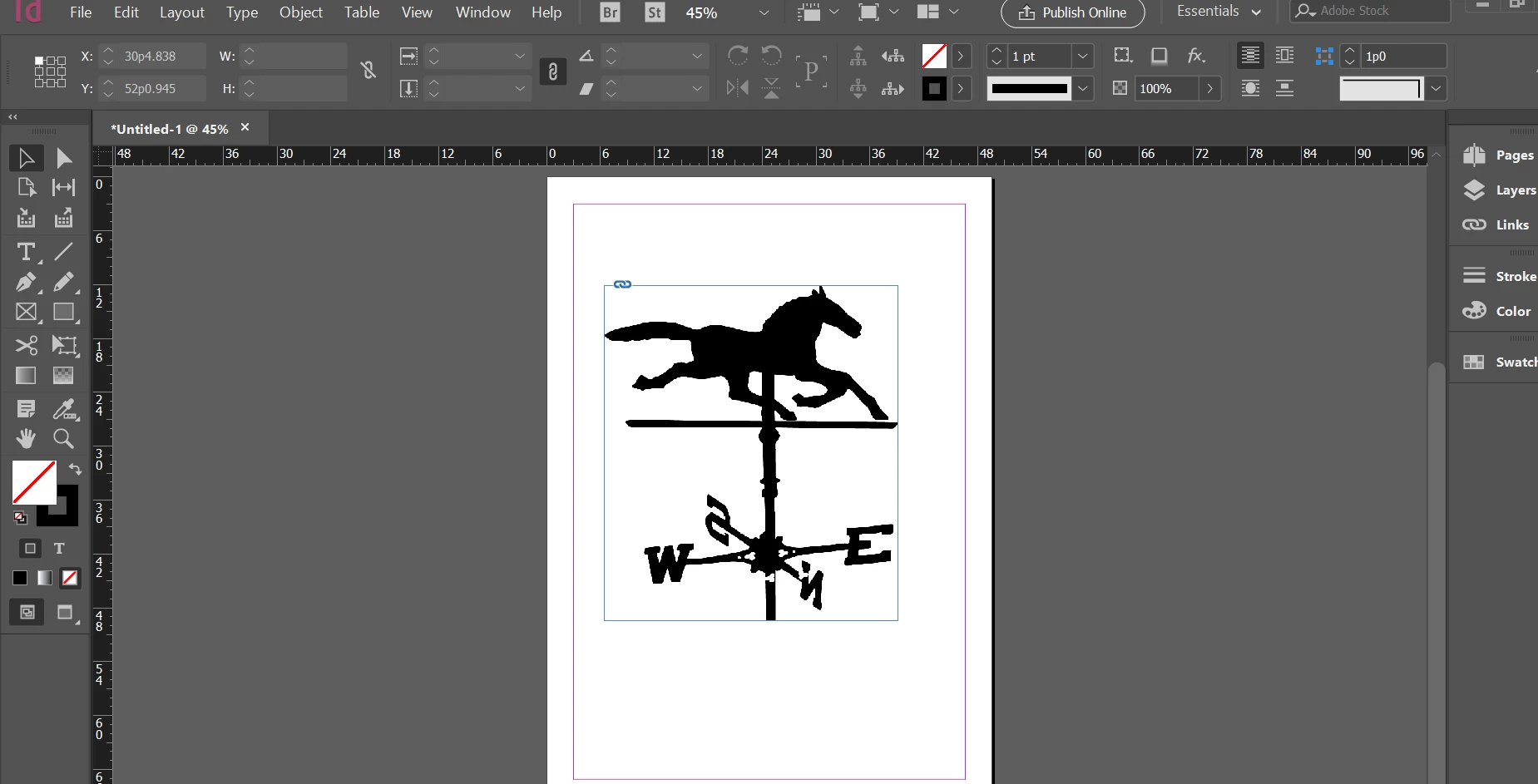
I licensed the following image: #23941310  and would like to use it in InDesign on a colored background.  When I place it on the background, it has a white square around it.  I do not want the white square, I simply want the black image.  In the application, I have selected the image and clicked on 'Layers' and the image is a single layer, there is now 'background' layer to the image.  How can I remove the white square from the image?

Thank you!!

Danielle
    This topic has been closed for replies.
    Correct answer twaritar3263062

    Hi Danielle,

    Thanks for reaching out to the Stock community.

    I see you have downloaded a JPG file and the requirement you have cannot be achieved with this. JPG does not support transparency.  You need to find a PNG file.

    However, I have shared the workaround below in order to achieve the desired result.

    • Trace the file in Illustrator CC and then go to file and select the export option.

    You may also refer to How to edit artwork in Illustrator using Image Trace

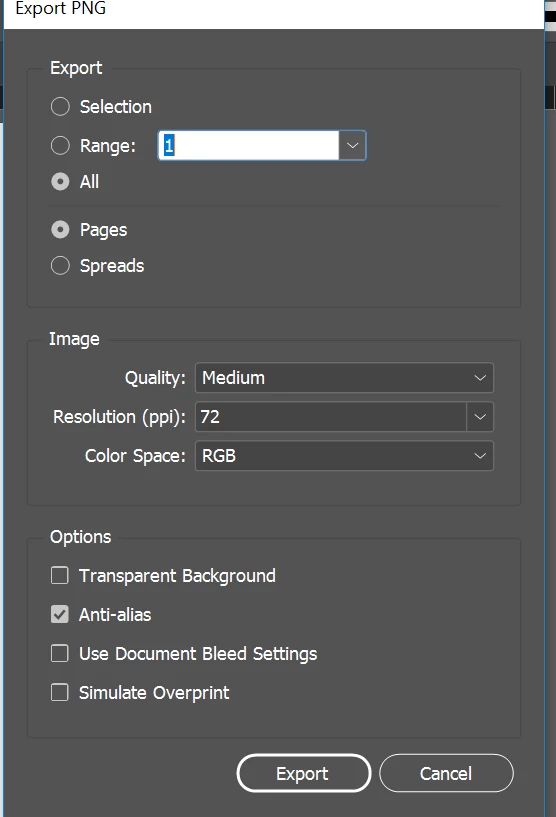
    • Export the file as PNG as shown in the screenshot below:

    • Then go to Indesign and place the image in Indesign.

    Hope this helps!

    Please let us know if you have any additional questions.

    Regards,

    Twarita

    1 reply

    twaritar3263062
    Community Manager
    twaritar3263062Community ManagerCorrect answer
    Community Manager
    June 29, 2018

    Hi Danielle,

    Thanks for reaching out to the Stock community.

    I see you have downloaded a JPG file and the requirement you have cannot be achieved with this. JPG does not support transparency.  You need to find a PNG file.

    However, I have shared the workaround below in order to achieve the desired result.

    • Trace the file in Illustrator CC and then go to file and select the export option.

    You may also refer to How to edit artwork in Illustrator using Image Trace

    • Export the file as PNG as shown in the screenshot below:

    • Then go to Indesign and place the image in Indesign.

    Hope this helps!

    Please let us know if you have any additional questions.

    Regards,

    Twarita