Participant
July 28, 2020
Answered

Libraries - setting current library and moving assets between libraries

  • July 28, 2020
  • 2 replies
  • 5823 views

Am I the only one who finds the library in Adobe Stock completely unintuitive and time-wasting?

When I purchase or save an asset, it always ends up in the wrong library, because it does not prompt for which library to use.

How do I move assets from one library to another?
 

This topic has been closed for replies.
Correct answer Marianne-Deiters

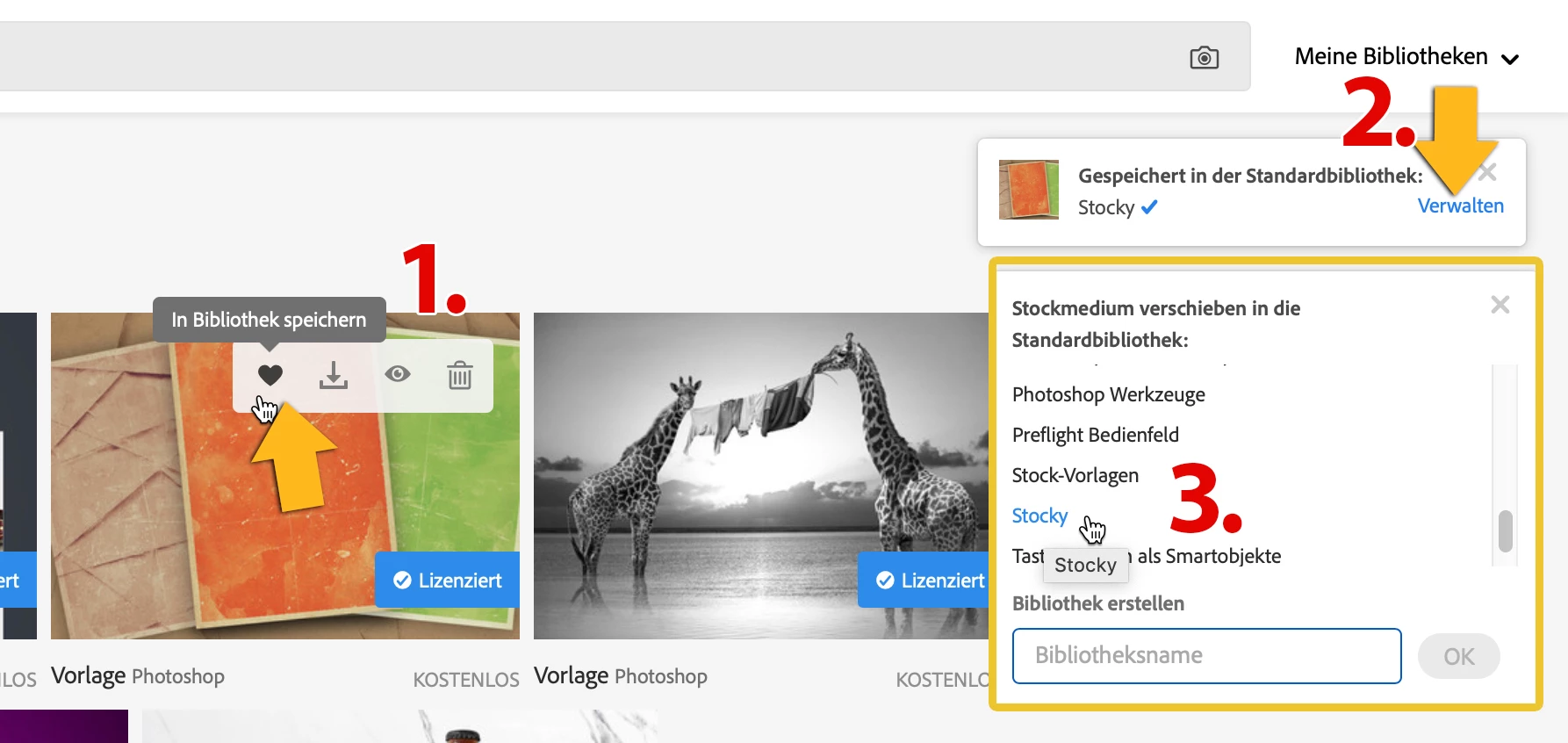
1. If you want it to be on adobe stock, hover the mouse over an asset, then click on the heart symbol. A message appears at the top right of the window. Go to the "manage" link and select the desired library

In fact, it was previously possible to directly select the desired library on Adobe Stock. Maybe it has a technical background.


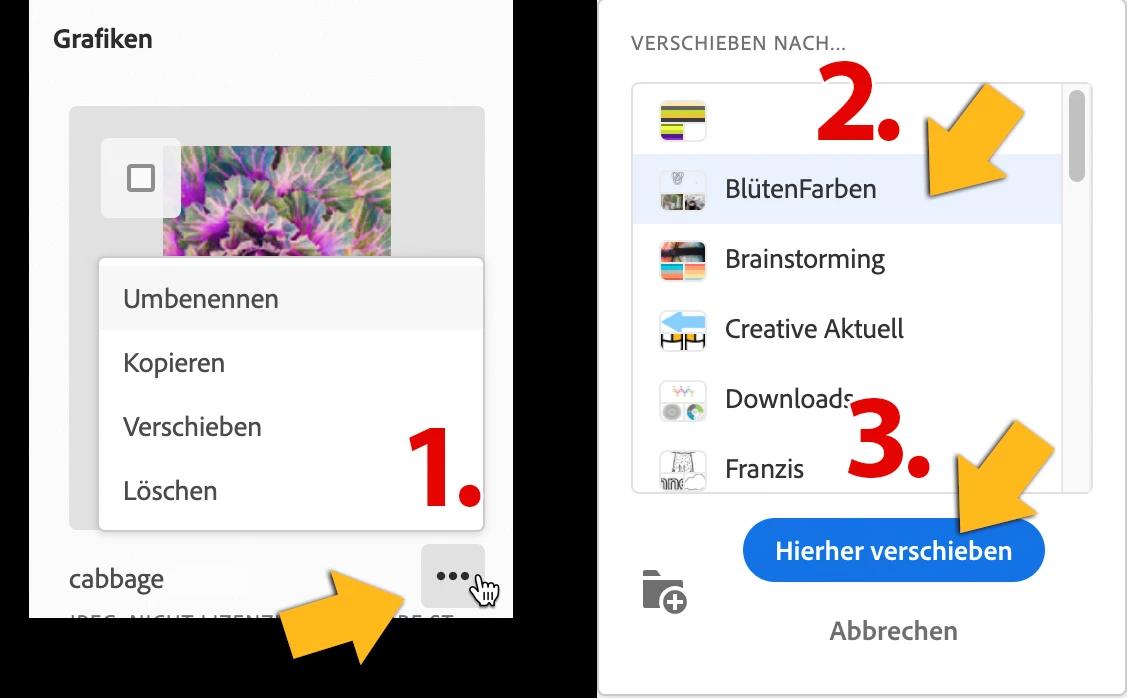
2. You can do it easily in your CC librairies online - https://assets.adobe.com/libraries/


3. It is also very easy, for example, in Photoshop in the librairies panel.


2 replies

Participating Frequently
July 28, 2020

Hi There,

When you save a license to the library, it gets added to the default library - which is the one you used last.  This can be changed by changing the library option from the pop up you get on the right-hand side of the page when you add the license. You may click on the "manage icon" to select the library. You may add the licenses to the desired library and then remove them from the old one. 


You may refer, Getting Started page. 

If needed, you may contact Customer Care, for more help. 

Thanks,

Bhawna

Marianne-Deiters
Marianne-DeitersCorrect answer
Participating Frequently
July 28, 2020

1. If you want it to be on adobe stock, hover the mouse over an asset, then click on the heart symbol. A message appears at the top right of the window. Go to the "manage" link and select the desired library

In fact, it was previously possible to directly select the desired library on Adobe Stock. Maybe it has a technical background.


2. You can do it easily in your CC librairies online - https://assets.adobe.com/libraries/


3. It is also very easy, for example, in Photoshop in the librairies panel.