jaycribas
Participating Frequently
July 31, 2020
Answered

Licensed Adobe Stock image showing as unlicensed in Creative Cloud Libraries on one machine

  • July 31, 2020
  • 2 replies
  • 3956 views

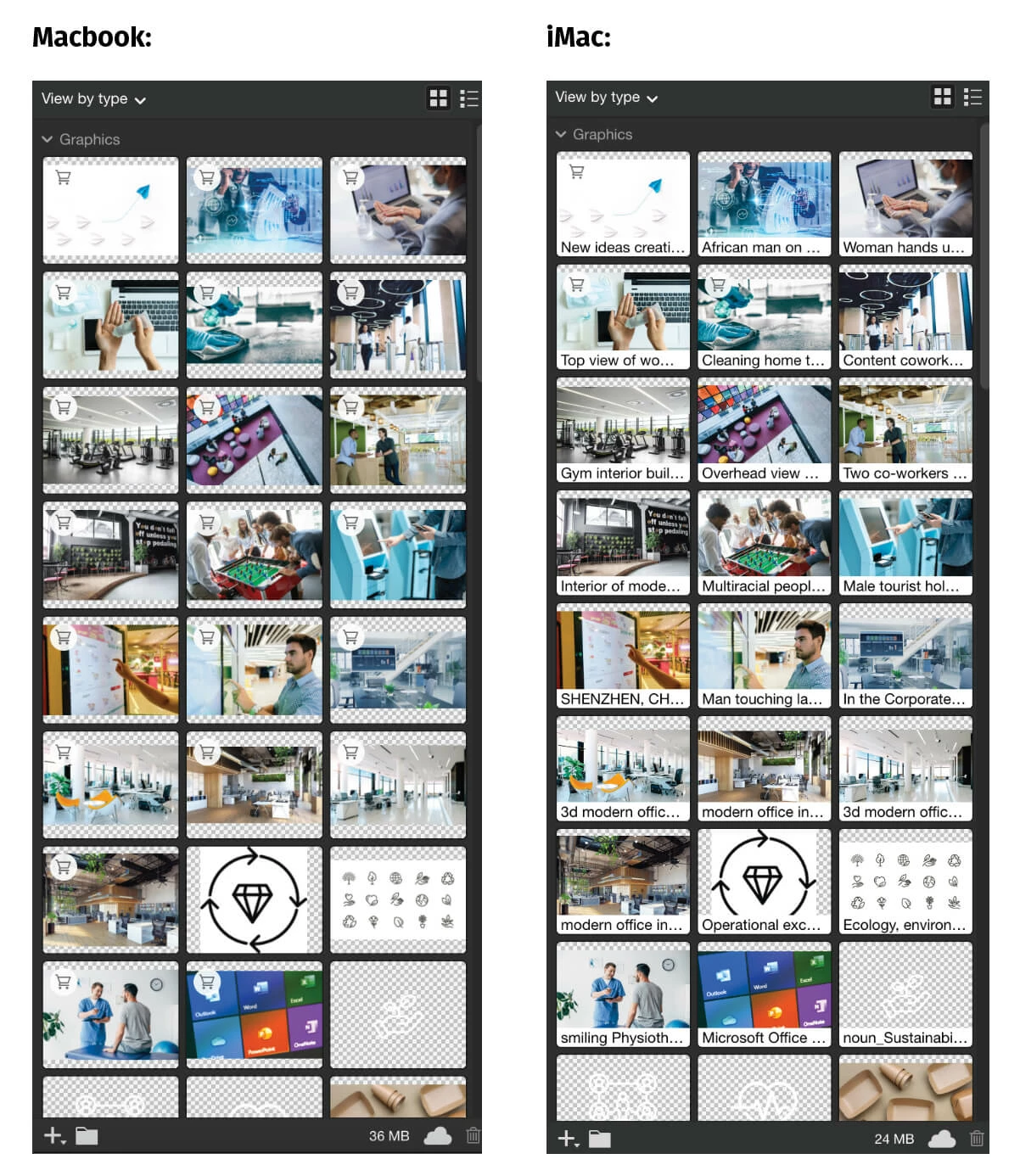
I've been working on an InDesign project between my iMac and Macbook, both systems use my same Adobe account, same software versions - but my Macbook shows several images as 'unlicensed' when I view the CC Library (both in InDesign and Photoshop). I keep having to move to my iMac to create a PDF - why is this happening? (Attached 2 screenshots of the Library, the little shopping cart icon shows which are supposedly unlicensed on my Macbook)


This topic has been closed for replies.
Correct answer JayI14

I'm sorry that you're having an issue with this.  You are correct, they should be showing the same licensed assets.  You say they are using the same Software Versions.  Can you tell me what versions those are?  Both the versions of the Apps (Photoshop, InDesign) as well as the version of CC Desktop you are using and the versions of the CC Library panels.  You can find the library panel versions if you click on the menu icon (the three stacked lines) on the upper right hand corner of the Library panel.  In there you should see which version of the panel you have.  Also can I get the OS versions for your Macbook and IMac?  

Also, another thing you might try as a workaround is to click on the assets that show as unlicensed in your Macbook and license them again.  I know, you don't want to pay for them again, and you shouldn't have to.  If your account shows them as licensed in your license history then it may go through the licensing process but should not charge you again.  I would suggest trying this with one and see if it does deduct a credit or license from your account.  It should not.  If it does, we will, of course, make that right for you and get you another credit.  

But I would like to track down why they are behaving like this.  Another thing you can do is to collect the logs for the apps with the Adobe Log collector.  If you could collect the logs for both machines using the tool, that would be great and then send them over to us.  Also please note the Adobe stock image id from one of the assets that shows as unlicensed that should be licensed when you do this to see if we can track why.  You can find the image id by hovering over the image and the info screen should pop up, or by looking in your license history.

Thanks for your help and patience in tracking this down for you.

Jay I

2 replies

Inspiring
July 1, 2022

Was recommend this by Adobe support which seemed to do the trick:

  1. Recreate the Libraries cache
    Close all Creative Cloud applications.
  2. Sign out of the Creative Cloud desktop app.
  3. Navigate to the following folder.
  • macOS: ~/Library/Application Support/Adobe/
  • Windows: C:\Users\[Your User Name]\AppData\Roaming\Adobe

Note:

  1. macOS: The Library folder is hidden on the macOS. To reveal it, In Finder, <Option-click> Go menu in menu bar
    Windows: The AppData folder is hidden on the Windows OS. To reveal it, see Show hidden files and folders in Windows 10 and earlier.
  2. Delete the Creative Cloud Libraries folder.
  3. Log into your account in the Creative Cloud desktop app and relaunch the Creative Cloud app in which you received the Libraries error.


https://helpx.adobe.com/in/creative-cloud/kb/creative-cloud-libraries-panel-doesn-t-load-in-desktop-products.html

JayI14Correct answer
Participating Frequently
August 6, 2020

I'm sorry that you're having an issue with this.  You are correct, they should be showing the same licensed assets.  You say they are using the same Software Versions.  Can you tell me what versions those are?  Both the versions of the Apps (Photoshop, InDesign) as well as the version of CC Desktop you are using and the versions of the CC Library panels.  You can find the library panel versions if you click on the menu icon (the three stacked lines) on the upper right hand corner of the Library panel.  In there you should see which version of the panel you have.  Also can I get the OS versions for your Macbook and IMac?  

Also, another thing you might try as a workaround is to click on the assets that show as unlicensed in your Macbook and license them again.  I know, you don't want to pay for them again, and you shouldn't have to.  If your account shows them as licensed in your license history then it may go through the licensing process but should not charge you again.  I would suggest trying this with one and see if it does deduct a credit or license from your account.  It should not.  If it does, we will, of course, make that right for you and get you another credit.  

But I would like to track down why they are behaving like this.  Another thing you can do is to collect the logs for the apps with the Adobe Log collector.  If you could collect the logs for both machines using the tool, that would be great and then send them over to us.  Also please note the Adobe stock image id from one of the assets that shows as unlicensed that should be licensed when you do this to see if we can track why.  You can find the image id by hovering over the image and the info screen should pop up, or by looking in your license history.

Thanks for your help and patience in tracking this down for you.

Jay I

Participating Frequently
August 6, 2020

Sorry, I meant to give you the link for the log collector tool.  Here it is.
https://helpx.adobe.com/creative-cloud/kb/cc-log-collector.html


jaycribas
jaycribasAuthor
Participating Frequently
August 11, 2020

Thank you for following up, the problem seems to have sorted itself out - I didn't do anything, so I'm not complaining.


It's not the first time it's happened, I'm wondering if connection speed has anything to do with it? I don't know the logistics of how CC Libraries verifies licensing, but since it's only been my Macbook that's had this issue, I can guess that I was too far away from my wifi source?