Participant
August 8, 2018
Answered

No layers in Vector images.

  • August 8, 2018
  • 2 replies
  • 1781 views

I downloaded 3-4 vector images that for some reason do not give me an option to use the layers in Photoshop. Why is this happening?

This topic has been closed for replies.
Correct answer twaritar3263062

Hi Shanel,

Sorry to hear that.

If you are opening vector files in Photoshop then please follow the steps as mentioned below in order to see the layers associated with the files:

Go to Files>Export>Export as Photoshop(.PSD)> choose the color model>and select the option "Write Layers"
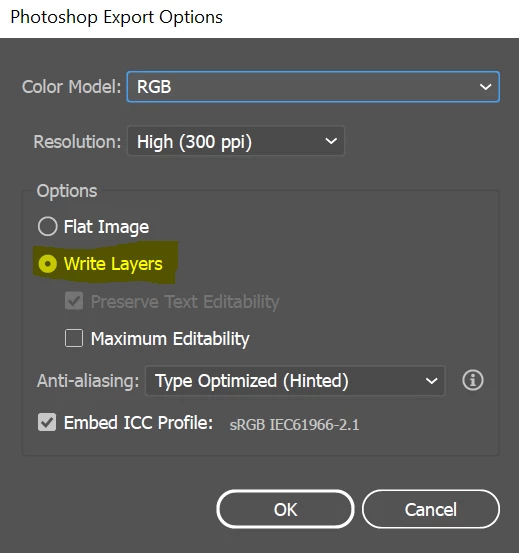
If you still face troubles, please let me know the File IDs with which are facing troubles with so that we can further assist you.

Regards,

Twarita

2 replies

honorm76400537
Known Participant
August 9, 2018

Also, depending on how the image was set up and saved in Illustrator (or whatever app was used) the artist selling it can do a lot to make it more or less useful to the end user - sometimes everything is on one (Illustrator) layer, sometimes grouped randomly or nonsensically, and sometimes all the paths have been converted to a single compound path before the file was saved and uploaded.

This makes it as hard as possible for the end user to modify the vector (which is part of the license), and it also makes it so there would just not be any layers to use in Photoshop - just the main / background layer.

WendellaBee
Adobe Employee
Adobe Employee
June 23, 2020

Hi DillyDrip20,

Can you tell us what the asset ID number is for the file you are working with and what program you are using to open the file please?


Participating Frequently
June 26, 2020

Hello! Thanks so much fror responding. I am using Adobe Illustrator with the cloud on my desktop using stock image 286280957

twaritar3263062
twaritar3263062Correct answer
Participating Frequently
August 8, 2018

Hi Shanel,

Sorry to hear that.

If you are opening vector files in Photoshop then please follow the steps as mentioned below in order to see the layers associated with the files:

Go to Files>Export>Export as Photoshop(.PSD)> choose the color model>and select the option "Write Layers"

If you still face troubles, please let me know the File IDs with which are facing troubles with so that we can further assist you.

Regards,

Twarita