helloitsmercedes
Participant
September 4, 2017
Answered

STUCK! Need help on how to use each image separately

  • September 4, 2017
  • 1 reply
  • 361 views

I recently purchased files # 146787420 and # 153538508, which I know realize are JPEG files. The file contains lots of images of flowers but each flower/plant is separated from the next. My goal when purchasing was to use each image independent of the other so that I can layer one on the other. I guess when looking at the grouping I assumed since each image was separate that I could play around with each as such. Can someone please guide me as to how I can use each image separately in AI or even in PS where I could then move to AI.

I understand that with Vector files you can separate images from a group and apparently not with a JPEG file. Perhaps there is a way to get the AI file? I would appreciate any help in moving forward with this.

Thanks Creatives.
    This topic has been closed for replies.
    Correct answer twaritar3263062

    Hi helloitsmercedes,

    As this is a JPEG file we can not edit it directly in Illustrator and if we convert the JPEG file to vector it will loose its quality.

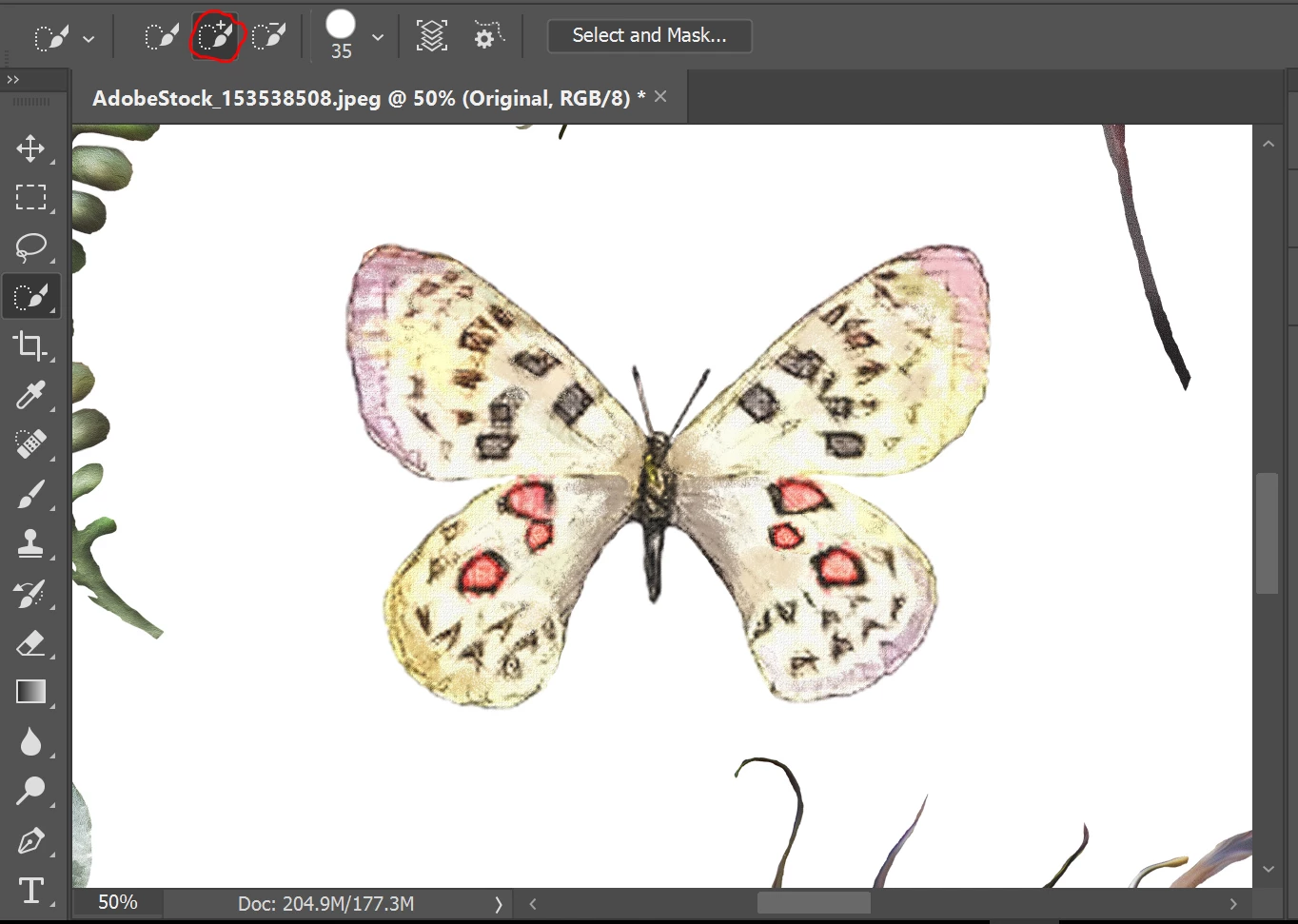
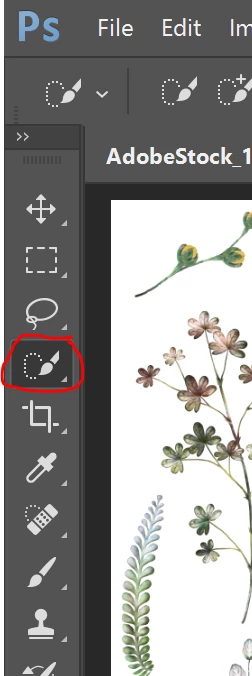
    So we can select each portion individually in Photoshop by using "Quick Selection" tool. You can see the screenshots attached.

    Here is a tutorial, please have a look on it.

    Make quick selections in Photoshop

    Hope this helps!

    Feel free to update this thread in case of any additional query.

    Regards

    Twarita

    1 reply

    twaritar3263062
    twaritar3263062Correct answer
    Participating Frequently
    September 4, 2017

    Hi helloitsmercedes,

    As this is a JPEG file we can not edit it directly in Illustrator and if we convert the JPEG file to vector it will loose its quality.

    So we can select each portion individually in Photoshop by using "Quick Selection" tool. You can see the screenshots attached.

    Here is a tutorial, please have a look on it.

    Make quick selections in Photoshop

    Hope this helps!

    Feel free to update this thread in case of any additional query.

    Regards

    Twarita

    helloitsmercedes
    Participant
    September 5, 2017

    Thank you so much. Definitely a learning curve. Is there a way to make the background of the selection transparent? After I copy my selection in PS and try to paste in AI, a white background appears. I read somewhere to save PS file as a.PNG and then to Place in AI, but is there a more simplified way. And when I do "Place", the PS file is huge and difficult to manipulate.

    twaritar3263062
    Participating Frequently
    September 7, 2017

    Hi Mercedes,

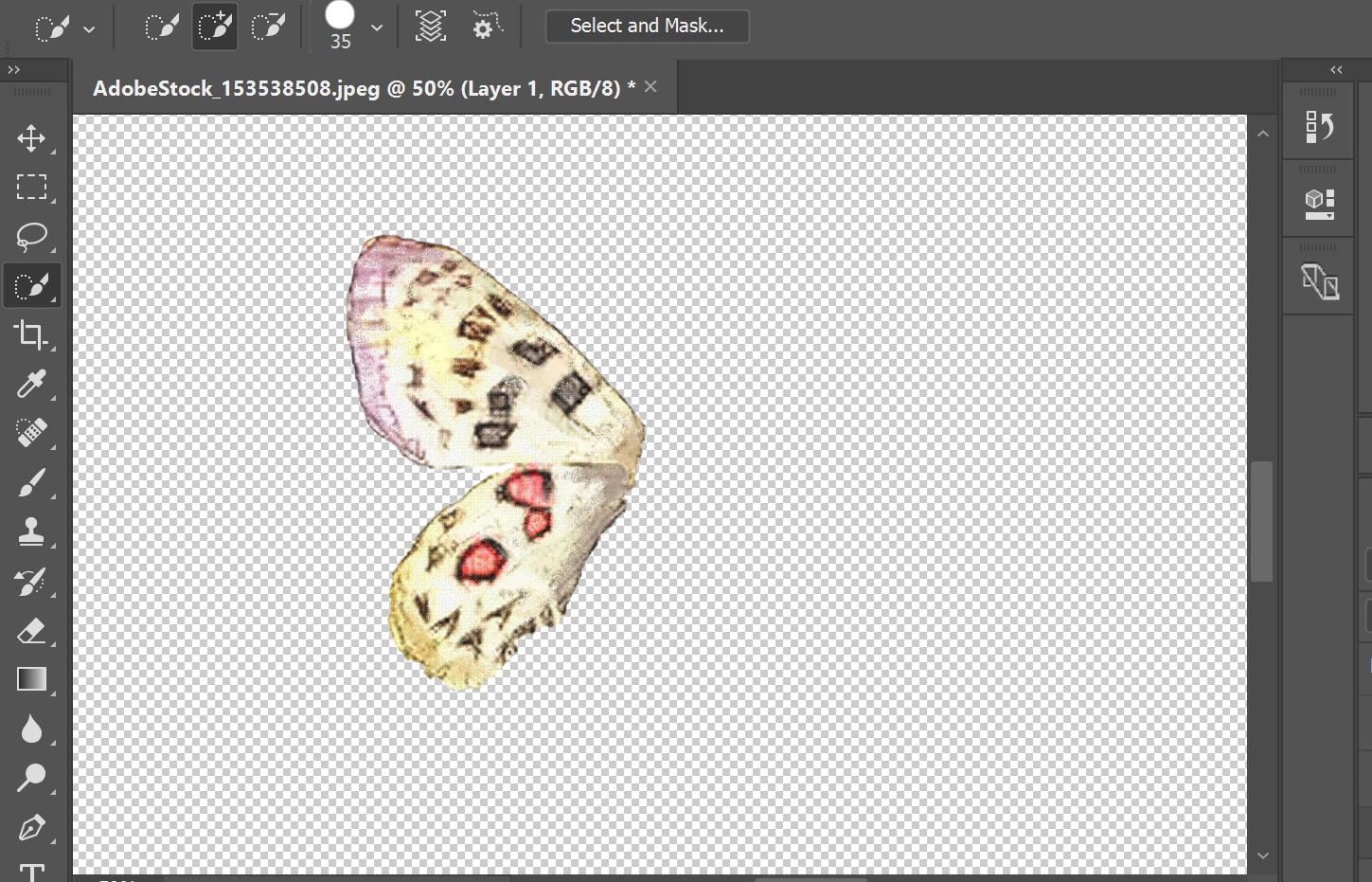
    Sorry for a delay in response. Please follow the steps in the screenshots if you want to make the background of the selection transparent

    • At first, select the file in PS using a selection tool and type in ctrl and J together.
    • Once you are done with that a new layer will form, make sure you close the eye of the original layer.

    • Go to the new layer where you made the selection and then go to file and save it as .PNG

    • Then if you go to Illustrator and place the selection, you will get the selected portion without any white background.

    Let me know if this helps!

    Feel free to update this thread in case of any additional query.

    Regards,

    Twarita