I need to produce an A4 24-page booklet each month, variable text and photos full colour. How do I set this up and how do I import material? New user formerly Quark!
I need to produce an A4 24-page booklet each month, variable text and photos full colour. How do I set this up and how do I import material? New user formerly Quark!
I need to produce an A4 24-page booklet each month for a car club, variable text and photos full colour. How do I set this up and how do I import material? New user, no real knowledge of Adobe, formerly used a designer who insisted on Quark but he's now retired. I really need a template I can fill each month with new material.
Welcome. Sorry about losing your designer. Good news first. Adobe Express can handle a recurring A4 booklet and the workflow you want. The workflow you want, as I understand it, is one master file, swap content each month which Adobe Express can do. I’m also including some areas where Adobe Express differs from Quark so you can make a clearer decision. This is kinda long but breaks things up so it is easier to follow. I also added screen captures to help make the instructions easier to navigate.
Setting up the mater file
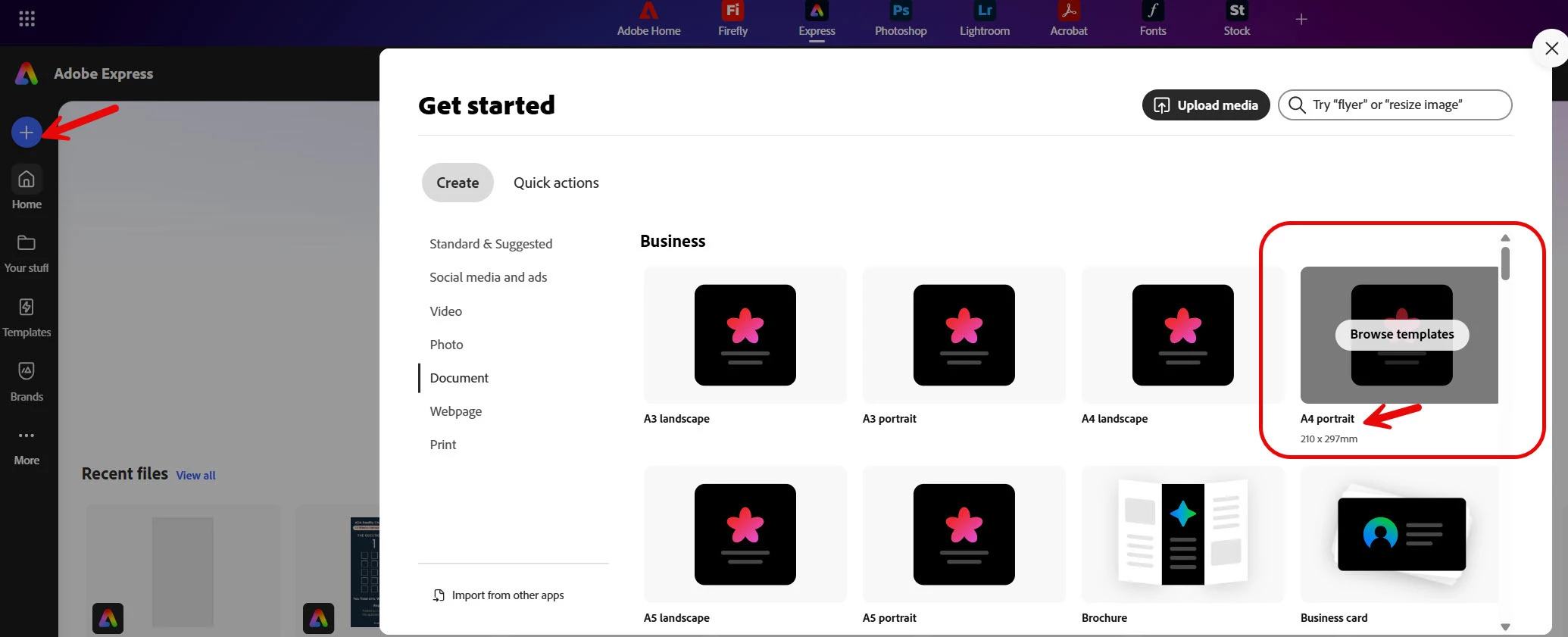
From the Express home page > Click the + to add new. On the Get Started window > Select Document (not social post). Choose A4 (portrait or landscape). Make sure you select the orientation before you start creating anything. (Image 1 attached).
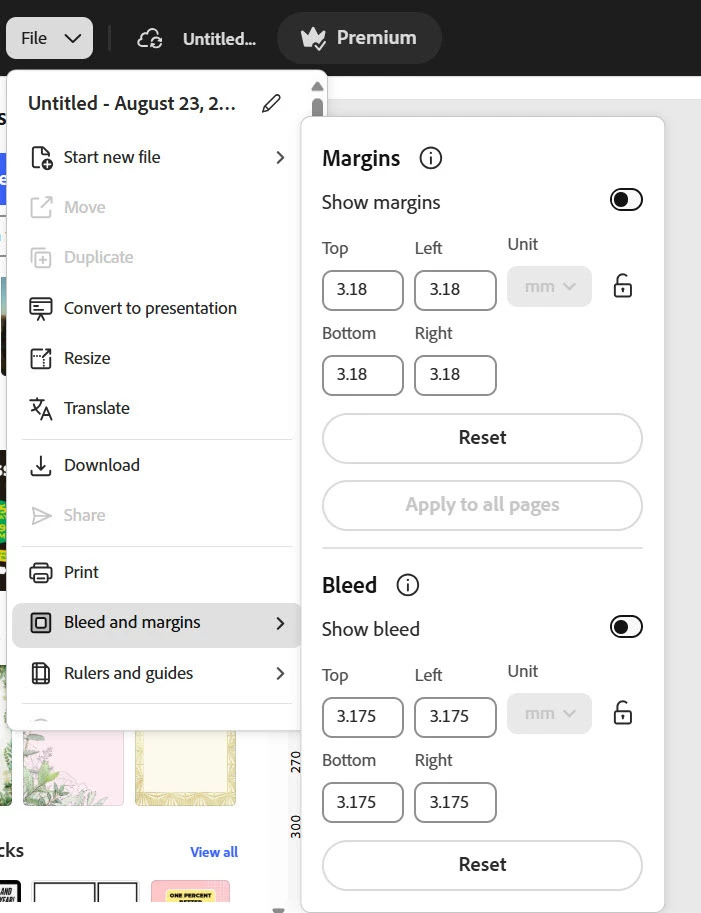
Turn on the Margins and Bleed. On the top menu Select File (drop down arrow) > Bleed and margins > Toggle on Show Margins > Select Apply to all pages > Toggle on Show bleed. You will see the margin line and the bleed as a white boarder. Make sure text and logos are inside the margin line. Stretch background colours or full-page photo out past the bleed edge. (Image 2 attached).
Build your page types once for example cover, content, article pages, and back cover. Duplicate the pages to get to the 24 pages count you want. Think of in spreads like page 1 is the cover, pages 2 and 3 face each other and so on.
Set up a Brand (only available if you have Premium) but extremely helpful for a recurring project like this. Brand includes your brand colours, fonts, and logo. This will help you make sure every month has a consistent look with one click. If you’re on the free plan, create a page in the file with the colours hex codes and fonts noted.
Save this file as your template. Each month, duplicate the file, rename it with the month, and add your content. Remember to never edit the original.
Text
Express has text flow. If you have multiple text boxes overflowing text flows into the following boxes. You’ll the small controls to add a new linked box, combine, stop and move flow box. Paste an text into the first box and link as needed. My practical advice is to ask the contributors to make sure the provide “plain text” with a word count. Decide in advance how many words fit a page in your font and font size. This removes some of the layout issues you may encounter each month.
Images/Photos
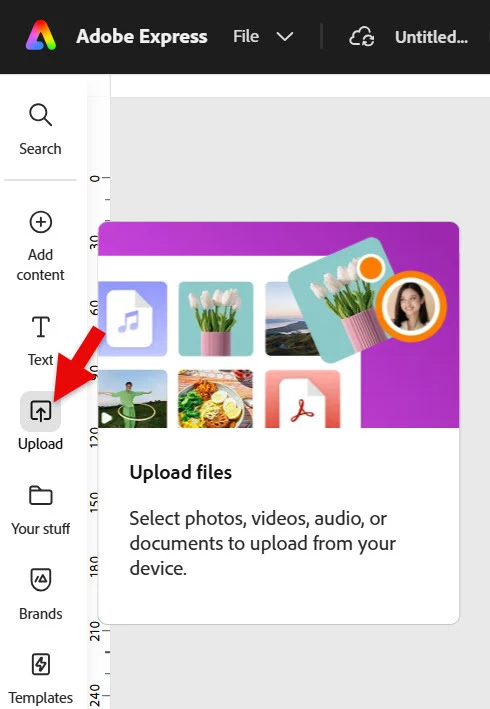
From the left panel > Select the Upload option or connect your Google Drive, One Drive etc. using the Add Ons menu. Avoid screen capture images whenever possible. You can leverage Express’s image editing tools like background remove and quick crop tools to clean up photos, if necessary. (Image 3 attached).
Sending to the printer
Download as PDF in the options turn on crop marks and show bleed. Send your printer the first export before the real deadline and ask the printer to confirm the bleed and page order are what the printer needs. This is key for the first time you go through this process. Save whatever changes the printer request to establish your workflow in Adobe Express.
Areas where you may encounter friction
Express works in RGB so your printer will convert colours, ask your printer. Express does have master pages, automatic page numbers or paragraph styles the way Quark did so you will need to number pages manually. Make sure to keep the type settings consistent. If the frictions points aren’t resolved after a few cycles you may want to consider Adobe InDesign, which is a direct comparison to Quark. It’s what designers use to handle long, text heavy documents with less manual tidying. Express is a very reasonable place to start, especially with limited design background.
Happy to answer follow-ups once you’ve got the first spread build.
Welcome. Sorry about losing your designer. Good news first. Adobe Express can handle a recurring A4 booklet and the workflow you want. The workflow you want, as I understand it, is one master file, swap content each month which Adobe Express can do. I’m also including some areas where Adobe Express differs from Quark so you can make a clearer decision. This is kinda long but breaks things up so it is easier to follow. I also added screen captures to help make the instructions easier to navigate.
Setting up the mater file
From the Express home page > Click the + to add new. On the Get Started window > Select Document (not social post). Choose A4 (portrait or landscape). Make sure you select the orientation before you start creating anything. (Image 1 attached).
Turn on the Margins and Bleed. On the top menu Select File (drop down arrow) > Bleed and margins > Toggle on Show Margins > Select Apply to all pages > Toggle on Show bleed. You will see the margin line and the bleed as a white boarder. Make sure text and logos are inside the margin line. Stretch background colours or full-page photo out past the bleed edge. (Image 2 attached).
Build your page types once for example cover, content, article pages, and back cover. Duplicate the pages to get to the 24 pages count you want. Think of in spreads like page 1 is the cover, pages 2 and 3 face each other and so on.
Set up a Brand (only available if you have Premium) but extremely helpful for a recurring project like this. Brand includes your brand colours, fonts, and logo. This will help you make sure every month has a consistent look with one click. If you’re on the free plan, create a page in the file with the colours hex codes and fonts noted.
Save this file as your template. Each month, duplicate the file, rename it with the month, and add your content. Remember to never edit the original.
Text
Express has text flow. If you have multiple text boxes overflowing text flows into the following boxes. You’ll the small controls to add a new linked box, combine, stop and move flow box. Paste an text into the first box and link as needed. My practical advice is to ask the contributors to make sure the provide “plain text” with a word count. Decide in advance how many words fit a page in your font and font size. This removes some of the layout issues you may encounter each month.
Images/Photos
From the left panel > Select the Upload option or connect your Google Drive, One Drive etc. using the Add Ons menu. Avoid screen capture images whenever possible. You can leverage Express’s image editing tools like background remove and quick crop tools to clean up photos, if necessary. (Image 3 attached).
Sending to the printer
Download as PDF in the options turn on crop marks and show bleed. Send your printer the first export before the real deadline and ask the printer to confirm the bleed and page order are what the printer needs. This is key for the first time you go through this process. Save whatever changes the printer request to establish your workflow in Adobe Express.
Areas where you may encounter friction
Express works in RGB so your printer will convert colours, ask your printer. Express does have master pages, automatic page numbers or paragraph styles the way Quark did so you will need to number pages manually. Make sure to keep the type settings consistent. If the frictions points aren’t resolved after a few cycles you may want to consider Adobe InDesign, which is a direct comparison to Quark. It’s what designers use to handle long, text heavy documents with less manual tidying. Express is a very reasonable place to start, especially with limited design background.
Happy to answer follow-ups once you’ve got the first spread build.




 AdChoices