Participant
January 30, 2018
Answered

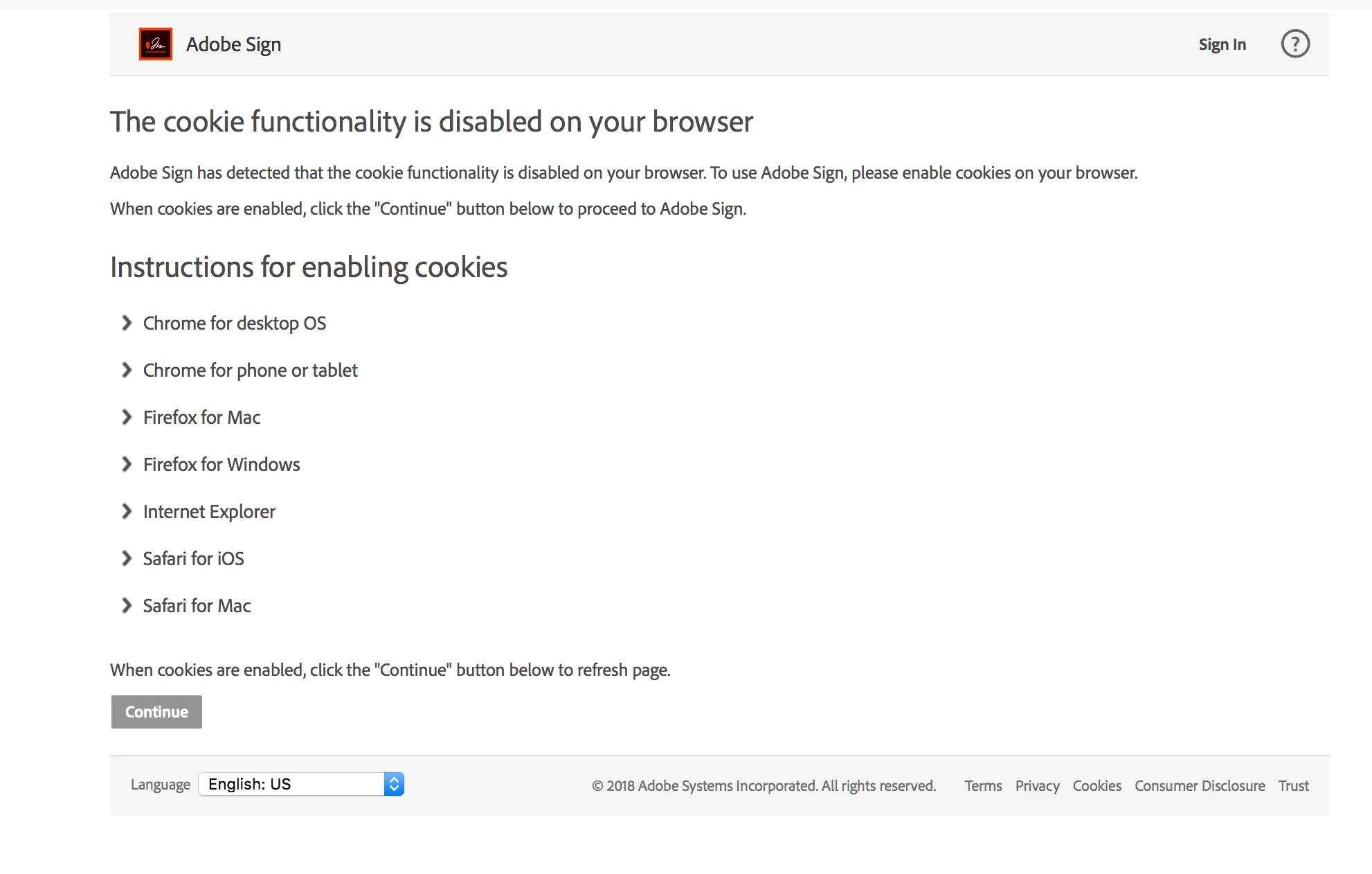
Adobe Sign - Allow Cookies??

  • January 30, 2018
  • 1 reply
  • 11035 views

Hi all,

I've suddenly started receiving an error that prompts me to allow cookies (it says I have cookies blocked in my browser), but I've never had cookies blocked. I have followed the instructions to check my browsers for it to allow cookies, but I continue to get the error. This error pops up when I try to Preview & Send after adding the email to send for signature. Usually the button sends me to edit/add fields, but now I get this error page. I can't get it to stop! Again, I haven't changed any settings and I've verified the settings are correct.

Thanks,
This topic has been closed for replies.
Correct answer Meenakshi_Negi

We are having the same issue. This is due to new browser security settings that are now toggled on my DEFAULT.

For me, this happens in Safari 11+ as 'Prevent Cross-Site Tracking' is automatically toggled on. If you un-toggle this, the issue disappears. Since this is now a default setting in Safari, it seems that this is something Adobe should address ASAP, otherwise, all users will eventually experience this issue once all browsers adopt this security setting.


Hi Jasond,

Thank you for sharing the information.

I would suggest you to once contact the support team so they can look into this issue and check the root cause of it.

You can use the steps mentioned below to get in touch with the support team:

  • Login your to Adobe Sign account directly via https://secure.echosign.com/public/login
  • Once logged in, check the upper right corner of the page and click the question mark icon.
  • It will redirect you to a page where you will get an option to create a support case, chat or contact support.

Let us know if you need any help.

Regards,

Meenakshi

1 reply

Meenakshi_Negi
Legend
February 1, 2018

Hi Pismanmd,

Please make sure that you have not enabled the option "Block third-party cookies" in the Chrome browser settings.

To check that open the browser settings and click on Advanced at the bottom.

Then go to "Content Settings > Cookies" and check if the "Block third-party cookies" is disabled.

If not, disable the option and then try to use send the documents in Adobe Sign account.

Also, clear the cache and cookies of the browser and use this link Sign In — e-signature and e-sign Software Solution — Adobe Sign to log in to your account.

Let us know if you need any help.

Regards,

Meenakshi

Participant
February 5, 2018

Hi Meenakshi,

As I stated, I already followed those steps when I double-checked my settings. It was working before and I didn't change my cookie settings. I checked anyway to confirm. Please advise of how to fix this error when cookies are enabled.

Thanks,

Maegan

Meenakshi_Negi
Legend
February 6, 2018

Hi Maegan,

It seems to be the browser specific issue.

Please try to use the alternate browser or the new incognito window on Chrome.

Check if you can sign in to your account without any issue.

If you still experience the issue, then you will need to contact support to get help.

As you are not able to sign in, I will be sending you the details to contact the team in a private message. Please check your inbox.

Let us know if you need any further assistance.

Regards,

Meenakshi