
russw43314539
Participant
March 4, 2018
Answered

How do i stop a recipient editing pdf form fields on a form sent for signature in Adobe sign?

  • March 4, 2018
  • 2 replies
  • 1319 views

Hi - I've built a 4 page form that has various fields on each page but there is a signature field on each page. I am sending the form to be signed using Adboe sign but every time I test by sending the form to myself to test sign, all of the form fields are yellow and editable.

All / any help appreciated!

Russ
    This topic has been closed for replies.
    Correct answer Meenakshi Negi

    Hi Russ,

    If you wish to make the form fields available only for particular users, it can be done by assigning the form fields to the recipients in Adobe Sign.

    Please take help of the steps mentioned here Assign form fields to recipients

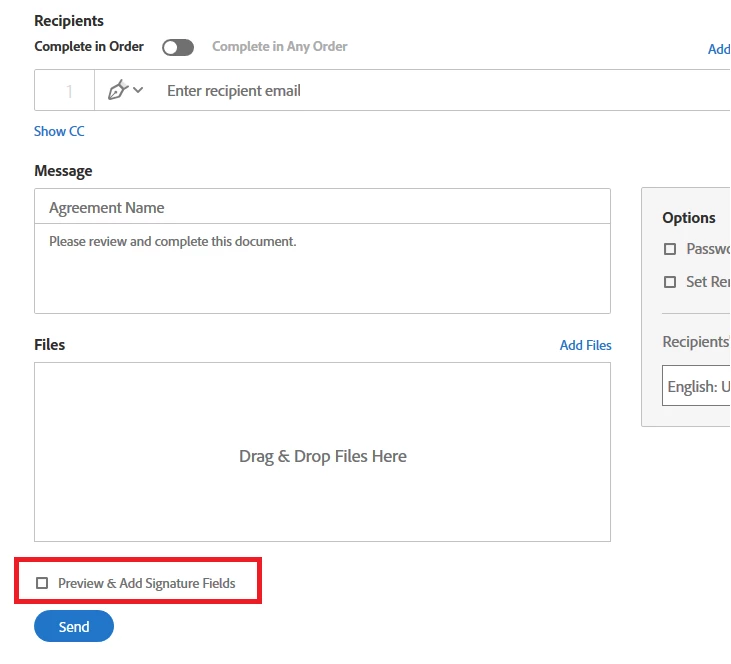
    Make sure that you check the box for "Preview & Add Signature Fields" at the bottom before clicking on Send tab.

    Check the screenshot below for the option:

    Hope this answers your query.

    Let us know if you need any help or have any questions.

    Regards,

    Meenakshi

    2 replies

    Participant
    February 22, 2023

    I FIGURED IT OUT!  When you save the form, go to File > Save As Other > Optimized PDF. Then remove all check marks from the 6 boxes on the left EXCEPT the "Discard Objects" box. Click on "Discard Objects" and check the box that says, "Flatten form fields". Then click "OK"!   Now all of the text that was in the form fields will be permanent on the document! So Adobe will stop recognizing the fields as "editable" when using the "Request E-signatures" tool. Here's a link to the video I used that shows how to do it: https://m.youtube.com/watch?v=ByBJHoGXNmc

    martinb31234104
    Participating Frequently
    May 18, 2023

    Thanks Stephanie; I appreciate your help. I also found this workaround too:


    Open up your PDF on chrome Click File > Print > Select " save as PDF" as the printer > Click OK.


    You are prompted to save the new print.( Hint: Use a different filename).


    You are then able to upload this newly flattened PDF document with no further issues.


    Meenakshi Negi
    Meenakshi NegiCorrect answer
    Legend
    April 4, 2018

    Hi Russ,

    If you wish to make the form fields available only for particular users, it can be done by assigning the form fields to the recipients in Adobe Sign.

    Please take help of the steps mentioned here Assign form fields to recipients

    Make sure that you check the box for "Preview & Add Signature Fields" at the bottom before clicking on Send tab.

    Check the screenshot below for the option:

    Hope this answers your query.

    Let us know if you need any help or have any questions.

    Regards,

    Meenakshi

    martinb31234104
    Participating Frequently
    May 17, 2023

    I am using a form developed by a third party that I need to complete for a client, and I only want them to access the fields or checkboxes I embed when I use Adobe Sign; however, whenever I do this, every area is open for editing or requires the client o tab though 10's if not hundreds of fields. Any solutions?


    Participant
    May 18, 2023

    I found a solution to this problem! Go to the menu & choose “save as
    other” > “Optimized PDF”. Then deselect all of the boxes except for
    "Discard Objects" and then select "flatten form fields", it will remove all
    of the fill-in fields on the document.
    Then when you send it to be signed, you can just add in the signature and
    date boxes (or any other boxes you prefer to add) for each signer
    separately.
    The fields will be permanent and will no longer be fillable, so Adobe will
    stop trying to figure out who is supposed to fill out all of the fields.
    The only full able fields will be the ones you add in Adobe Sign! Hope
    this helps!
    --
    Stephanie Welton

    [personal information removed by moderator]