
melindap17201684
Participant
October 3, 2018
Answered

How to delete a draft document from Adobe Sign?

  • October 3, 2018
  • 7 replies
  • 27487 views

I can't find any way to delete a draft in the Adobe Sign list. I uploaded the wrong document for signature. I guess I've been updated to a whole new interface and everything looks completely different. I don't see "delete" or a trash can icon. Thanks for all help.
This topic has been closed for replies.
Correct answer Meenakshi Negi

Hi Melindap,

Sorry for the delay in response.

You can delete the draft document from the Adobe Sign Manage page.

In the Document Cloud, go to For Signature.

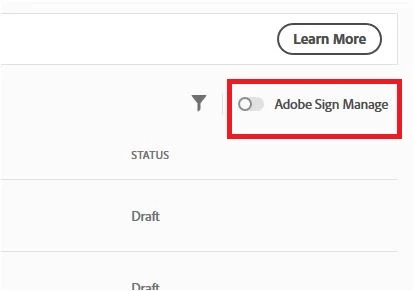
The enable the radio button for Adobe Sign Manage from the top right corner of the window.

Check the screenshot below:

There you can go to Draft and select the document from the list.

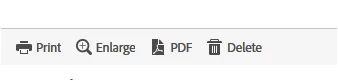
Then click on the Delete option provided at right in the preview window.

Hope that answers your query.

Feel free to update the thread if you have any question.

Regards,

Meenakshi

7 replies

Participant
May 7, 2020

Hi Adobe, 


You can not delete a draft as you explained above.  The draft section You only have the "print", "enlarge", "PDF" and "hide" 


Any assistance would be greatly appreciated.


Thanks, 

Participant
September 5, 2020

Same issue.

Participant
September 23, 2019

I FIGURED IT OUT!!

It's a bit of a cumbersome process, but there is a way to delete incorrect, draft, and other documents. Click on -->your account, -->privacy --> and then do a search for the email associated with your account. Using your account email will bring up every document you've ever started, sent out, or had in draft mode. You will then see a delete icon next to the document. 

Hope this helps everyone!

Viviane

Participant
October 16, 2019
Thank you so much!!!
Participant
October 16, 2019
You are welcome 🙂
Participant
September 15, 2019

I haved used the program for 3 years now, and I too am very frustrated that "hide" has replaced "delete" - none of us want to hide mistakes, and we don't need an audit trail of everything.  Please put back the DELETE button!

Participant
June 14, 2019

Another frustrated user. Please restore Delete capability for selected drafts.

Participant
June 10, 2019

Whoever came up with the Hide instead of Delete option did not think this through.  It makes no sense at all.  We want to be able to delete the mistakes, not hide them.  What is the point in that?!

suzannep28590766
Participant
June 14, 2019

i want to delete the drafts as well, not hide them. Can you restore that feature ASAP. thanks

Participant
June 7, 2019

I am also having the exact same issue

Meenakshi Negi
Community Manager
Meenakshi NegiCommunity ManagerCorrect answer
Community Manager
December 3, 2018

Hi Melindap,

Sorry for the delay in response.

You can delete the draft document from the Adobe Sign Manage page.

In the Document Cloud, go to For Signature.

The enable the radio button for Adobe Sign Manage from the top right corner of the window.

Check the screenshot below:

There you can go to Draft and select the document from the list.

Then click on the Delete option provided at right in the preview window.

Hope that answers your query.

Feel free to update the thread if you have any question.

Regards,

Meenakshi

Participant
June 6, 2019

I do not have the "delete" icon but instead have a "hide" icon. Is there not a way to delete any longer?

Meenakshi Negi
Community Manager
Community Manager
June 15, 2019

Hi All,

The "Delete" button in Adobe Sign is just replaced by the "Hide" button. However, there is no change in the function of this button.

The delete button used to hide the document from the Manage page, however, the document was never deleted from the account.

The Hide button in the Adobe Sign has the same function. It will hide the document from the Manage page. The document will not be deleted from the account.

To delete the document permanently from the Adobe Sign account, you will need the data retention policy.

For more details about the data retention policy, please refer to the following help document.

- Adobe Sign - Document Retention

Let us know if you have any questions.

Regards,

Meenakshi