Hi!
The answer to your question is going to be influenced by the settings enabled by the admin.
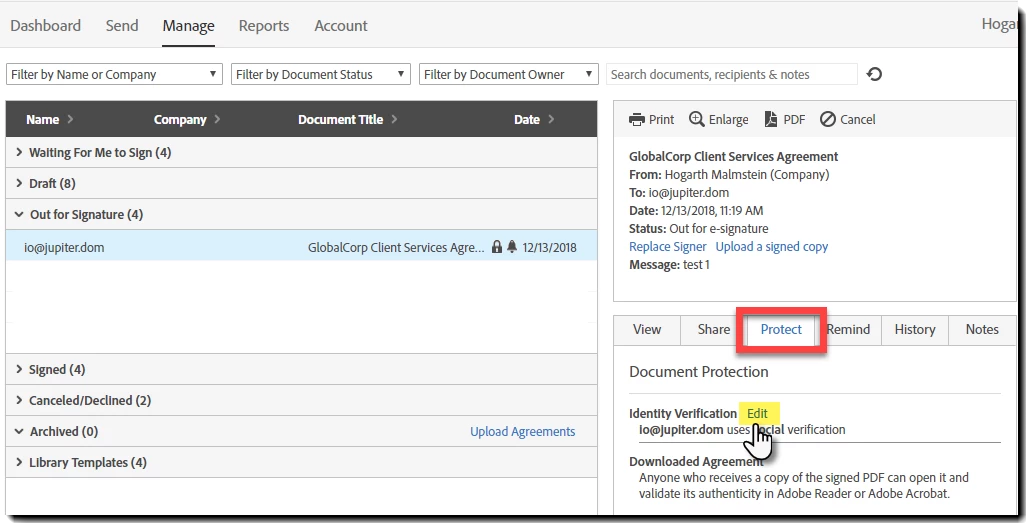
If the agreement is already sent, and social authentication is established for the fourth signer, you will need to edit the authentication method.
- Find the agreement on your manage tab and single click it to select it
- Click the Protect tab in on the right side panel
- Click the Edit link
- Change the authentication, in this case, probably to Email
- Click OK
- At this point I would recommend sending a reminder (using the Right now option) so the recipient gets a fresh email at the top of their inbox)
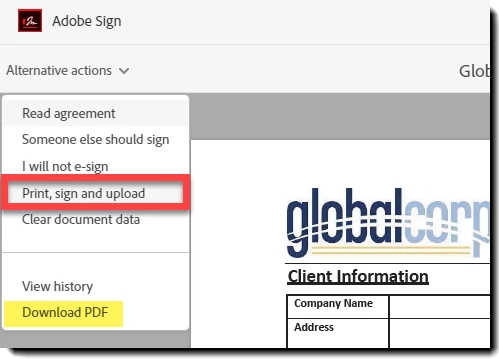
When the signer can open and view the agreement, they will have a drop down at the top-left of the window called Alternative actions (or Options if their window is narrow enough).
Click that drop down and select Print, sign and upload
The signer will be prompted to print the document, physically sign it, and then scan and upload that document back to Adobe Sign.
The process is detailed here
If your account settings do not allow the recipient to convert to this written signature process, (the Print, sign and upload option is not available) then the signer can click the Download PDF link in the same menu.
This allows the signer to save the PDF, which they can then print and physically sign.
Then they need to deliver that signed PDF to you, either by scanning it and emailing it, or mailing the physical document (you will then need to scan the document into electronic format. At some point, if you want it in Adobe Sign, it has to be converted back to a digital copy).
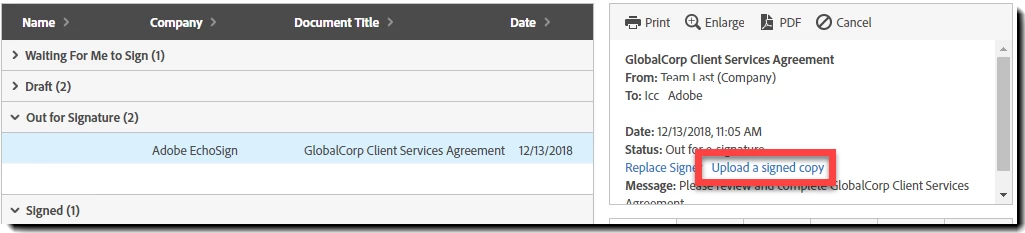
Once you have the document in hand, you can upload the signed copy on the manage page.
- Find the agreement and single click it to select it
- In the right hand panel you should see an option to Upload a signed copy
- Click that link and upload the digital copy of the document.
- This closes out the signature step, and if that is the final signer, the Signed and filed email will be delivered per your account configuration.



 AdChoices