

Sent a document for signature to an incorrect email? Here’s how you can make the correction.
The Replace Recipient feature is designed to help senders redirect an agreement when the current recipient either is unavailable or when the wrong email value was used.
How to replace the current recipient
Replacing the current recipient starts on the Manage page and can only be done by the original sender of the agreement.
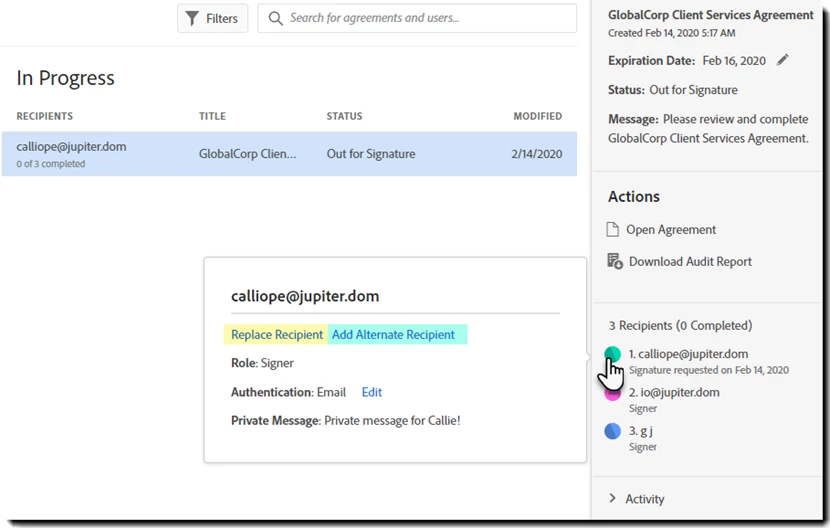
- From the Manage tab, single click the agreement you want to edit
- The agreement record highlights blue when selected
- Mouse over the current recipient (in the right rail)
- An information bubble pops out to the left
- Depending on the enabled settings, one or more settings are exposed in the bubble:
- Replace recipient - This option replaces the current recipient, denying them further access to the agreement
- Add Alternate Recipient - Adding an alternate recipient includes the new recipient, leaving the original recipient in place and capable of completing the agreement
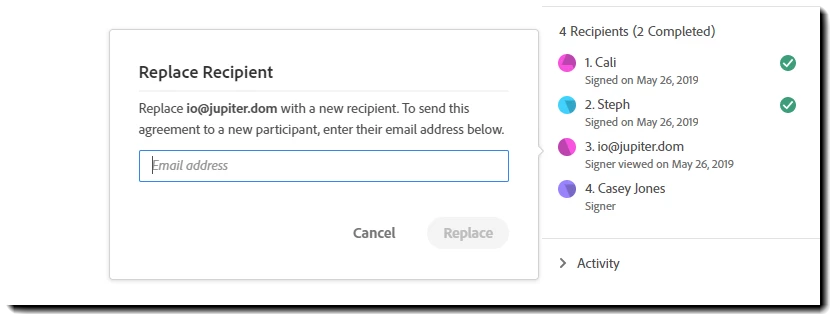
4- The info bubble changes and asks for the email address of the new recipient.
- Enter the new email address and click Replace
5- You are returned to the Home page and a success banner displays at the top of the page.

Activity list and audit report
The Activity list shows the delegation from one recipient to the other-
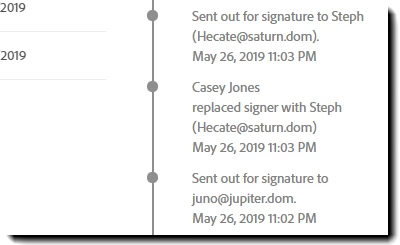
The Audit Report also properly reflects the replacement of the recipient

Important things to keep in mind:-
You can only replace the current recipient.
Agreements sent via Mega Sign cannot use the Replace Recipient feature.
You can replace the same recipient index multiple times
- When using the include option, you grow the number of potential recipients
- If at any time you use the replace action, the whole list of current recipients is replaced by the one newly nominated address
Recipients in a Recipient Group can be replaced individually, and new recipients can be added
- There is no option to simply remove one recipient without replacing them
Recipients in a parallel participation order can be replaced individually.
Recipients defined within a Hybrid routing order can be replaced individually.
Note: How to replace signer in Adobe Sign DC web UI. Please refer here-https://helpx.adobe.com/document-cloud/kb/replace-signer-in-adobe-sign-dc-web-ui.html
Hope this has helped you changing the recipient. Looking for more options please join the conversation here. We are listening!
To discover a host of other great features – Go straight to: Adobe Sign Get Started guide | Manage, track, and change agreements | Looking for an option to delete document from Adobe Sign? We can help you!


 AdChoices