
Signing through Adobe Reader using EchoSign
Sign using Adobe Reader(XI)
Adobe Reader provides an additional functionality of providing e-signatures to the PDF documents. You can electronically sign and provides initials in the document in Adobe Reader.
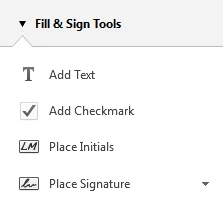
To add Text:-
1. Open the PDF inn Adobe Reader.
2. Click on Fill & Sign option at Top right hand side corner of the document.
3. Click on Add Text.
4. Place the text in the appropriate position in the document.
To add Checkmark:-
1. Open the PDF inn Adobe Reader.
2. Click on Fill & Sign option at Top right hand side corner of the document.
3. Click on Add Checkmark.
4. Place the checkbox box in the appropriate position in the document.
To add Initials:-
1. Open the PDF inn Adobe Reader.
2. Click on Fill & Sign option at Top right hand side corner of the document.
3. Click on Place Initials.
To place signature:-
1. Open the PDF inn Adobe Reader.
2. Click on Fill & Sign option at Top right hand side corner of the document.
3. Click on Place Signatures. You will be provided with 5 options to create your signature:-
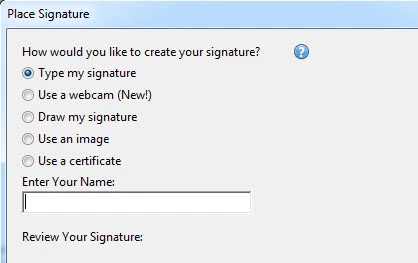
- Type My Signature:- Type your name in the “Enter Your Name field”, then click Accept after reviewing it..
- Use a webcam:- Capture the Signature image using your system’s camera
- Draw my Signature:- Draw the image of your signature using cursor.
- Use an image:- Upload the image of your signature.
- Use a certificate:- Click Next. Follow the onscreen instructions to designate where to place the signature, set its appearance, and save the signed PDF
Once the signature is placed, you can click on Send or Collect Signature->
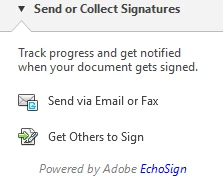
- Send via Email or Fax
You can send the signed document to an email address or fax number mentioned in the To field.
- Get Others to Sign
Send the document for other person to Sign the document.
Note:-
Once you click on any of the two options, you will get the following message:-
i). If you are not a registered Adobe ID, you can create one:
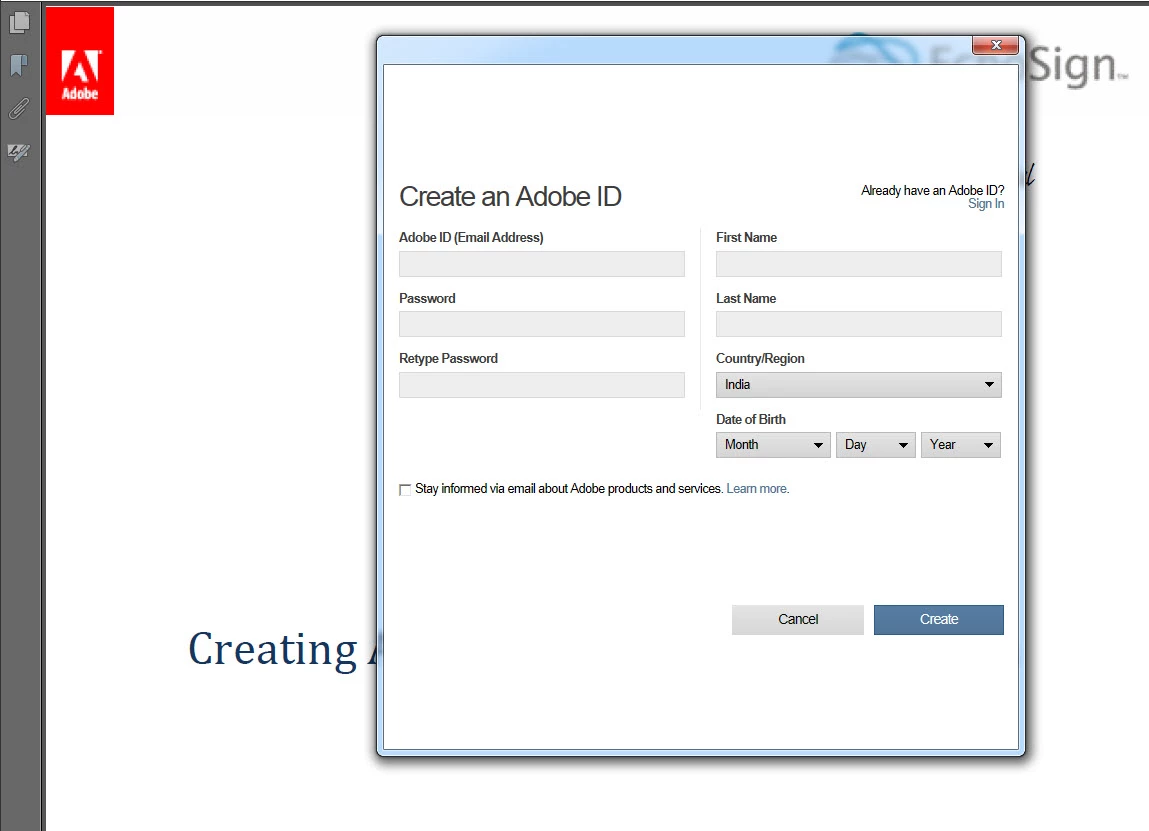
ii). If already have an Adobe ID, you can login with that:
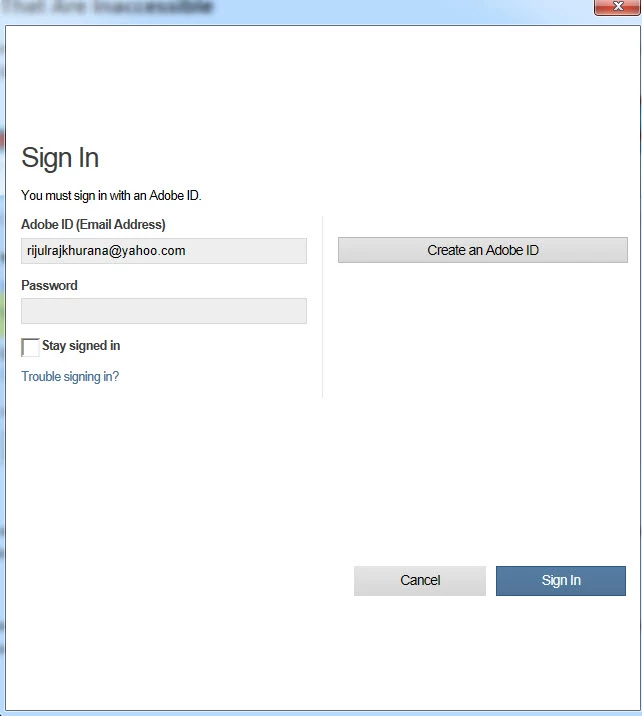
When you click on Sign in, you will see an uploading window on right hand side of document.
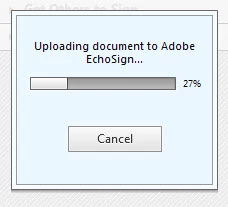
Once the document is uploaded, a small window will open in the center of PDF
Note:-
i). When you click on Deliver, the document would be delivered automatically and there is no email verification needed.
ii). When sending the document as “Get Others to esign”, sender won’t have an option to “Preview, Position Signatures or add form field” to place form fields in the document.


 AdChoices