Correct answer Meenakshi_Negi

Hi Brianb,

As you need to access the archived documents in your Adobe Sign account, please refer the steps mentioned below.

- Login to your Document Cloud account and go to "For signature".

- Click on the filter icon marked with the red box in the screenshot below:
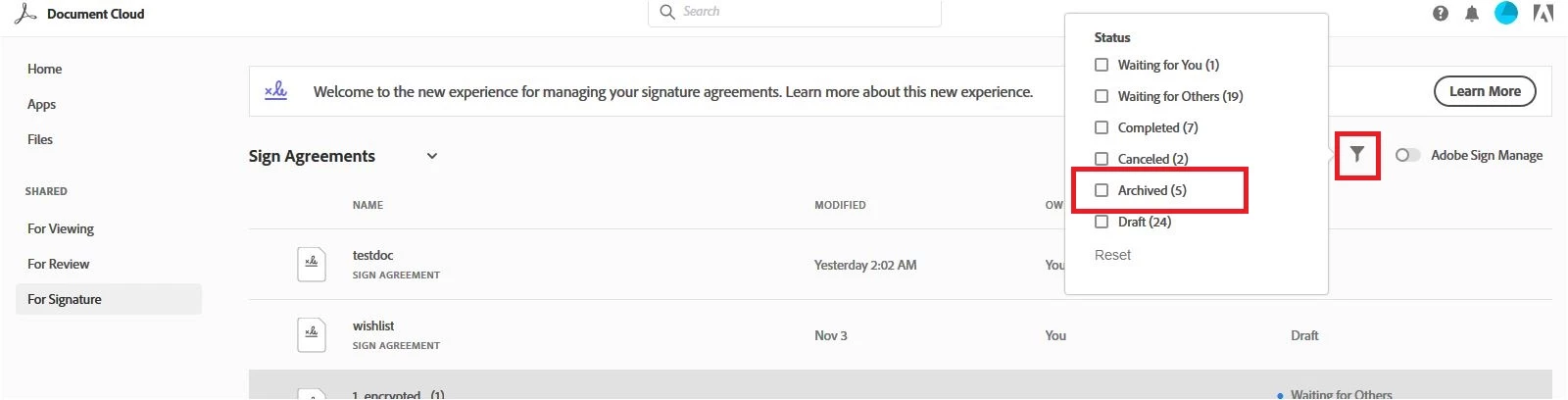
- There will be a pop-up appear with all the options that were available under the Manage tab.

- Check the box for "Archived" to view the files save there.

You can also enable the radio button for Adobe Sign Manage from the top right corner. Check the screenshot below.
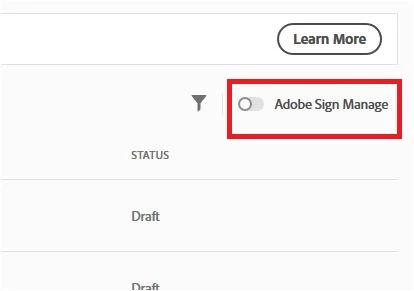
It will open the old manage page where you can go directly to the archived documents.

You will also get an option to upload the documents under the Archived section.

Hope that the information helps.

Let us know if you have any questions or need any help.

Regards,

Meenakshi

3 replies

Participant
January 25, 2023

Any news upon the issue? I changed up the e-mail adress of one of our personal accounts months ago and today the department recevied an e-mail that 1. all the copies still goes to the old e-mail address archive in Adobe Sign (where can I change that? we do not have any company account) and 2. that the account with the right e-mail can not archive the old documents because it is not able to do so because I need to follow one of two steps (archive documents or change e-mail address). Changing the email address is not an option because I did it months ago!
Where can I find the archive or the option to change the archive e-mail address so that only the new address receive copies?

Participant
September 12, 2022

Running into this same issue. The steps provided are no longer relevant as the archive option no longer shows up in the latest versions. 

Meenakshi_Negi
Meenakshi_NegiCorrect answer
Legend
November 6, 2018

Hi Brianb,

As you need to access the archived documents in your Adobe Sign account, please refer the steps mentioned below.

- Login to your Document Cloud account and go to "For signature".

- Click on the filter icon marked with the red box in the screenshot below:

- There will be a pop-up appear with all the options that were available under the Manage tab.

- Check the box for "Archived" to view the files save there.

You can also enable the radio button for Adobe Sign Manage from the top right corner. Check the screenshot below.

It will open the old manage page where you can go directly to the archived documents.

You will also get an option to upload the documents under the Archived section.

Hope that the information helps.

Let us know if you have any questions or need any help.

Regards,

Meenakshi

Participant
July 14, 2020

These options no longer seem to be available in most recent versions of Adobe Sign and Adobe Document Cloud (at least I can't find them). 

katieg78193913
Participant
November 15, 2021

I am having this exact same issue and have been in the chat window with support for the last two hours and have gotten no help. Adobe really needs to up its customer support game. This is ridiculous!
