


Inspiring
June 24, 2025
Answered

Lightroom says creative cloud not logged in and cannot upload to Adobe Stock

  • June 24, 2025
  • 5 replies
  • 813 views

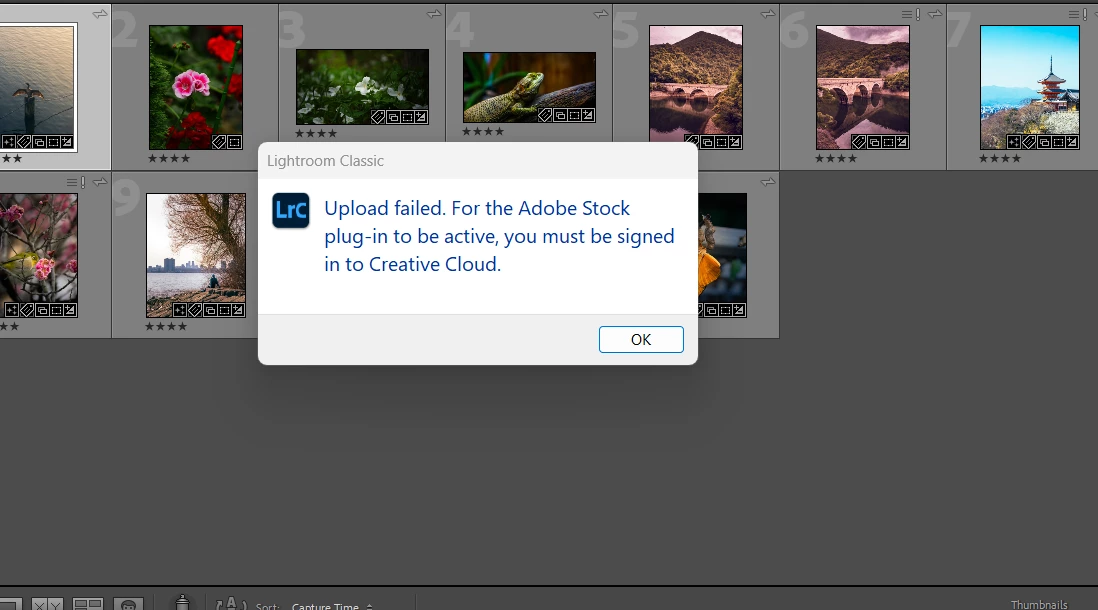
Hi, I am trying to upload some photos I took and editted through Lightroom Classic's Publishing Service tab. However, Lightoom keeps on poping up the following error message whenever I press "Published", "Upload failed. For Adobe Stock plug-in to be active, you must be signed in to Creative Cloud." 


I have logged out and logged back in on Creative Cloud (both the desktop app and the website) serveral times already as well as restarting my computer and reinstalling LrC.


How can I solve this problem? 


Correct answer c_1985

Did you at least attempt to connect from Bridge?


Ahhhh, I found the problem. I have an business account and apparently you cannot publish directly with an enterprice ID. I should've checked first......

5 replies

tgweber
Known Participant
June 25, 2025

Tried my Lightroom Classic's Publishing Service tool today for the first time in a long time. Uploaded two images.

First image was uploaded with Creative Cloud app up and running. No issues. Everything went smoothly.

Second image was uploaded after quitting Creative Cloud app. Again, no issues.

Thought occurred to me that Creative Cloud runs in the background as a "system service", or whatever the correct term is. So, I check my Mac OS' Activity Monitor, and sure enough Creative Cloud system services were running in the background eventhough my Creative Cloud app was not up and running.


Have you check to see wether or not Creative Cloud's system services are running in the background? Perhaps that might be the issue.


c_1985Author
Inspiring
June 25, 2025

My Creative Cloud is allowed in the background, but the publishing service still doesn't work. Lowkey, I think I'll just upload them manually on the Adobe Stock website, hopefully this issue will just goes away someday. Thanks for the suggestions.

Nancy OShea
Community Expert
Community Expert
June 25, 2025

Did you at least attempt to connect from Bridge?


Nancy O'Shea— Product User & Community Expert
Jill_C
Community Expert
Community Expert
June 24, 2025

What I've had to do a few times when that error message appears is to close LRC, then log on to Creative Cloud, then re-open LRC and Publish the images to Adobe Stock.

Jill C., Forum Volunteer
c_1985Author
Inspiring
June 24, 2025

I've logged out and logged back on a few times already and the same error message still pops up 


tgweber
Known Participant
June 24, 2025

Hi! Sorry to hear your having troubles.

I breifly used LrC's Publishing tool, but decided I liked exporting JPGs and manually uploading better. Thus, I may not be much help.  That being said, two questions come to mind in regards to this issue -

1) Have you ever successfully uploaded assets using LrC's Publishing tool? If yes, what, if anything, has changed or been updated in your computing environment since than?

2) What is the status of your AdobeStock plugin in LrC's Lightroom Plug-in Manager? If it is Enabled, I might try Disabling it once, and then re-Enabling it. Yet, this would be a last resort method for me.

c_1985Author
Inspiring
June 24, 2025

Hi, I have successfully uploaded photos to flickr using LrC's publishing tool, nothing have changed for my computing environment since I uploaded them while I was trying to solve the Adobe Stock problem. I am new and have never sucessfully uploaded to Adobe Stock using Lrc though. 


My plugin is enabled, just right now, I disabled and enabled it but the same error message still popped up. 

tgweber
Known Participant
June 24, 2025

Sort of disappointing to hear disable/enable didn't work, but thought it was a long shot.


Should mention after starting up Creative Cloud just now, it prompted me to update my Creative Cloud.

daniellei4510
Community Expert
Community Expert
June 24, 2025

Myself, at this point, I'd try uninstalling and reinstalling LcC.

Adobe Community Expert | If you can't fix it, hide it; if you can't hide it, delete it.
c_1985Author
Inspiring
June 24, 2025

I've tried and it didn't work......

daniellei4510
Community Expert
Community Expert
June 24, 2025

It's an old standby solution when all else fails, but have you tried deleting your cache?

Adobe Community Expert | If you can't fix it, hide it; if you can't hide it, delete it.
c_1985Author
Inspiring
June 24, 2025

How do I do that? 

daniellei4510
Community Expert
Community Expert
June 24, 2025

It would depend on what browser you are using, but in Chrome it's Settings > Privacy and Security. In Safari, it's Settings > Privacy. Not sure about Explorer, but I suspect it would be something similar.

Adobe Community Expert | If you can't fix it, hide it; if you can't hide it, delete it.