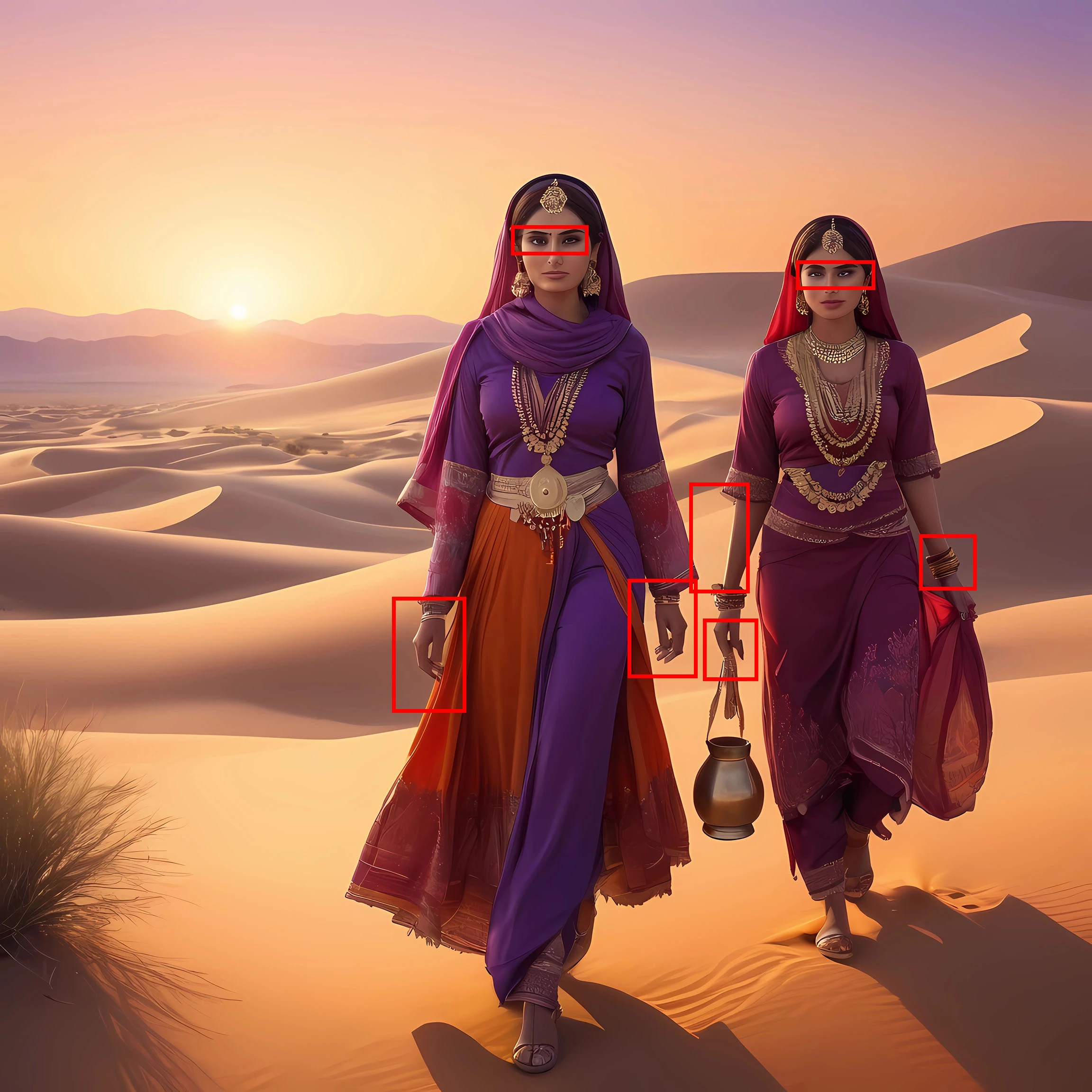
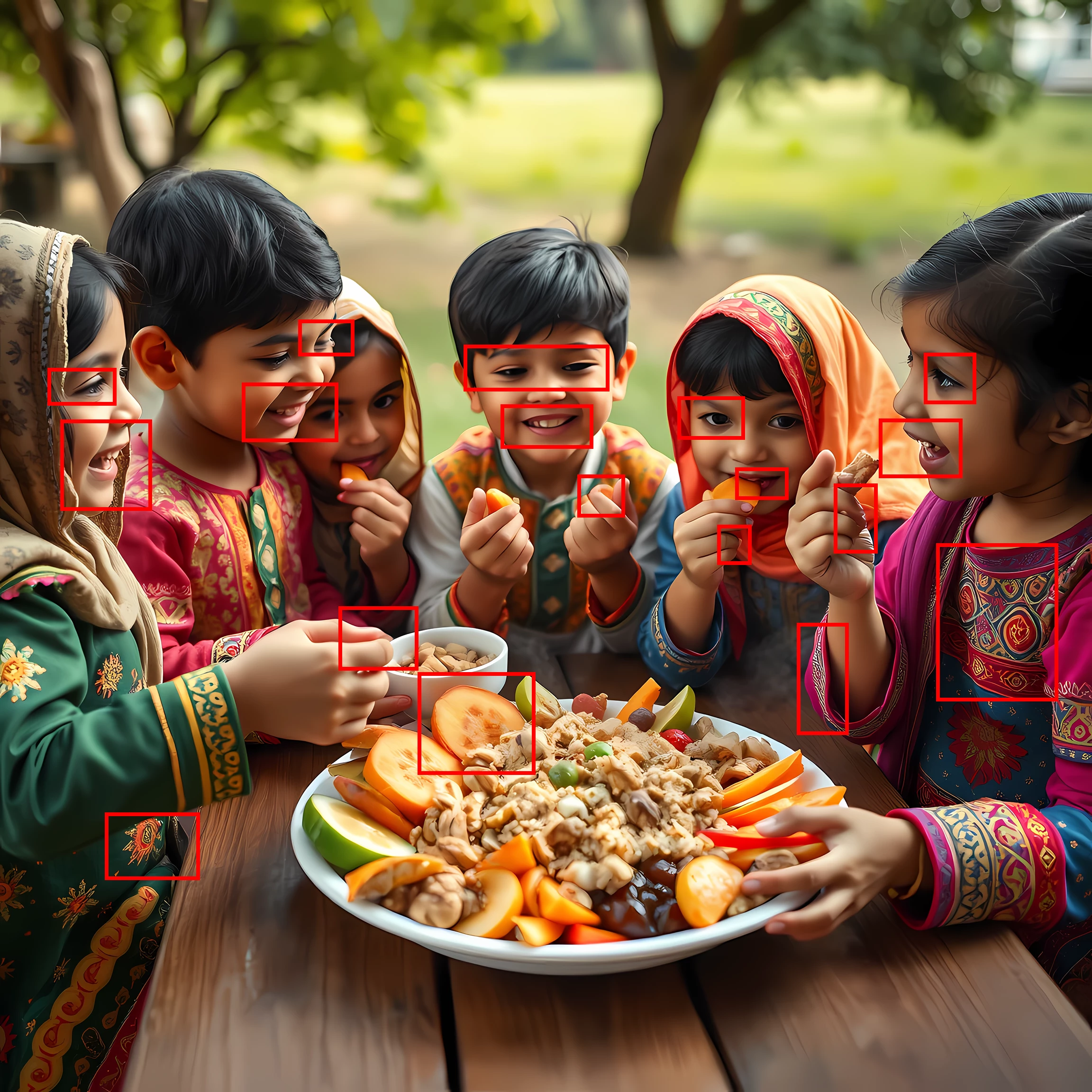
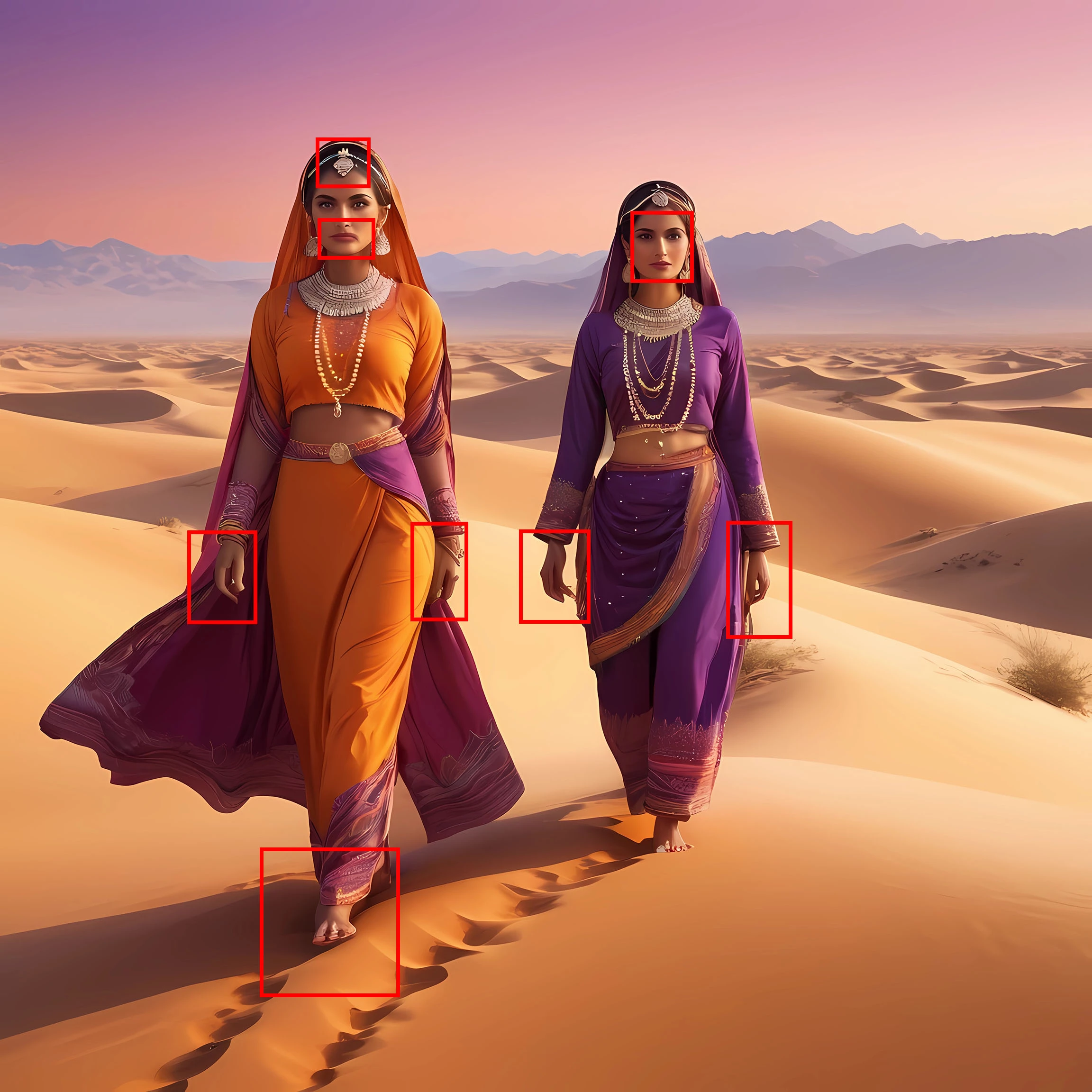
I've pointed out just a few of the many issues in all three images. Hands, feet, eyes, mouths, fingers, decorations on the clothing, etc. And there are others. View your assets at 100% to 200% before submitting.
Adobe Community Expert | I have miles to go before I sleep, but I'm all done on this end.
As @daniellei4510 pointed out, there are several rendering errors. In the third image, are they walking backwards? The footprints in the sand are infront and not behind them. Pay attention to details.
I must say, even if agreeing with all your comments, i never quite understand the reviewing process, especially when I see profiles with such photos that have gone trough the vetting process, with very poor AI photos:
One more thing regarding the first image: Are they walking backwards? Or following someone else's footprints? These are all things you need to consider before submitting AI images. Not just the obvious stuff like poor renderings, but the logic as well.
Translate
Adobe Community Expert | I have miles to go before I sleep, but I'm all done on this end.
I've pointed out just a few of the many issues in all three images. Hands, feet, eyes, mouths, fingers, decorations on the clothing, etc. And there are others. View your assets at 100% to 200% before submitting.
Translate
Adobe Community Expert | I have miles to go before I sleep, but I'm all done on this end.




 AdChoices