I am doing some improvement to scanned vintage wedding photos for a client. Firefly continuously changes the faces so they no longer resemble the actual humans despite specific prompt to not change the faces of the individuals in anyway. It’s wasting my credits!
Thank you for sharing your experience, I completely understand how frustrating it must be, especially with something as precious as a wedding photo! 💛
Here's a bit of context on what likely happened: Firefly is a generative AI tool, which means it's designed to interpret and reimagine images rather than make precise, targeted adjustments. One likely cause: Firefly's generative engine can struggle with negative instructions like “without changing the faces” Rephrasing to something direct like “keep all facial features perfectly preserved” tends to give much better results. FYI: Image quality can also play a role; lower resolution photos give the model less detail to work with, which can lead to unintended changes
For what you're trying to achieve, we'd actually recommend starting with a dedicated Adobe tool:
Lightroom is purpose-built for color and clarity improvements on photos, and it will never alter faces or content, it only adjusts light, tone, and color values.
Photoshop also gives you precise, non-destructive control over color grading with tools like Camera Raw or adjustment layers.
If you'd still like to use Firefly for this, here's a workflow that gives you more control:
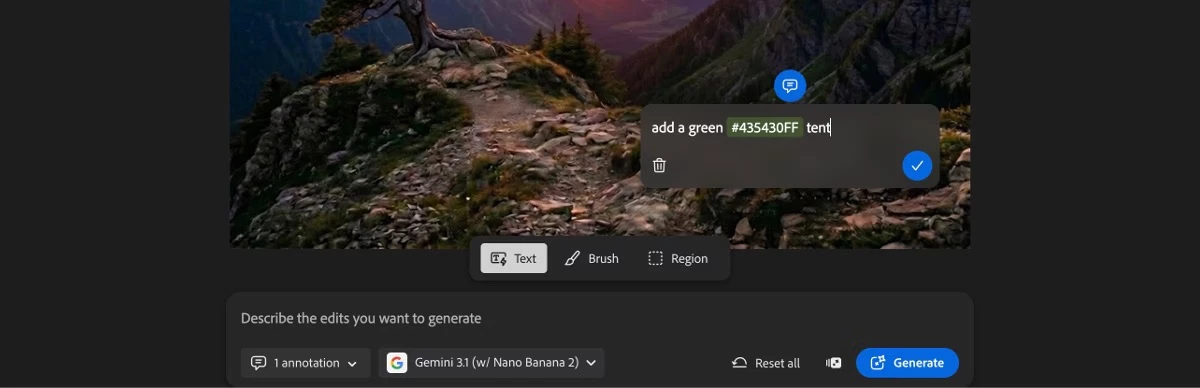
Using the Edit tab, upload your image and select Markup from the left toolbar.
Choose the Text option and draw a box only over the areas you want to adjust (background, clothing, etc.) keeping faces outside the selection.
In the text box, be as specific as possible with your prompt. Instead of "improve the color," try something like: "warm golden tones, soft amber hue, increased contrast" naming actual colors and adjustments leads to much better results.
This way, the edit stays scoped to the area you defined, and you have a lot more creative control over the outcome.
Hope this helps! Feel free to follow up if you run into any questions.
“keep all facial features perfectly preserved” doesn’t make any difference at all. There really should be an option to reject the offering and have it not take up credits.
Hi EarthMama, Thanks for reaching out and sharing your experience.
To ensure we can provide the most efficient assistance, please include the following details.
The Full Prompt: The exact text you entered into the prompt box.
Settings and Model: The specific model used and any other settings (such as aspect ratio, content type, or style strength).
Reference Images: A copy of any reference images or keyframes used to guide the generation.
Visual Examples: Please upload a copy of the "bad" generation so we can see exactly what the output looks like and tell us what is wrong if it is not obvious.
Let us know once you have that ready, we’re here to help you get the best results.
Thank you for sharing your experience, I completely understand how frustrating it must be, especially with something as precious as a wedding photo! 💛
Here's a bit of context on what likely happened: Firefly is a generative AI tool, which means it's designed to interpret and reimagine images rather than make precise, targeted adjustments. One likely cause: Firefly's generative engine can struggle with negative instructions like “without changing the faces” Rephrasing to something direct like “keep all facial features perfectly preserved” tends to give much better results. FYI: Image quality can also play a role; lower resolution photos give the model less detail to work with, which can lead to unintended changes
For what you're trying to achieve, we'd actually recommend starting with a dedicated Adobe tool:
Lightroom is purpose-built for color and clarity improvements on photos, and it will never alter faces or content, it only adjusts light, tone, and color values.
Photoshop also gives you precise, non-destructive control over color grading with tools like Camera Raw or adjustment layers.
If you'd still like to use Firefly for this, here's a workflow that gives you more control:
Using the Edit tab, upload your image and select Markup from the left toolbar.
Choose the Text option and draw a box only over the areas you want to adjust (background, clothing, etc.) keeping faces outside the selection.
In the text box, be as specific as possible with your prompt. Instead of "improve the color," try something like: "warm golden tones, soft amber hue, increased contrast" naming actual colors and adjustments leads to much better results.
This way, the edit stays scoped to the area you defined, and you have a lot more creative control over the outcome.
Hope this helps! Feel free to follow up if you run into any questions.




 AdChoices