Participant
March 25, 2024
Answered

Imagens criadas anteriormente

  • March 25, 2024
  • 1 reply
  • 210 views

Gostaria que as imagens criadas anteriormente ficassem disponíveis de modo fácil. Já procurei bastante onde estão as imagens que criei em dias anteriores e não consigo encontrar.

This topic has been closed for replies.
Correct answer droopydog500

They are not saved automatically. You have to take action to save them. There are several ways. They originate with the buttons on the top right of an image:
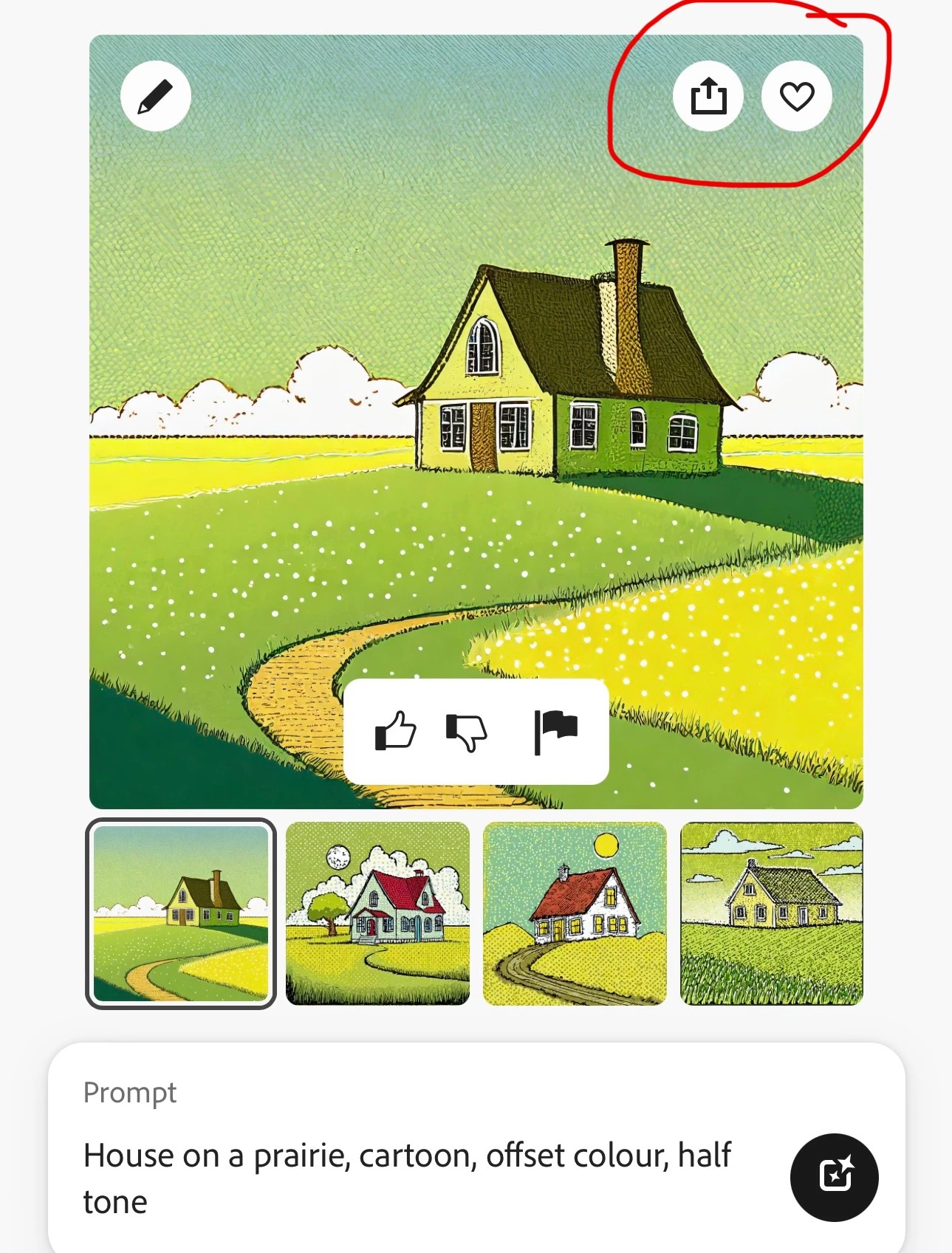
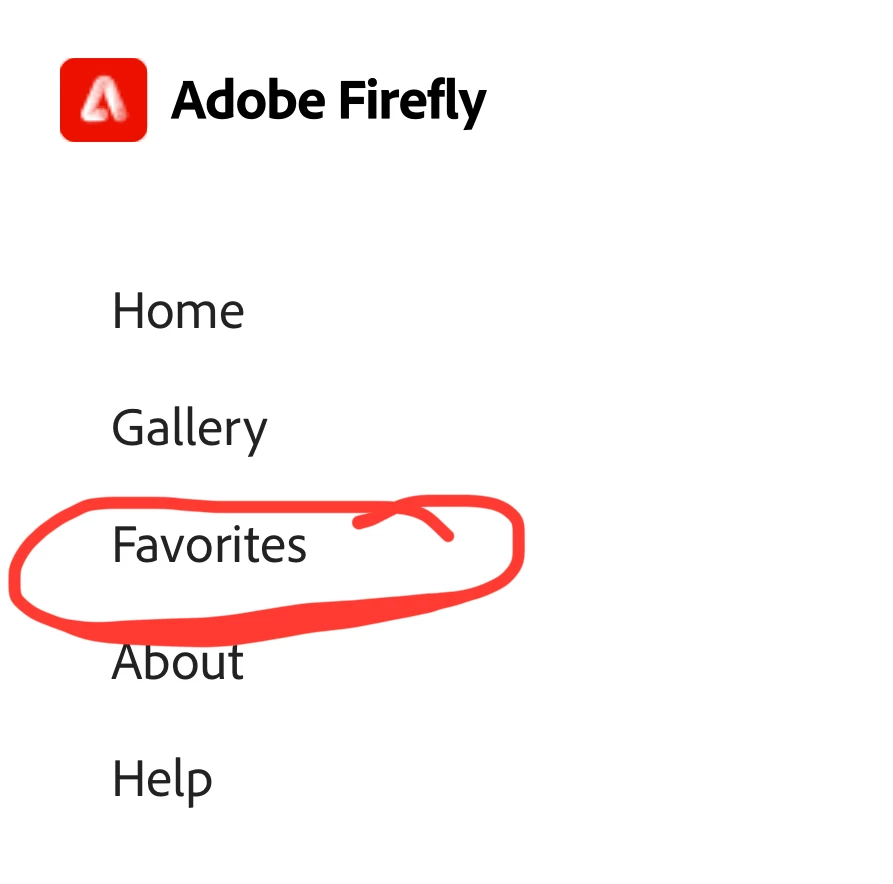
 The right one, "favourite", saves them in the local browser cache. This method allows you to go back and see the image and the prompts and styles that created it. The favourites are only available in that browser on that computer, and can be lost if you delete local browser data. You can see any favourites saved from the "Favourites" tab on the main Firefly page (this example is from a mobile phone):
 

The button on the left provides several options:
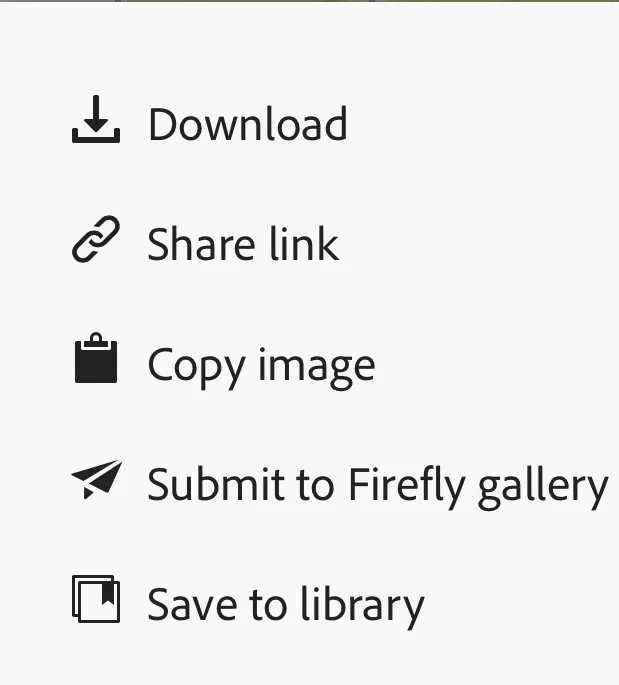
 

  • Download allows you to save the image to your local computer
  • Share a link allows to to copy a URL that takes you back to the image in firefly where you can see the prompt and styles 
  • Copy image allows you to paste the image into another application
  • Save to library allows to save a copy of the image to your Creative Cloud library (and access from other Adobe products)


If you do not save via one of these, the image is lost forever.

1 reply

droopydog500
Community Manager
droopydog500Community ManagerCorrect answer
Community Manager
March 25, 2024

They are not saved automatically. You have to take action to save them. There are several ways. They originate with the buttons on the top right of an image:

 The right one, "favourite", saves them in the local browser cache. This method allows you to go back and see the image and the prompts and styles that created it. The favourites are only available in that browser on that computer, and can be lost if you delete local browser data. You can see any favourites saved from the "Favourites" tab on the main Firefly page (this example is from a mobile phone):


The button on the left provides several options:


  • Download allows you to save the image to your local computer
  • Share a link allows to to copy a URL that takes you back to the image in firefly where you can see the prompt and styles 
  • Copy image allows you to paste the image into another application
  • Save to library allows to save a copy of the image to your Creative Cloud library (and access from other Adobe products)


If you do not save via one of these, the image is lost forever.

Adobe Community Expert (not an Adobe employee)