I’m specifically saying in the prompt to not animate the image/product other than a camera zooming pan yet it continues to waste hundreds of my credits animating what should be a still product.
Thanks so much for the detailed breakdown and the before/after examples, that really helps clarify what's happening.
A couple of thoughts on how to get closer to what you're going for:
Negative prompting: Firefly's Text to Image/Video models don't currently support negative prompting (instructions like "do NOT change the products"). Since the models are trained to respond to direct, affirmative instructions, a negation like this can actually be harder for them to interpret reliably than a positive command would be. That's likely part of why the new section got added despite your instruction.
For future prompts, try rephrasing the "don't" as a "do" for example, instead of "do not change the products or sections," try something like "keep the existing products and sections exactly as shown, and add new display unit options around them." Framing it as what to preserve, rather than what to avoid, tends to give the model much clearer guardrails to follow.
For generating variations of your display units: Since your goal is really about exploring options while keeping your original products and sections intact, I'd actually recommend a different workflow than prompting directly on the image. Two Firefly features are built exactly for this:
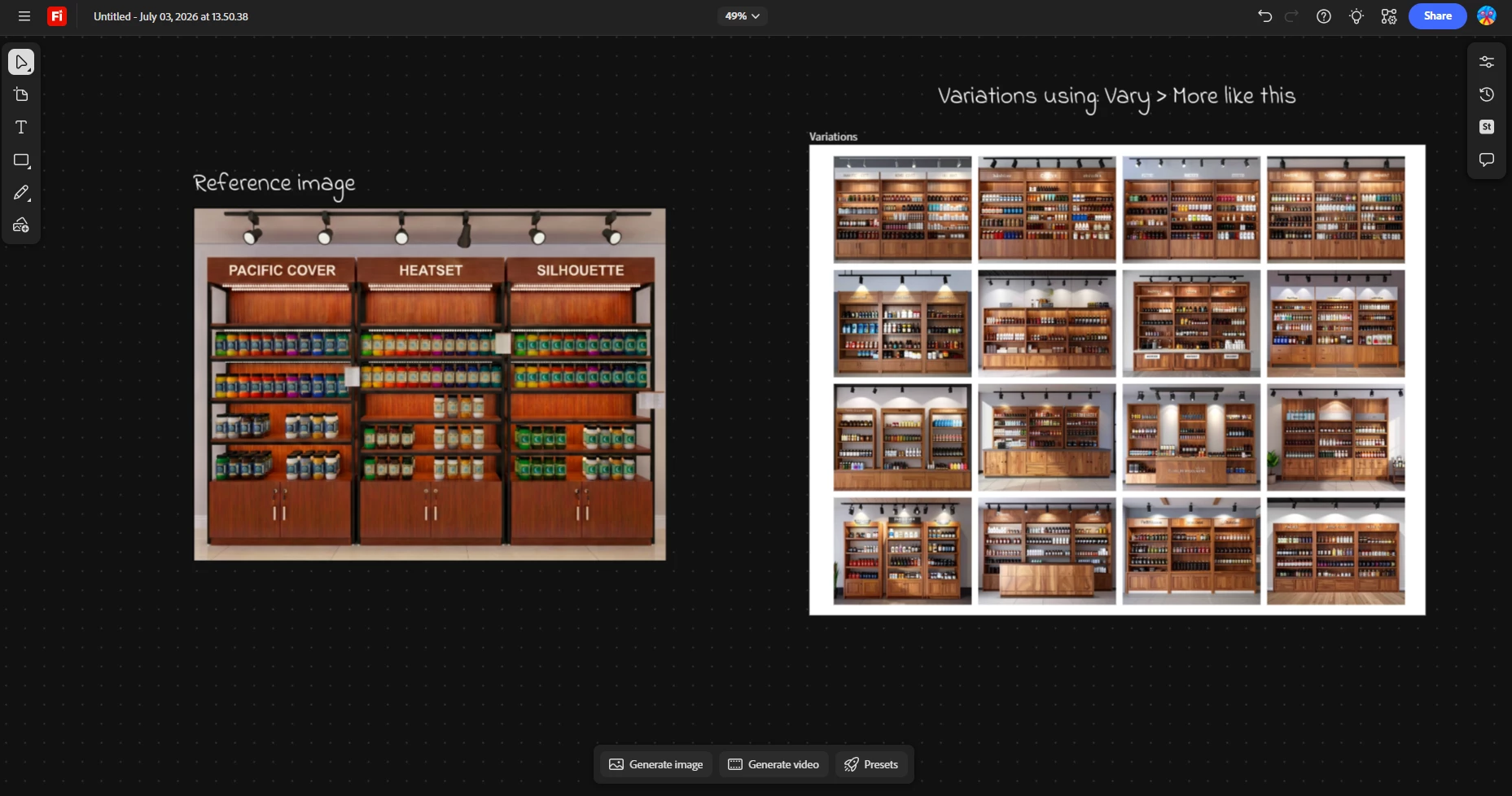
Boards: this is great for ideation. Select your reference image, then use Vary > More like this. It'll generate a batch of variations (powered by Firefly Image 5) that you can browse through like a brainstorm. Once one catches your eye, you can refine it further from there.
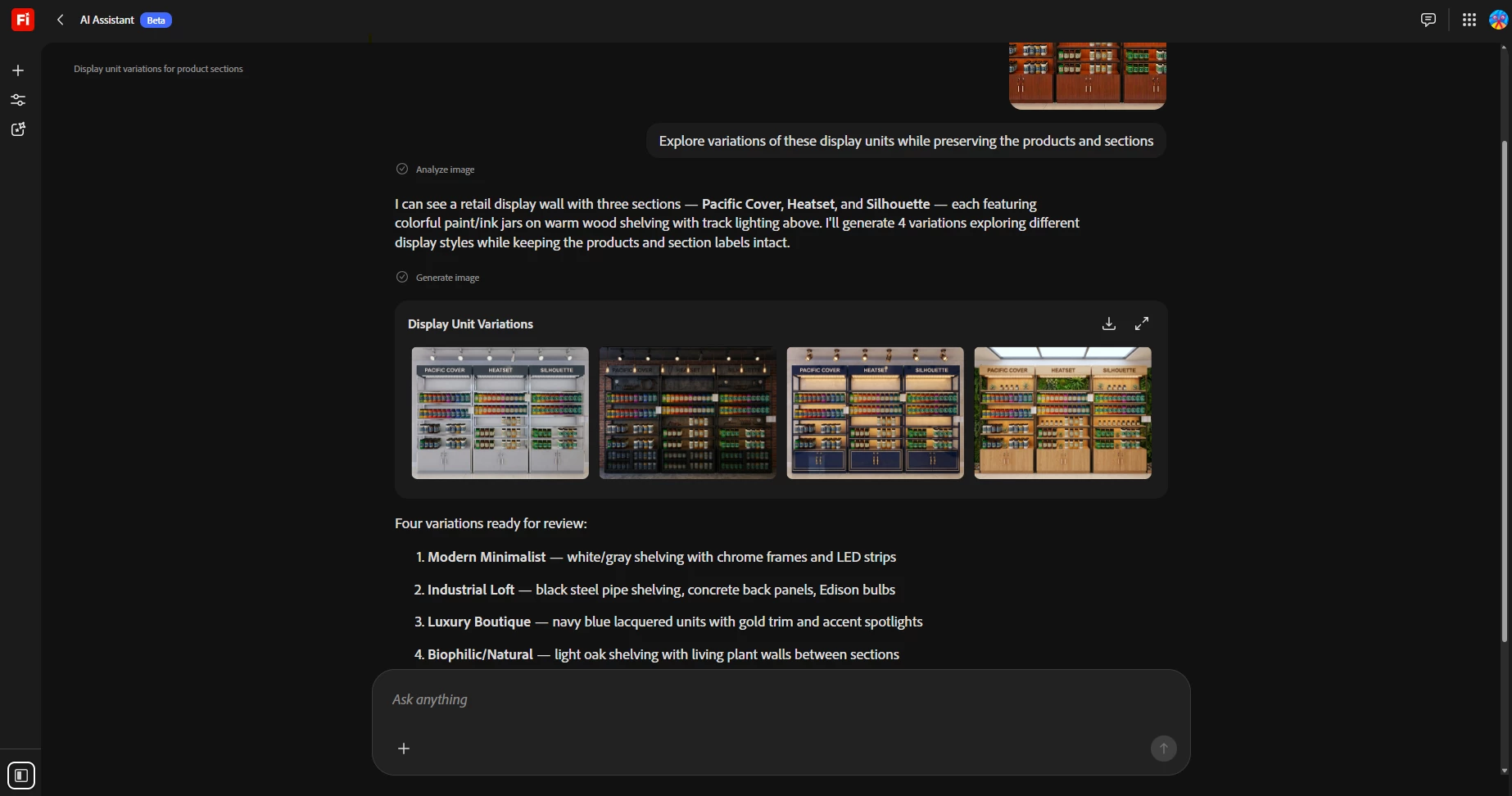
AI Assistance: this is ideal for the "don't change the products, only tweak this part" kind of instruction. It follows conversational edits really well, remembers your preferences throughout the chat, and generates multiple options while you refine, all without straying from your original elements the way a single flat prompt sometimes can.
Prompting alone (especially with just one photo and no structural guardrails) can lead the model to reinterpret sections rather than preserve them, which sounds like what happened here.
For upscaling with label reference details: A quick correction on the right tool here, the Upscale tool itself doesn't support directed prompting for specific details like label colors; it's designed purely to improve resolution and overall image quality/sharpness, delivering professional-grade results rather than targeting specific elements.
For what you're after, getting the label details accurate to your reference images; the Markup tool is the better fit. It lets you precisely and directly edit targeted areas of an image (like a label or a color) rather than relying on a broad prompt to catch fine details.
So the ideal process would be two steps: use Markup first to get the label details/colors precisely right using your reference images, then use Upscale afterward for an overall boost in resolution and quality once the details are locked in.
Try Boards Vary feature for your section variations and the Edit tab's: Markup then Upscale tool for the label detail work, or simply use the AI assistance for the entire workflow, and let us know how it goes.
Thanks so much for the detailed breakdown and the before/after examples, that really helps clarify what's happening.
A couple of thoughts on how to get closer to what you're going for:
Negative prompting: Firefly's Text to Image/Video models don't currently support negative prompting (instructions like "do NOT change the products"). Since the models are trained to respond to direct, affirmative instructions, a negation like this can actually be harder for them to interpret reliably than a positive command would be. That's likely part of why the new section got added despite your instruction.
For future prompts, try rephrasing the "don't" as a "do" for example, instead of "do not change the products or sections," try something like "keep the existing products and sections exactly as shown, and add new display unit options around them." Framing it as what to preserve, rather than what to avoid, tends to give the model much clearer guardrails to follow.
For generating variations of your display units: Since your goal is really about exploring options while keeping your original products and sections intact, I'd actually recommend a different workflow than prompting directly on the image. Two Firefly features are built exactly for this:
Boards: this is great for ideation. Select your reference image, then use Vary > More like this. It'll generate a batch of variations (powered by Firefly Image 5) that you can browse through like a brainstorm. Once one catches your eye, you can refine it further from there.
AI Assistance: this is ideal for the "don't change the products, only tweak this part" kind of instruction. It follows conversational edits really well, remembers your preferences throughout the chat, and generates multiple options while you refine, all without straying from your original elements the way a single flat prompt sometimes can.
Prompting alone (especially with just one photo and no structural guardrails) can lead the model to reinterpret sections rather than preserve them, which sounds like what happened here.
For upscaling with label reference details: A quick correction on the right tool here, the Upscale tool itself doesn't support directed prompting for specific details like label colors; it's designed purely to improve resolution and overall image quality/sharpness, delivering professional-grade results rather than targeting specific elements.
For what you're after, getting the label details accurate to your reference images; the Markup tool is the better fit. It lets you precisely and directly edit targeted areas of an image (like a label or a color) rather than relying on a broad prompt to catch fine details.
So the ideal process would be two steps: use Markup first to get the label details/colors precisely right using your reference images, then use Upscale afterward for an overall boost in resolution and quality once the details are locked in.
Try Boards Vary feature for your section variations and the Edit tab's: Markup then Upscale tool for the label detail work, or simply use the AI assistance for the entire workflow, and let us know how it goes.
Not making changes to the image Help us, help you, please provide the following:
The Full Prompt: The exact text you entered into the prompt box.
Settings and Model: The specific model used and any other settings (such as aspect ratio, content type, or style strength).
Reference Images: A copy of any reference images or keyframes used to guide the generation in a zip file (to preserve the image’s details).
Visual Examples: Please upload a copy of the "bad" generation so we can see exactly what the output looks like and tell us what is wrong if it is not obvious.
Let us know once you have the details ready, we’ll be glad to help.
I’ve attached a zip with a before and after generation. my prompt was “create new options for display units. DO NOT CHANGE THE PRODUCTS OR THE SECTIONS” I gave it only the first photo, somehow it decided to disregard my prompt and add a whole new section of products I’ve never encountered. On top of this, I’ve tried upscaling the original photo with detailed reference images for the labels they should have and it never seems to add them. Not sure what I should be prompting but I normally go with something like “upscale image, reference pictures for detail reference of corresponding label colours”.



 AdChoices