



Two ways to save your favorites in Adobe Firefly

Alright everyone, I hope you're as excited about this new feature as I am. Starting with the latest release of Adobe Firefly at MAX 2023, you can now save your Generated Text to image and Text effect to your Creative Cloud Libraries! I'll hold while you celebrate.
Previously, you could only save your favorites by clicking on the heart icon for each image. You could then view your favorites via your browser. This does have the limitation of being unable to see your favorites outside of the browser/device. Read more about that here.
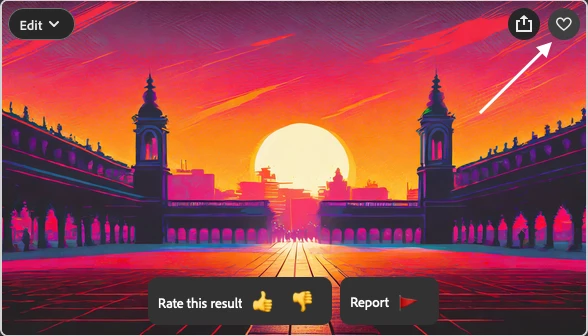
You can now save your Generated Text to image and Text effect to your Creative Cloud Library. Let's get started!
1. Generate an image using Text to image. Here is a prompt to get you started.
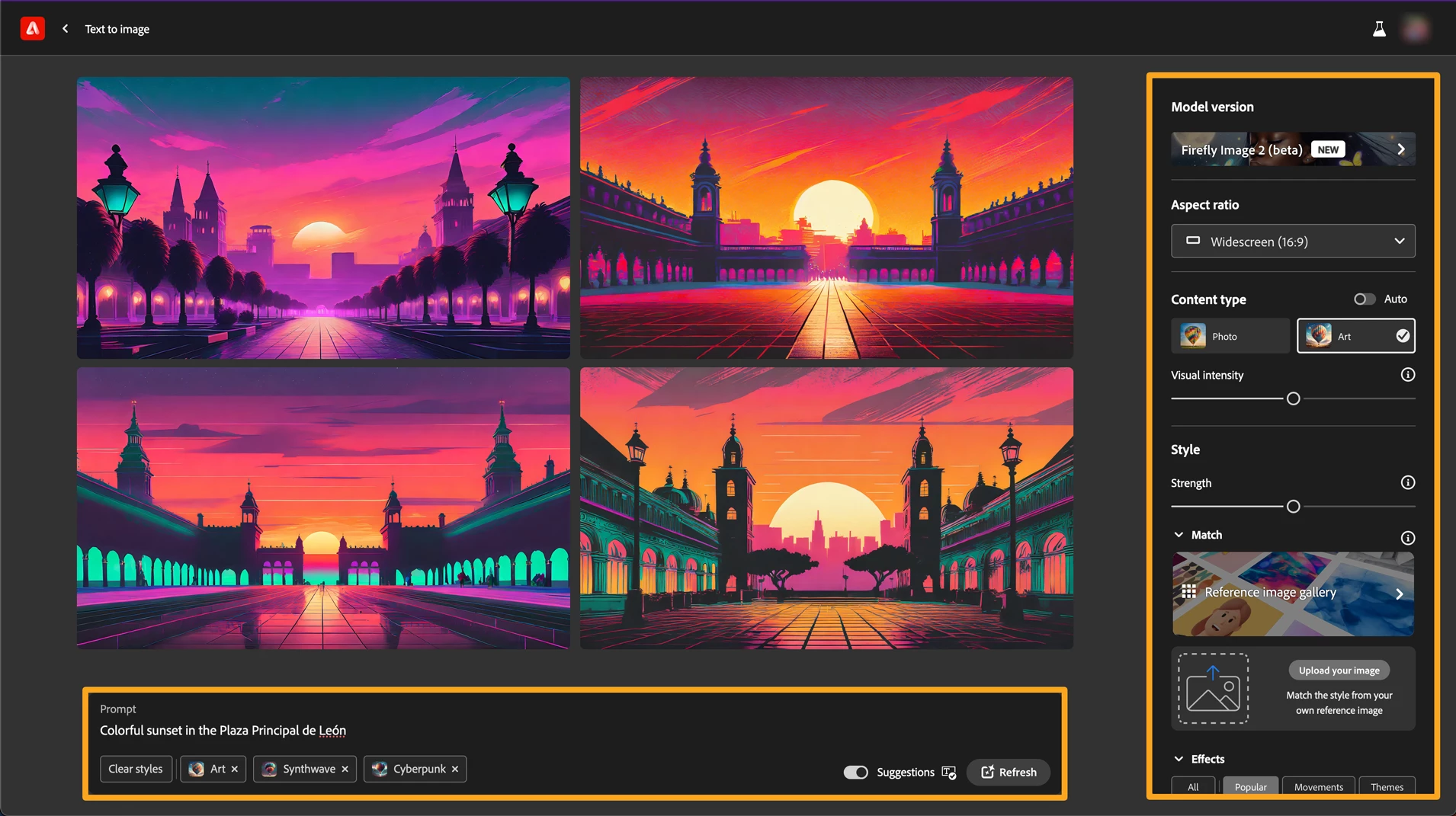
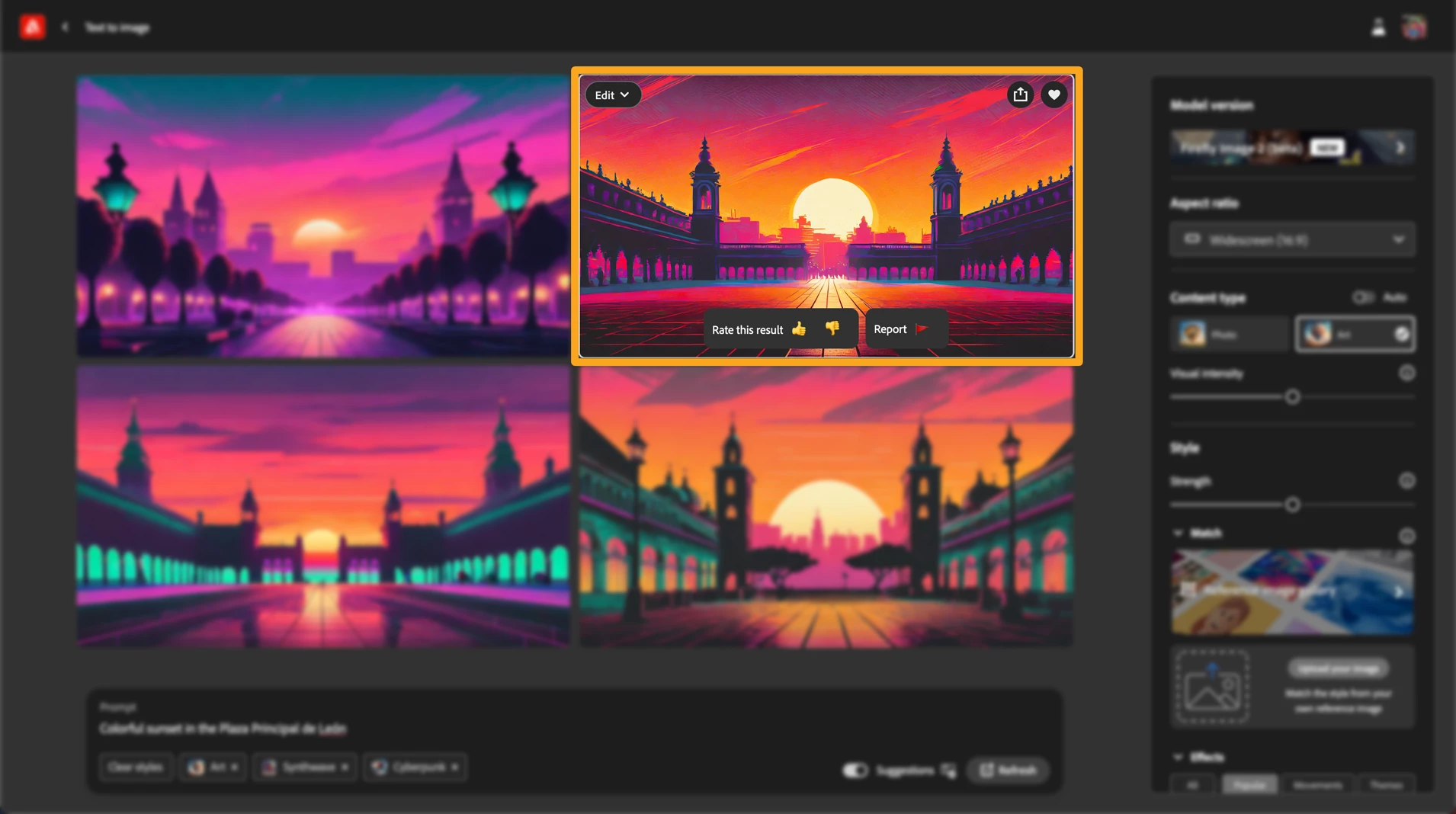
2. Hover over the image you want to save to your Creative Cloud Library and click the share icon.
3. Click on "Save to library"
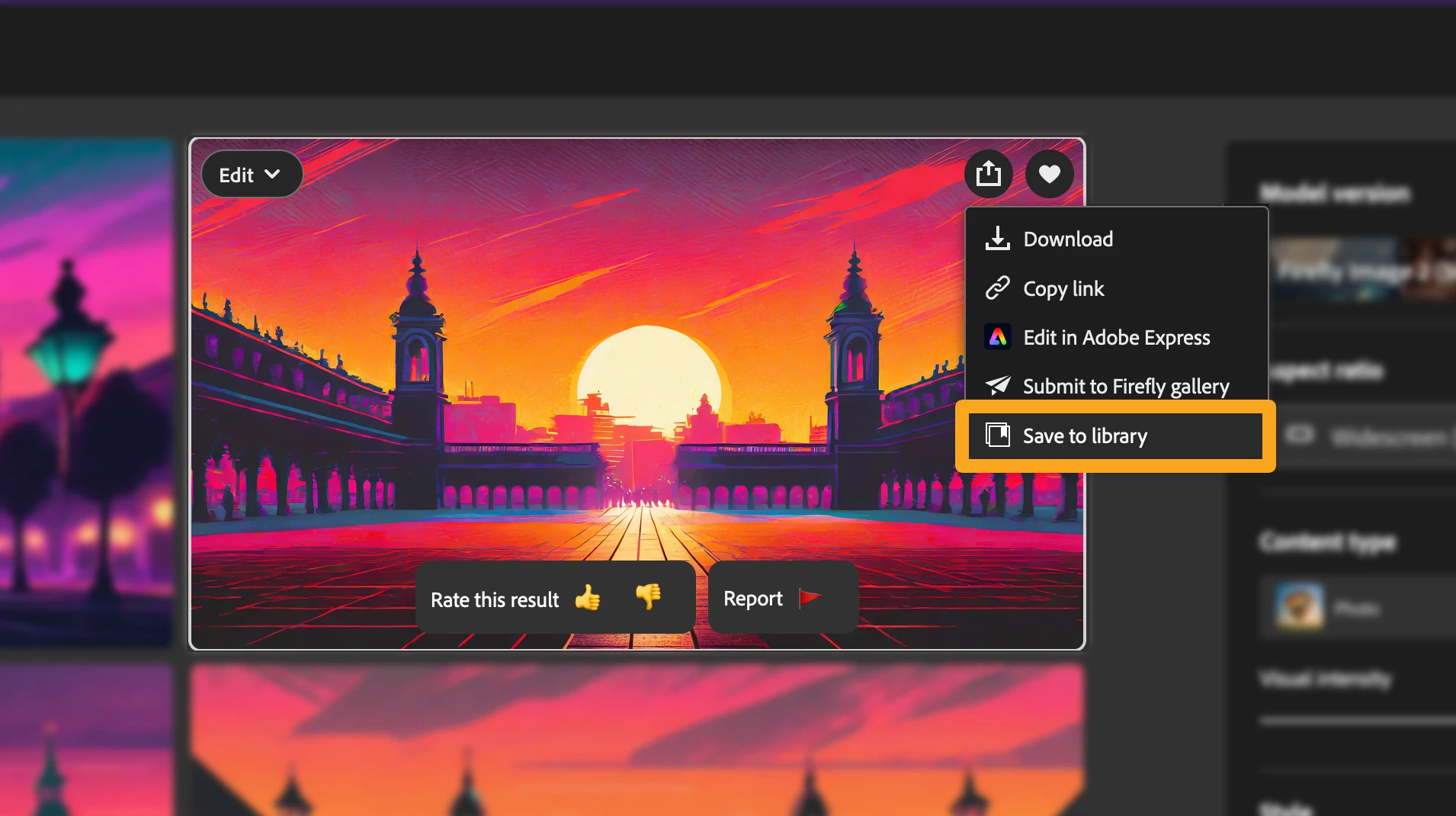
4. Select the folder you would like to save too
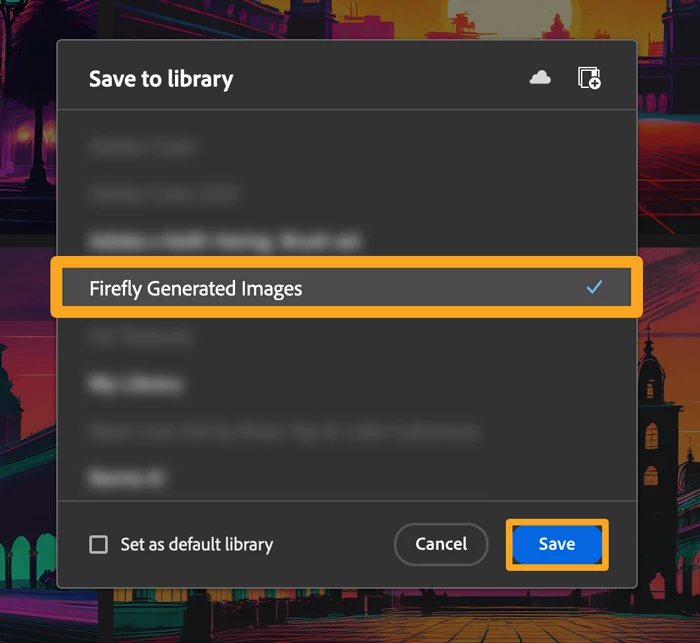
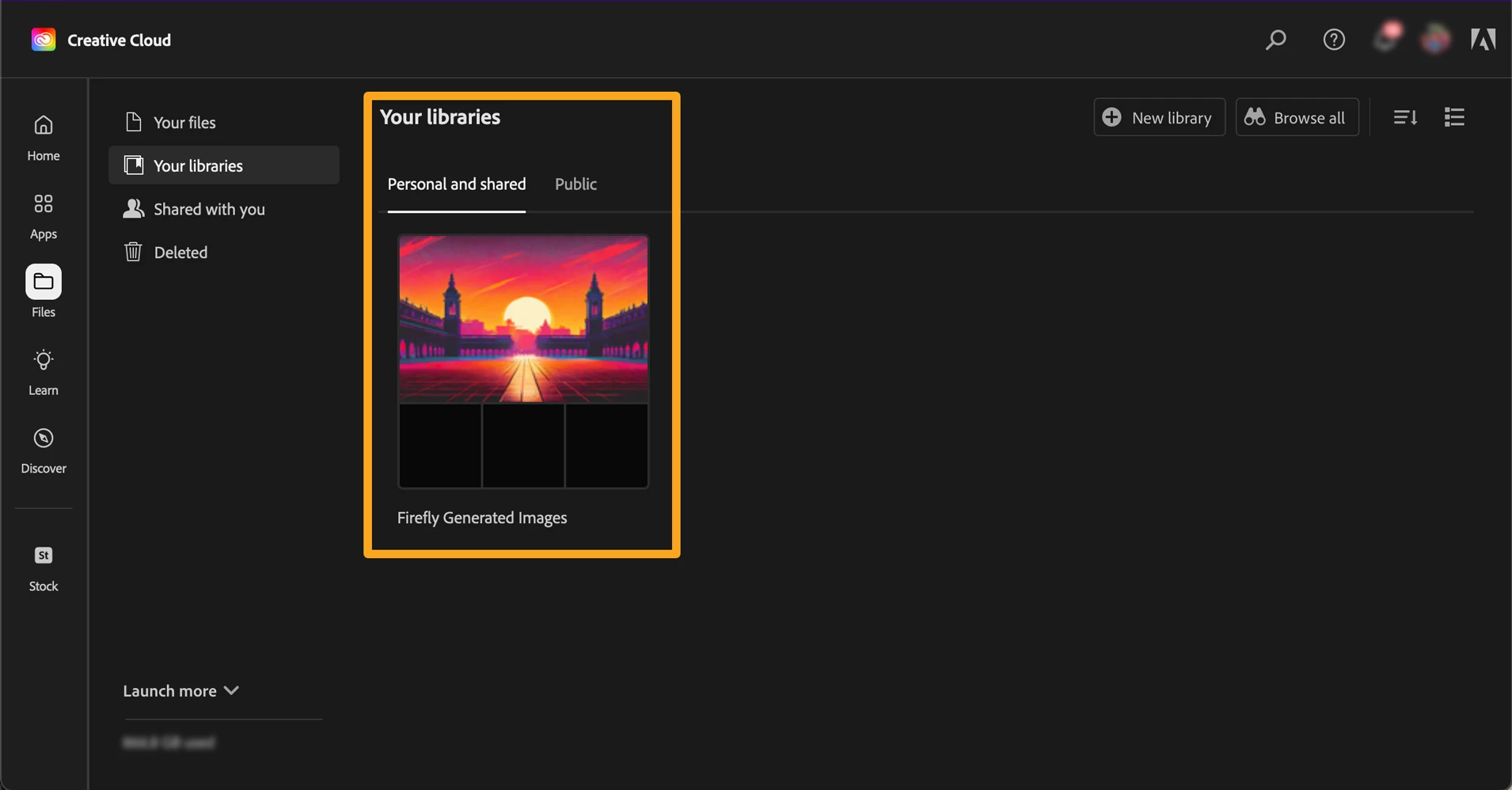
5. Now, the moment of truth...<drum roll> you should be able to see your saved generation here in your Creative Cloud Library!
Let us know what you think of the feature in the comments below! And as always stay up to date with the latest on Firefly in our What's new in Adobe Firefly article.
 AdChoices