Known Participant
April 6, 2023
Answered

How to disable ALM Connector

  • April 6, 2023
  • 1 reply
  • 662 views

Not able to edit or delete Training data access connector

    This topic has been closed for replies.
    Correct answer Madonna_James

    @Chandrakanthi26574696ugut 


    Under "Configure Schedule," please uncheck the box" enable training metadata export using this connection".

    See screenshot below:
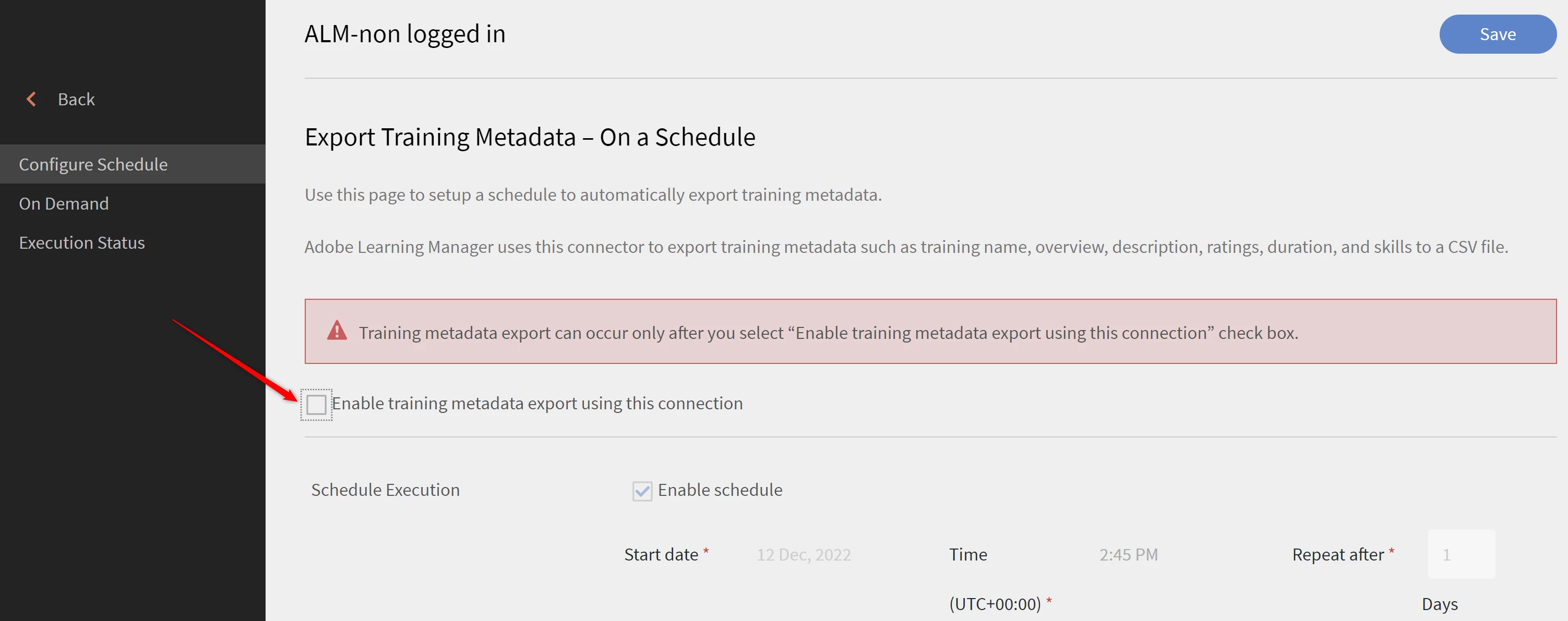
     

    Post unchecking and saving the settings, you should be able to proceed with deleting the connector from the cross sign as in the earlier screenshot.


    Hope that helps.Please reach out to learningmanagersupport@adobe.com incase of an issue.


    Regards,

    Madonna


    1 reply

    Madonna_James
    Adobe Employee
    Adobe Employee
    April 6, 2023

    Hi @Chandrakanthi26574696ugut ,


    Thank you for reaching out to the community.

    You should be able to delete the Training data access connector by navigating to manage connections within the connector and clicking on the cross sign towards the right corner of the Connector as in screenshot below:


    Editing the configuration can be done by selecting the export training metadata.

    Here is a link for your reference: https://helpx.adobe.com/in/learning-manager/integration-admin/feature-summary/connectors.html#connector_trgmetadata 

    Please reach out to us at learningmanagersupport@adobe.com in case you come across any issues.


    Best Regards,

    Madonna James


    Known Participant
    April 6, 2023

    thanks for the solution. However on click of delete icon, it shows "connection is in use. disable the connection"

    Madonna_James
    Adobe Employee
    Madonna_JamesCorrect answer
    Adobe Employee
    April 6, 2023

    @Chandrakanthi26574696ugut 


    Under "Configure Schedule," please uncheck the box" enable training metadata export using this connection".

    See screenshot below:


    Post unchecking and saving the settings, you should be able to proceed with deleting the connector from the cross sign as in the earlier screenshot.


    Hope that helps.Please reach out to learningmanagersupport@adobe.com incase of an issue.


    Regards,

    Madonna