

Middleware Orchestrated Content DAM to Adobe Learning Manager Integration (Article)
Middleware‑Orchestrated Content Migration from DAMs to Adobe Learning Manager (ALM) Using Box FTP + ALM APIs
Enterprises often centralize training assets in a Content DAM (e.g., Aprimo, AEM Assets). To keep Adobe Learning Manager (ALM) continuously in sync, you need an automated, metadata‑driven pipeline for ingesting files and registering versioned learning modules. ALM provides a dedicated migration framework—Box‑backed FTP plus V2 APIs—and a Migration Project construct to do this at scale. The official Migration Manual outlines the end‑to‑end approach and expectations for Integration Admins performing content/data migration into ALM.
Prerequisites for ALM Content Migration automation:
Before beginning DAM → ALM ingestion, these prerequisites must be met:
- Content Files
Supported formats include:
VIDEO, AUDIO, PDF, DOC, PPT, SCORM12, SCORM2004, XLS, etc.
(SCORM/HTML must be zipped; other formats must NOT be zipped.) - Metadata Files
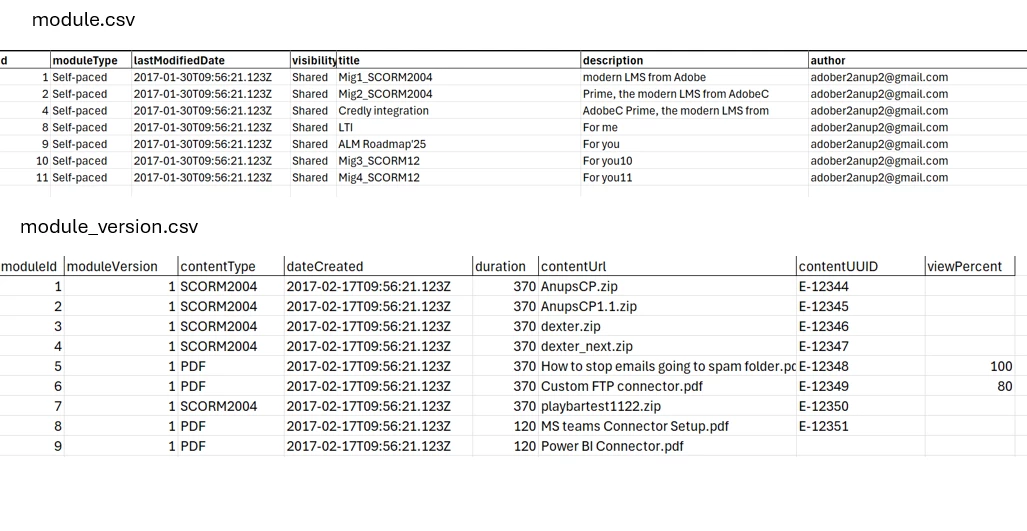
- module.csv
- module-version.csv
These represent ALM’s source‑of‑truth for module identity and version history.
- ALM API Authentication
Access tokens are required to execute ALM APIs.
Client ID + Secret must be configured inside ALM using the Integration Admin “Applications” screen. - Migration Project
ALM Admin must create a Migration Project. Provide migration ID with the developers for the API execution.
Once created, ALM automatically generates two FTP folder paths:- One for content files
- One for metadata files
(This auto‑provisioning is part of the migration project creation workflow.) - The migration ID will be available in the browser url of a sprint page, check for the number followed by “project” string (e.g., project/42018)
- Upload Order Requirements
- Upload content files
- Upload metadata files
- Then trigger API‑based ingestion
Tip: Always consult the ALM Developer Manual for authentication, tokens, scopes, and example usage of V2 (/primeapi/v2/) endpoints before wiring your integrations.
1) When Your DAM Can’t Push: Add a Middleware Orchestrator
Some DAMs cannot natively “push” assets to ALM’s FTP or invoke ALM APIs. In that case, place a middleware service between the DAM and ALM. The middleware will:
- Pull assets and metadata from the DAM (polling or webhooks).
- Map/transform DAM metadata → ALM CSV schema (module.csv, module-version.csv).
- Validate IDs, types, and version logic per ALM rules.
- Place content files into the content folder and CSVs into the metadata folder on ALM Box FTP.
- Pre‑check readiness with GET /bulkimport/cansync (only one run at a time).
- Start the run with POST /bulkimport/startrun.
- Monitor errors and progress using GET /bulkimport/runStatus (see “Migration API Enhancements”).
- Retry/fix by correcting CSV, bumping versions, or aligning IDs, and re‑running.
Architecture Diagram (with Middleware Orchestration)
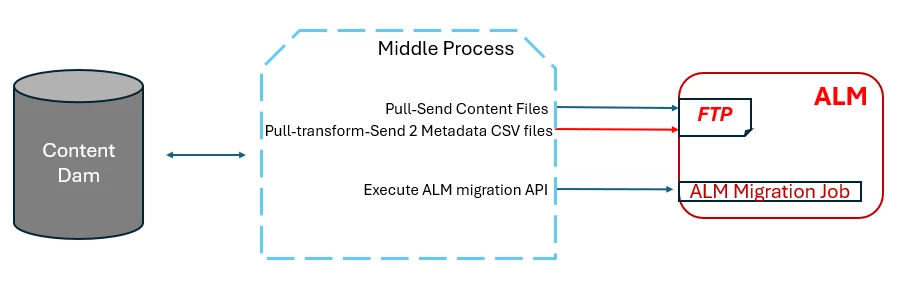
(The diagram shows a middleware service pulling assets/metadata from a DAM, transforming to ALM CSVs, placing files into ALM Box FTP content/metadata folders, performing GET /bulkimport/cansync, POST /bulkimport/startrun, and monitoring GET /bulkimport/runStatus.)
2) Prerequisites and Supported Inputs
Content Files: VIDEO | AUDIO | PDF | DOC | PPT | SCORM12 | SCORM2004 | XLS, etc.
- SCORM/HTML content must be zipped; other file types should not be zipped.
- Adobe recommends keeping file sizes ~700–800 MB to avoid playback issues (no hard limit enforced by ALM).
Metadata Files:
- module.csv
- module-version.csv
These define module identity, types, relationships, and version history for ingestion. Use the ALM migration specifications to structure columns/values correctly. - For more fields check out the Sample CSVs and CSV specifications.
Access & Auth:
- Access tokens are required to execute ALM APIs.
- Client ID and Secret setup is required in ALM under Integration Admin → Applications (OAuth2). See the Developer Manual for the token refresh flow and scopes.
Migration Project:
- The ALM Admin creates the Migration Project.
- Upon creation, two FTP folder paths are auto‑provisioned to receive content and metadata (e.g., module.csv, module-version.csv).
3) End‑to‑End Flow (Middleware‑Centric)
- Admin: Create Migration Project in ALM → FTP folders auto‑created.
- Middleware: Pull assets + metadata from the DAM (e.g., Aprimo).
- Middleware: Build module.csv / module-version.csv according to ALM specs.
- Middleware: Upload content to /content/ and CSVs to /metadata/ on ALM FTP.
- Middleware: Check readiness → GET /bulkimport/cansync?migrationProjectId=<ID> (only one run allowed).
- Middleware: Start the run → POST /bulkimport/startrun?lockaccount=false&catalogid=-1&migrationProjectId=<ID>.
- Middleware: Monitor → GET /bulkimport/runStatus?migrationProjectId=<ID>&sprintId=<ID>&sprintRunId=<ID> to capture errors, resolve, and retry.
- Ops: Review logs, verify module counts, and confirm new/updated versions surfaced in ALM.
4) CSV Integrity & Versioning Rules (Why Runs Fail)
- All historical rows must have stable, unique IDs while updates sync.
- id (module.csv) must match moduleid (module-version.csv); mismatches lead to import failure.
- First import is always Version 1 inside ALM, even if CSV shows a higher starting version.
- Version bumps must be reflected in module-version.csv; if the file changes but the version number does not, the import fails.
- Post‑import, you cannot change certain module fields via CSV (e.g., display name/description); authors must adjust those in the ALM UI.
All of these rules are laid out in the migration guidance/specification set.
5) API Sequence
Always review the ALM Developer Manual for OAuth setup, token refresh frequency, scopes, and example cURL/HTTP structures for /primeapi/v2/ endpoints.
a) Get Access Token (OAuth Refresh)
HTTP
POST https://<tenant>/oauth/token/refresh
?client_id=<client_id>
&client_secret=<client_secret>
&refresh_token=<refresh_token>
(How to register the application and obtain client credentials is documented in the Developer Manual.)
b) Pre‑Run Readiness Check
ALM API to check if a migration is already running:
HTTP
GET /bulkimport/cansync?migrationProjectId=<ID>
(Only one run can be active.)
c) Start Migration Run
ALM API to start a migration run:
HTTP
POST /bulkimport/startrun?lockaccount=false&catalogid=-1&migrationProjectId=<ID>
(Trigger ingestion for files already present on FTP.)
d) Status & Error Inspection (Migration API Enhancements)
ALM API to retrieve run status / errors:
HTTP
GET /bulkimport/runStatus
?migrationProjectId=<ID>&sprintId=<ID>&sprintRunId=<ID>
6) Operational Best Practices
- File Sizes: Keep large videos and SCORM packages to ~700–800 MB where possible to protect learner playback performance.
- Single Run at a Time: Always call cansync before startrun.
- Retry Logic: Bake middleware retries for transient FTP/API failures and for CSV validation errors surfaced by runStatus (Migration API Enhancements).
- Security: Rotate client secrets and follow OAuth token hygiene outlined in the Developer Manual.
Quick Checklist:
- Content Files: VIDEO | AUDIO | PDF | DOC | PPT | SCORM12 | SCORM2004 | XLS etc.
- Metadata file 1: module.csv
- Metadata file 2: module-version.csv
- ALM API to start a migration run: POST /bulkimport/startrun (V2)
- ALM API to check if a migration is already running: GET /bulkimport/cansync
- Access tokens are used to execute ALM APIs. Client ID/Secret setup is required in ALM (Integration Admin → Applications; OAuth2).
- ALM Admin will create the Migration Project.
- Once the project is created, two FTP folder paths are auto‑created to receive content files and metadata files (from Aprimo or any DAM via middleware).
References:
- ALM Migration Manual – end‑to‑end migration specs, roles, and steps.https://experienceleague.adobe.com/en/docs/learning-manager/using/integration/migration-manual
- ALM Developer Manual (V2 APIs) – OAuth, scopes, and how to use ALM APIs.
https://experienceleague.adobe.com/en/docs/learning-manager/using/integration/developer-manual - What’s New (Oct 2025) – Migration API Enhancements – improved status/error monitoring.https://experienceleague.adobe.com/en/docs/learning-manager/using/introduction/whats-new
- Setup Box FTP – How to setup Box Ftp for your ALM instance.
.https://experienceleague.adobe.com/en/docs/learning-manager/using/integration/connectors#box_connector
-------------------------------------------------------------------------------------------------------------------------------------------
#adobe learning manager content migration using ftp and api, #adobe learning manager dam integration guide, #how to integrate a content dam with adobe learning manager, #alm bulkimport api migration workflow, #middleware orchestrated migration to adobe learning manager, #alm box ftp integration guide for scorm and video content, #automate content sync from dam to adobe learning manager, #module csv and module version csv format for alm migration, #alm migration project setup step by step, #check if alm migration run is in progress bulkimport cansync, #start adobe learning manager migration run bulkimport startrun, #alm migration errors runstatus how to troubleshoot, #oauth access token setup for adobe learning manager apis, #how to build middleware for adobe learning manager integration, #aprimo to adobe learning manager integration using ftp, #scorm pdf video migration into adobe learning manager automatically, #enterprise learning content migration using alm apis, #adobe learning manager migration api enhancements october 2025, #how to monitor alm migration status using runstatus api, #content dam to alm automated versioning and ingestion pipeline, #adobe learning manager v2 api examples for migration


 AdChoices