Harrell_t
Inspiring
March 9, 2017
Answered

What are the steps to run a learner transcript report by department?

  • March 9, 2017
  • 1 reply
  • 475 views

Hi,

What are the steps to run a report based on learner transcripts by department?

I ran a learner transcript report and the field/column for department was not there (but I uploaded my CSV of users with that column).

Thanks.

This topic has been closed for replies.
Correct answer Harrell_t

(Thanks, Devendra Nath Mishra, Technical Support Consultant -- for calling me and patiently walking me through the NOT-SO-INTUITIVE STEPS).

I'll do my best to summarize this process here, but, I strongly encourage Adobe Prime team to begin releasing documentation around features like this, that, frankly are not intuitively discovered and are the instructions are not publically available. PLEASE ADOBE.

**Side, note: I'm fighting hard internally, to keep using the Adobe Captivate Prime platform. But, Adobe does not make it easy when my VP asks me for a report of learners' transcripts filtered down to geographic location or by department and I say "okay I'll create that for you and get it right back to you" -- then I find out, it's not so simple. I'm a Prime fan, but, you all don't make it easy. Hire me to support the Adobe team in their documentation efforts. I'm glad to help.**

Okay, back to this process:

  1. Any categories/fields/columns you want to see in reports, you have to create them.
  2. In your CSV file (used to bulk upload your learners into Prime) add the columns (example: department).
  3. When this CSV is uploaded, Prime acknowledges the column.
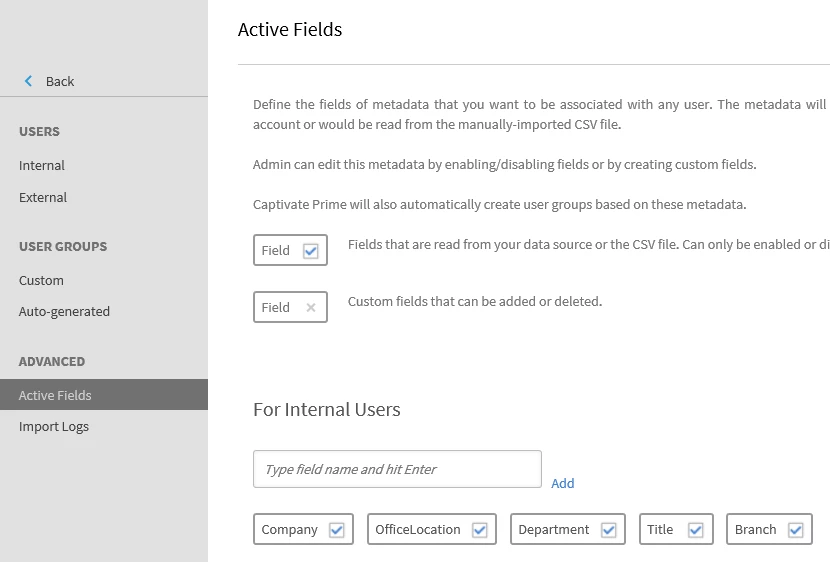
  4. Then go to Active Fields (users-->active fields), check the boxes for the fields you want available in your reports, and click add.
  5. THEN, RE-UPLOAD THE CSV, for Prime to hold the columns in long-term memory.
  6. NOTE: there are instructions on the Active Field screen that state you can create your custom/active fields from that screen, but I have not tested that technique.
[This is a down and dirty explanation, hopefully we site admins will have a set of guides we can refer to for this kind of stuff soon. Based on my trial and error, I'll gladly share what I know with the other site admins in the forum.]

Regards,

Thomas H.

Master Electronics

1 reply

Harrell_t
Harrell_tAuthorCorrect answer
Inspiring
March 17, 2017

(Thanks, Devendra Nath Mishra, Technical Support Consultant -- for calling me and patiently walking me through the NOT-SO-INTUITIVE STEPS).

I'll do my best to summarize this process here, but, I strongly encourage Adobe Prime team to begin releasing documentation around features like this, that, frankly are not intuitively discovered and are the instructions are not publically available. PLEASE ADOBE.

**Side, note: I'm fighting hard internally, to keep using the Adobe Captivate Prime platform. But, Adobe does not make it easy when my VP asks me for a report of learners' transcripts filtered down to geographic location or by department and I say "okay I'll create that for you and get it right back to you" -- then I find out, it's not so simple. I'm a Prime fan, but, you all don't make it easy. Hire me to support the Adobe team in their documentation efforts. I'm glad to help.**

Okay, back to this process:

  1. Any categories/fields/columns you want to see in reports, you have to create them.
  2. In your CSV file (used to bulk upload your learners into Prime) add the columns (example: department).
  3. When this CSV is uploaded, Prime acknowledges the column.
  4. Then go to Active Fields (users-->active fields), check the boxes for the fields you want available in your reports, and click add.
  5. THEN, RE-UPLOAD THE CSV, for Prime to hold the columns in long-term memory.
  6. NOTE: there are instructions on the Active Field screen that state you can create your custom/active fields from that screen, but I have not tested that technique.

[This is a down and dirty explanation, hopefully we site admins will have a set of guides we can refer to for this kind of stuff soon. Based on my trial and error, I'll gladly share what I know with the other site admins in the forum.]

Regards,

Thomas H.

Master Electronics